Downgrading from El Capitan to Mavericks

Hello all,


I would like to downgrade to OSX Mavericks from El Capitan because I find that El Capitan and Yosemite are both slow. I've tried using the Macworld Guide to downgrade (http://www.macworld.co.uk/how-to/mac-software/delete-el-capitan-go-back-to-yosem ite-3581872/) by changing


sudo /Applications/Install\ OS\ X\ Yosemite.app/Contents/Resources/createinstallmedia --volume /Volumes/Untitled --applicationpath /Applications/Install\ OS\ X\ Yosemite.app --nointeraction

to

sudo /Applications/Install\ OS\ X\ Mavericks.app/Contents/Resources/createinstallmedia --volume /Volumes/Untitled --applicationpath /Applications/Install\ OS\ X\ Mavericks.app --nointeraction

making a bootable install USB. I follow the guid, and everything goes fine until the computer restarts to install Mavericks. That's when the problem kicks in. Everything goes smoothly in the installation process until the "INSTALL OSX MAVERICKS" page with a animated loading bar. The bar goes normally for about 2 seconds, and then the entire screen goes gray and an error pops up : "Unable to find local user system." I tried it all over again multiple times, but it didn't work. I then tried to use Recovery HD to install my shipping OS (Mountain Lion) but it does not let me install due to "A newer OS is already installed on Macintosh HD." After that, I opened up Disk Utility and tried to erase Macintosh HD, which gave me the error message "this disk is in use, and cannot be unmounted."

Next, I accidentaly pressed the First Aid button and the first aid thingy said "Rescue as many files as possible and erase the disk. It is corrupt." How in heck does it tell me to erase the disk when I can't? Plus, how can it tell me that the disk is corrupt when I can still boot El Capitan and use it normally (albeit a bit slowly)? I also tried the underlined part with Recovery Disk Assistant on a USB drive (OS X: About Recovery Disk Assistant - Apple Support) OSX Mavericks install USB, and Internet Recovery. None seem to work. Please help, this is a computer I use for school. 😠😢

My techonlogy :

Mavericks Install USB : Partition on a 3TB WD Drive

Recovery Disk Assistant Drive : Lexar S50 32G USB

Macbook Air (Mid-2013) : 6,2

MacBook Air, OS X Yosemite (10.10.3), Mid 2013

Posted on Oct 30, 2015 3:54 PM

Reply
13 replies

Oct 30, 2015 4:20 PM in response to dmwangt

As explained in the MacWorld article, you must erase the disk that has El Capitan on it before you can install an older OS version on it. This will erase everything on it so you must have a backup of at least all your document files before you do this.


To erase the drive, boot into Recovery or your Mavericks installer, open Disk Utility, choose your normal startup disk from the list on the left & click the erase button. Then you should be able to install Mavericks.


EDIT: note that you will need a backup made when Mavericks was the OS your Mac was running or you will not be able to use anything that was updated for Yosemite or El Capitan, like Mail.app.


Personally, I think you should avoid doing this & find & eliminate whatever was making your system run slowly on El Capitan.

Oct 30, 2015 4:27 PM in response to dmwangt

dmwangt wrote:


Thanks for the reply, but as noted above the Recovery HD does not let me erase my startup disk and the mavericks installer does not let me erase it either. Is there any other way?

You said you tried using a Recovery HD made with Recovery Disk Assistant, but Apple's article says that is only for use with Macs using OS X Lion or OS X Mountain Lion.


Regardless, it should only be used if you cannot start up from the builtin Recovery HD partition. Have you tried doing that?

Oct 30, 2015 4:30 PM in response to dmwangt

1. Deleting files is not the same as erasing the disk. You must erase the disk with El Capitan on it before you can install an earlier OS version on it.


2. "Other" includes everything not in the other categories. That includes both the OS & any document files you have created that are not audio, photo, or movie files.

Oct 30, 2015 4:48 PM in response to dmwangt

dmwangt wrote:

Thanks for the concern, yes, I can start up from the builtin Recovery HD partition. I just can't erase the disk because Disk Utility says that the Macintosh HD cannot be unmounted.

Are you certain you have started up from the Recovery HD partition? When you do this correctly, the first thing you see is a dark screen with this window in the middle:

User uploaded file

Note the menu bar differences indicated by the arrows. In that window select Disk Utility as shown & click continue. This should start the copy of Disk Utility on the Recovery HD partition. From there, make sure you select the indented "Macintosh HD" from the list on the left. You should be able to erase it without problems because the system is not running from it. (You cannot unmount or repair the disk the system runs from.)

Oct 30, 2015 5:06 PM in response to R C-R

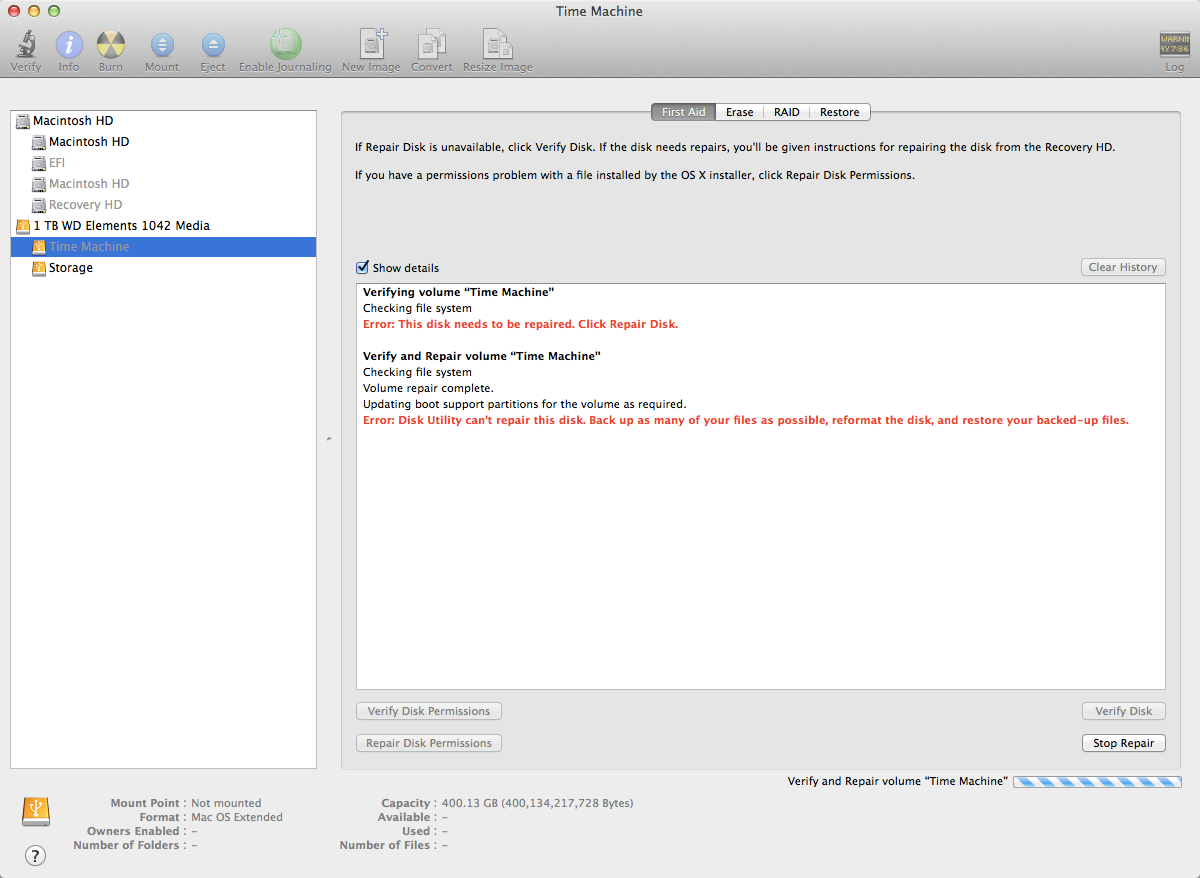
Yup, I am 100% sure that I started up from Recovery because I held down Command + R and I saw the screen above. User uploaded file
This is similar to what happened to me. I started noticing that my computer started crashing very often

Anonymous UUID: 9E07C9B3-CAE1-0282-2317-859ADEDBFD4F


Fri Oct 30 20:01:26 2015


*** Panic Report ***

panic(cpu 2 caller 0xffffff801379ae8e): "Process 1 exec of /sbin/launchd failed, errno 2"@/Library/Caches/com.apple.xbs/Sources/xnu/xnu-3247.10.9/bsd/kern/kern_exec.c :4279

Backtrace (CPU 2), Frame : Return Address

0xffffff80ac15bde0 : 0xffffff80132e6417

0xffffff80ac15be60 : 0xffffff801379ae8e

0xffffff80ac15bee0 : 0xffffff80137729cb

0xffffff80ac15bf00 : 0xffffff80137b7d31

0xffffff80ac15bf40 : 0xffffff80132e0efd

0xffffff80ac15bf80 : 0xffffff80133d843e

0xffffff80ac15bfa0 : 0xffffff80133f51bf


BSD process name corresponding to current thread: init


Mac OS version:

Not yet set


Kernel version:

Darwin Kernel Version 15.0.0: Tue Sep 15 12:43:52 PDT 2015; root:xnu-3247.10.9~3/RELEASE_X86_64

Kernel UUID: 1666AE46-5BC8-396A-A099-DF86AD27E35B

Kernel slide: 0x0000000013000000

Kernel text base: 0xffffff8013200000

__HIB text base: 0xffffff8013100000

System model name: MacBookAir6,2 (Mac-7DF21CB3ED6977E5)


System uptime in nanoseconds: 4503938497

last loaded kext at 2241825847: com.apple.driver.AppleUSBCardReader 3.7.1 (addr 0xffffff7f955cd000, size 65536)

loaded kexts:

com.apple.driver.AppleUSBCardReader 3.7.1

com.apple.iokit.IOBluetoothUSBDFU 4.4.0f4

com.apple.iokit.SCSITaskUserClient 3.7.7

com.apple.driver.AppleUSBStorageCoexistentDriver 3.7.1

com.apple.driver.CoreStorageFsck 517

com.apple.driver.AppleFileSystemDriver 3.0.1

com.apple.AppleFSCompression.AppleFSCompressionTypeDataless 1.0.0d1

com.apple.AppleFSCompression.AppleFSCompressionTypeZlib 1.0.0

com.apple.BootCache 37

com.apple.driver.AppleTopCaseHIDEventDriver 81.2

com.apple.iokit.IOAHCIBlockStorage 2.8.0

com.apple.driver.AppleAHCIPort 3.1.5

com.apple.driver.AirPort.Brcm4360 1000.12.1a23

com.apple.driver.AppleSmartBatteryManager 161.0.0

com.apple.driver.AppleRTC 2.0

com.apple.driver.AppleACPIButtons 4.0

com.apple.driver.AppleHPET 1.8

com.apple.driver.AppleSMBIOS 2.1

com.apple.driver.AppleACPIEC 4.0

com.apple.driver.AppleAPIC 1.7

com.apple.nke.applicationfirewall 163

com.apple.security.quarantine 3

com.apple.security.TMSafetyNet 8

com.apple.driver.usb.IOUSBHostHIDDevice 1.0.1

com.apple.iokit.IOSCSIBlockCommandsDevice 3.7.7

com.apple.iokit.IOUSBMassStorageClass 4.0.0

com.apple.iokit.IOUSBMassStorageDriver 1.0.0

com.apple.iokit.IOSCSIArchitectureModelFamily 3.7.7

com.apple.driver.usb.AppleUSBHub 1.0.1

com.apple.driver.usb.AppleUSBHostCompositeDevice 1.0.1

com.apple.driver.CoreStorage 517

com.apple.driver.AppleUSBMergeNub 900.4.1

com.apple.driver.AppleMultitouchDriver 304.9

com.apple.driver.AppleHIDTransport 5

com.apple.driver.AppleHIDKeyboard 181

com.apple.driver.AppleHSSPIHIDDriver 41.6

com.apple.driver.AppleXsanScheme 3

com.apple.iokit.IOAHCIFamily 2.8.0

com.apple.driver.AppleThunderboltDPInAdapter 4.1.2

com.apple.driver.AppleThunderboltDPAdapterFamily 4.1.2

com.apple.driver.AppleThunderboltPCIDownAdapter 2.0.2

com.apple.driver.AppleThunderboltNHI 4.0.1

com.apple.iokit.IOThunderboltFamily 5.0.6

com.apple.iokit.IO80211Family 1100.23

com.apple.driver.mDNSOffloadUserClient 1.0.1b8

com.apple.iokit.IONetworkingFamily 3.2

com.apple.driver.corecapture 1.0.4

com.apple.driver.AppleHSSPISupport 41.6

com.apple.driver.AppleIntelLpssSpiController 2.0.57

com.apple.driver.AppleIntelLpssI2C 2.0.57

com.apple.driver.AppleIntelLpssGspi 2.0.57

com.apple.driver.usb.AppleUSBXHCIPCI 1.0.1

com.apple.driver.usb.AppleUSBXHCI 1.0.1

com.apple.driver.AppleIntelLpssDmac 2.0.57

com.apple.iokit.IOUSBFamily 900.4.1

com.apple.iokit.IOUSBHostFamily 1.0.1

com.apple.driver.AppleUSBHostMergeProperties 1.0.1

com.apple.driver.AppleEFINVRAM 2.0

com.apple.driver.AppleEFIRuntime 2.0

com.apple.iokit.IOHIDFamily 2.0.0

com.apple.iokit.IOSMBusFamily 1.1

com.apple.security.sandbox 300.0

com.apple.kext.AppleMatch 1.0.0d1

com.apple.driver.AppleKeyStore 2

com.apple.driver.AppleMobileFileIntegrity 1.0.5

com.apple.driver.AppleCredentialManager 1.0

com.apple.driver.DiskImages 415

com.apple.iokit.IOStorageFamily 2.1

com.apple.iokit.IOReportFamily 31

com.apple.driver.AppleFDEKeyStore 28.30

com.apple.driver.AppleACPIPlatform 4.0

com.apple.iokit.IOPCIFamily 2.9

com.apple.iokit.IOACPIFamily 1.4

com.apple.kec.Libm 1

com.apple.kec.pthread 1

com.apple.kec.corecrypto 1.0

Model: MacBookAir6,2, BootROM MBA61.0099.B19, 2 processors, Intel Core i5, 1.3 GHz, 4 GB, SMC 2.13f15

Graphics: Intel HD Graphics 5000, Intel HD Graphics 5000, Built-In

Memory Module: BANK 0/DIMM0, 2 GB, DDR3, 1600 MHz, 0x02FE, 0x45424A3230554638454455302D474E2D4620

Memory Module: BANK 1/DIMM0, 2 GB, DDR3, 1600 MHz, 0x02FE, 0x45424A3230554638454455302D474E2D4620

AirPort: spairport_wireless_card_type_airport_extreme (0x14E4, 0x117), Broadcom BCM43xx 1.0 (7.21.94.24.1a23)

Bluetooth: Version 4.4.0f4 16320, 3 services, 27 devices, 1 incoming serial ports

Network Service: Wi-Fi, AirPort, en0

Serial ATA Device: APPLE SSD SD0128F, 121.33 GB

USB Device: USB 3.0 Bus

USB Device: BRCM20702 Hub

USB Device: Bluetooth USB Host Controller

USB Device: Fitbit Base Station

Thunderbolt Bus: MacBook Air, Apple Inc., 23.6

Oct 30, 2015 7:20 PM in response to dmwangt

Yup, I am 100% sure that I started up from Recovery because I held down Command + R and I saw the screen above.

OK, but did you see a version of Disk Utility that looked like the one in the screen shot in your last post (which is an older version) or the more streamlined version you get when you run it from your El Capitan drive? The old version may not work properly on a drive updated to El Cap, but that is just a guess.


Either way, did you select Macintosh HD from the list or something else? (The screen shot shows a Time Machine backup volume selected, which would not be the right choice.)

Jun 1, 2016 6:53 AM in response to Keni 7211

I found this somewhat true. I have a 10k rpm drive in our iMac and it handles El Capitan with no fuss. However, our MacBook Pro has a 5400 rpm drive and it works better with Mavericks.

To the original poster, I downgraded from El Capitan to Mavericks via Time Machine. I'm guessing you didn't have a copy to revert to at the time... Hope you got things ironed out.

This thread has been closed by the system or the community team. You may vote for any posts you find helpful, or search the Community for additional answers.

Downgrading from El Capitan to Mavericks

Welcome to Apple Support Community
A forum where Apple customers help each other with their products. Get started with your Apple Account.


