imovie 9.0.9 Import Picture Issue

I have a MacBook Mid 2010 and I am using El Captian 10.11.2. I am currently using imovie to edit my video's and I am trying to have a "Still Picture" in my video to give more details about ✖ Now when I go to the camera icon it tells me "No media has been found" How do I get images to become accessible in imovie? I have been searching through a plethora of forums and they usually tell ✖ to open "Photos" and click "Photos" go to "Preference" and a "General Settings" will appear and click "Use as System Photo Library" But doing what the forums explained never solved my issue, so refrain from telling me to do that since I have confirmed it does not work. I am not accustomed to Mac system since I was originally a windows users (Simple system) I am asking for a solution, so I can continue working with my project.

MacBook, OS X El Capitan (10.11.2), null

Posted on Dec 12, 2015 12:09 AM

6 replies

Dec 13, 2015 10:46 AM in response to Community User

Hi Akira Sato,


It sounds like you don't the Photos library set up for the Photo Browser in iMovie to access it. Here is an alternate way to bring your still images into iMovie.


When you open the Photos application on your computer, do you see the image that you want to bring into iMovie? If so:


  1. Drag the image from Photos to your desktop.
  2. In iMovie choose File > Import Media from the Menu bar.
  3. Select Desktop > select the image > then choose Import Selected.


If you have more than one image that you want to bring into iMovie:


  1. Create a folder first on the desktop.
  2. Drag the images you want into the folder
  3. Import the entire folder to iMovie using the steps above.


http://help.apple.com/imovie/mac/10.1/#/mov6fa10197d


Import media from your Mac

Import media by dragging it from the Finder

Select a file, Command-click to select multiple files, or select a folder of files, and drag the selection from the Finder to an event in the Libraries list in iMovie.

The clip or clips appear in the event.

Import media using the Import window

  1. If the media you want to import is on an external storage device, connect it to your Mac and turn it on.

  2. To open the Import window, click the Import button in the toolbar.

    User uploaded file

    If you don’t see the Import button, click the Media button in the toolbar, and then click the Import button.

    User uploaded file

    If the Image Capture, Photos, or iPhoto window appears, close the window.

  3. In the Devices section of the Import window sidebar, select the device you want to import media from.

    The contents of the device appear in a list at the bottom of the Import window. You can select clips individually in list view, and a preview of the selected clip appears at the top of the Import window.
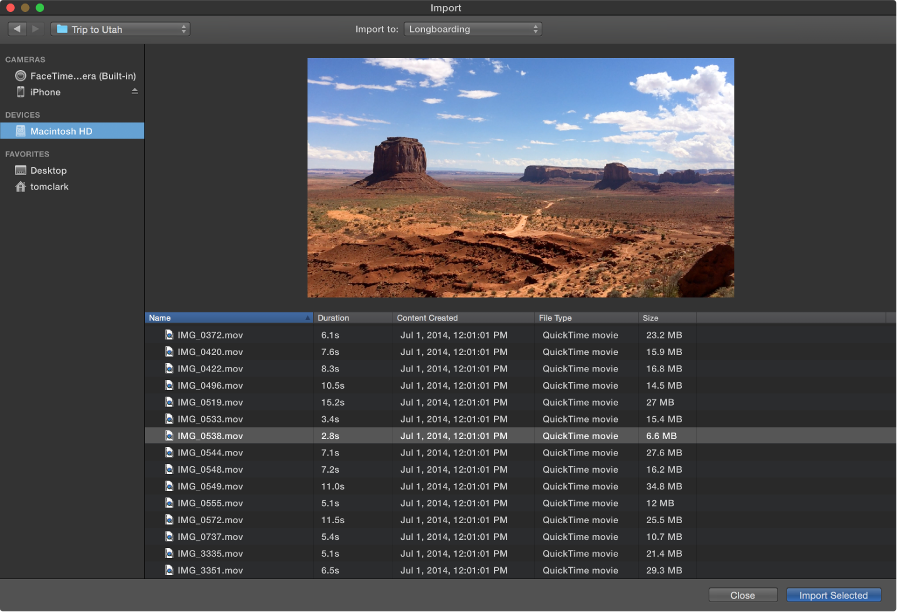
    User uploaded file

    You can do any of the following:

    • Sort clips in list view by data such as duration, creation date, size, and so on: Click the column headings at the top of list view.

    • Add a folder of frequently used media to the Favorites section: Drag a folder from the list on the right to Favorites in the sidebar.

    • Remove a folder from Favorites: Control-click the folder and choose Remove from Sidebar from the shortcut menu.

  4. To preview video, move the pointer over the preview at the top of the Import window and click the Play button User uploaded file.

    You can also click the Previous or Next button to go to the previous or next clip, or click and hold the Previous or Next button to rewind or fast-forward.

    User uploaded file

  5. To specify where the imported media will be stored, do one of the following:

    • Choose an existing event: Click the “Import to” pop-up menu at the top of the Import window and choose the event.


    • Create a new event: Click the “Import to” pop-up menu, choose New Event, type a name for the new event, and click OK.

    To learn more about events, see Organize media and events.

  6. Do one of the following:

    • Import all clips: Click Import All.

    • Import selected clips: Command-click each clip you want to import, and click Import Selected (the Import button changes its name).

    The Import window closes, and your clips appear in the event. Depending on the length of each clip and the number of clips you’re importing, you may see a progress indicator in the upper-right corner of the window while the clips are being imported.

    User uploaded file

    You can continue to work in iMovie while the import finishes.


Happy Holidays!

Dec 13, 2015 1:10 PM in response to judysings

It seems that you have not read what I said throughly I am using 9.0.9 imovie that version you're using as reference seems like 10.1 I do not see anything that you are telling me to do in my version of imovie.w

Dec 13, 2015 1:55 PM in response to Community User

Hi Akira Sato,

The initial suggestion I provided applies to all versions of iMovie. Did these steps not apply to your situation?

Here is an alternate way to bring your still images into iMovie.


When you open the Photos application on your computer, do you see the image that you want to bring into iMovie? If so:


  1. Drag the image from Photos to your desktop.
  2. In iMovie choose File > Import Media from the Menu bar.
  3. Select Desktop > select the image > then choose Import Selected.


If you have more than one image that you want to bring into iMovie:


  1. Create a folder first on the desktop.
  2. Drag the images you want into the folder
  3. Import the entire folder to iMovie using the steps above.


Please reply if this method of importing images works for you. If your original images are not in the Photos application, please let us know where they are located. I apologize if the additional information from the current iMovie user guide added confusion. You can find the same information in your version of iMovie by clicking on the Help menu and searching "Import Media."

Take care,

Dec 14, 2015 1:12 AM in response to judysings

I do not know why you are not reading what I said. Because I stated "It seems that you have not read what I said throughly I am using 9.0.9 imovie that version you're using as reference seems like 10.1 I do not see anything that you are telling me to do in my version of imovie" I respect your resolve to help me with my issue, but the steps you are providing are not sufficient. I have tried what you have listed but it seems that it is not working. It keeps say media not found even though I have a master library.

Dec 16, 2015 10:14 PM in response to Community User

Unless you are the exception, you will not be able to use iMovie v9 and El Capitan. I am on several discussion groups and I have yet to find anyone that can use iMovie v9 and El Capitan. Even if you figure out how to get photos into the timeline (by dragging them from the Finder) they will show as black. Do a search for this problem and you will find lots of discussions about this. You can also go here to see a listing of many: http://boardreader.com/fp/Browse_Communities_Apple_Suppo_13731/iMovie_for_Mac_31 906051.html

Dec 17, 2015 10:20 PM in response to Rich Rydalch

I will check it out since there is not an update to get those to a higher version to work with el captain because this was the same I had when I was using snow leopard.

This thread has been closed by the system or the community team. You may vote for any posts you find helpful, or search the Community for additional answers.

imovie 9.0.9 Import Picture Issue

Welcome to Apple Support Community
A forum where Apple customers help each other with their products. Get started with your Apple Account.

