Hi dawnmarie1230,
If you are having trouble streaming content from your iPad Air and iPhone 6s to your Apple TV, try the following steps:
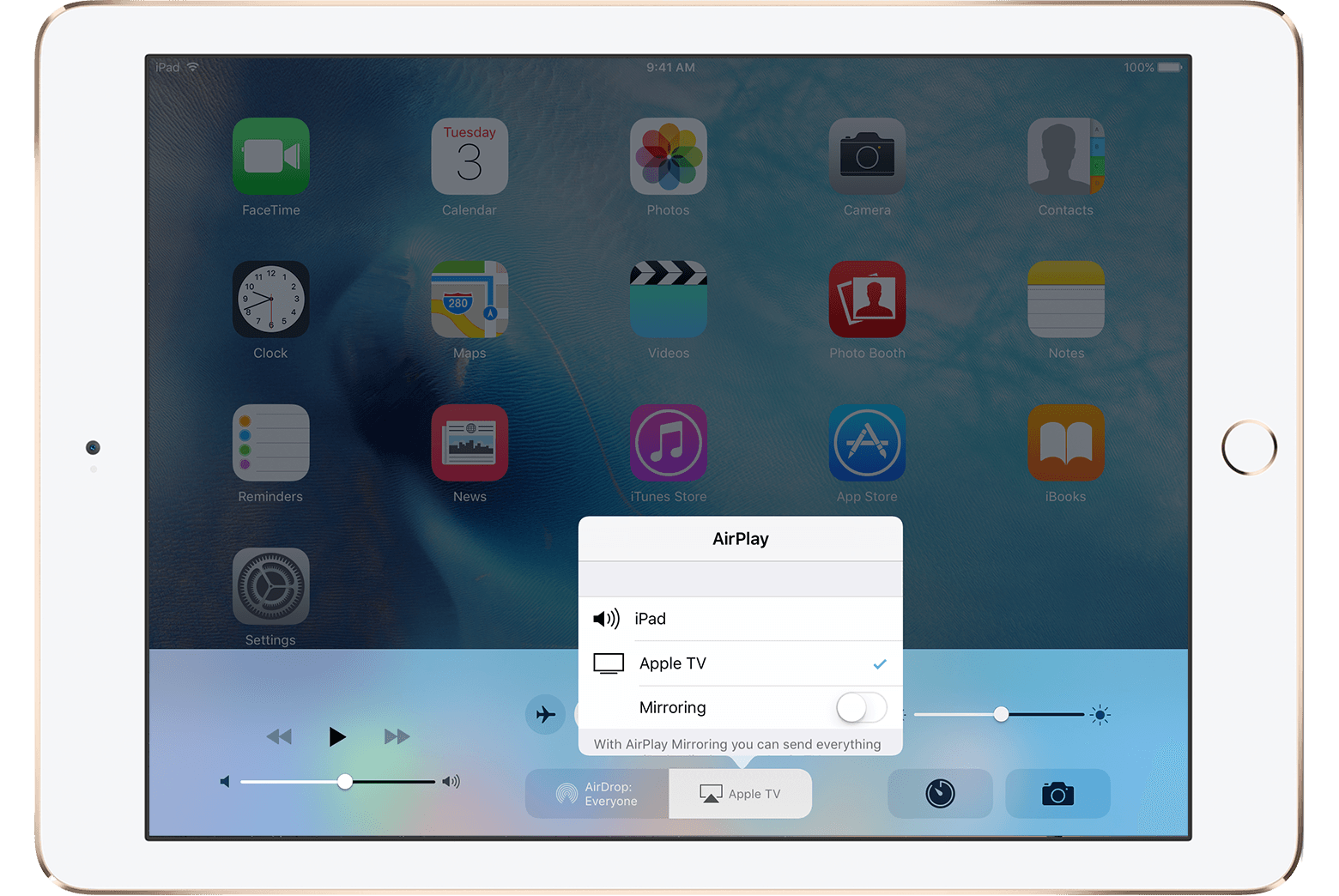
When an AirPlay-enabled device is available, you'll see AirPlay in Control Center on your iOS device. If you don't see it, try these steps:
- Restart your iOS device and Apple TV.
- On your iOS device, go to Settings > Wi-Fi and check that you're on the same Wi-Fi network as your Apple TV.
- On your Apple TV (4th generation), go to Settings > Network and check that you're on the same Wi-Fi network as your iOS device. For Apple TV (2nd or 3rd generation), go to Settings > General > Network. If your Apple TV uses an Ethernet connection, check that the cable is plugged in to the router that you're using for Wi-Fi.
- On your Apple TV, make sure that AirPlay is turned on in Settings > AirPlay.
- If you still need help, contact Apple Support.
When you tap AirPlay on your iOS device, you should see a list of devices that you can stream content to. If you don't see the device you're looking for, follow these steps. After each step, try again:
- Make sure that the device you want to stream to is plugged in and powered on.
- On your Apple TV, make sure that AirPlay is turned on in Settings > AirPlay.
- On your iOS device, go to Settings > Wi-Fi and check that you're on the same Wi-Fi network as your Apple TV.
- On your Apple TV (4th generation), go to Settings > Network and check that you're on the same Wi-Fi network as your iOS device. For Apple TV (2nd or 3rd generation), go to Settings > General > Network. If your Apple TV uses an Ethernet connection, check that the cable is plugged in to the router that you're using for Wi-Fi.
- If you’re using an iPad, scroll up and down in the device list to see all of the available devices.
- If you still need help, contact Apple Support.

- To stream iTunes Store content, your Apple TV needs an Internet connection. Check your connection and try again.
- Check the app's product page or website to see if the app supports AirPlay. Without support for AirPlay video playback, an app might not be able to stream video.
- Make sure that the volume is up (not muted) on your iOS device and your television or receiver.
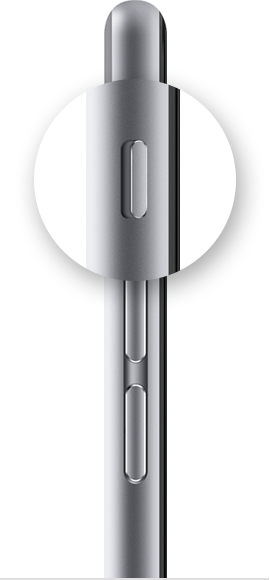
- If you're using an iPhone or iPad, check the Ring/Silent switch. If it's set to silent, you'll see an orange line. Toggle the switch to turn on the ringer.
If you have a weak Wi-Fi signal or interference from a nearby device, like a microwave or baby monitor, try these steps:
Make sure that you're using the recommended settings for your Wi-Fi router. Move or turn off other devices that might cause interference.
Your AirPlay connection might get interrupted when you lock your device, put it to sleep, or switch to a different app.
Happy Holidays!
- If possible, connect your Apple TV directly to your router with an Ethernet cable instead of using Wi-Fi.


