Howdy bandb39,
If your Mac isn't automatically connecting to your Wi-Fi network the steps below can help restore its ability to do so. If you're not running OS X Lion or earlier, the steps are still applicable.
Use these steps if your computer does not automatically connect to your desired Wi-Fi network.
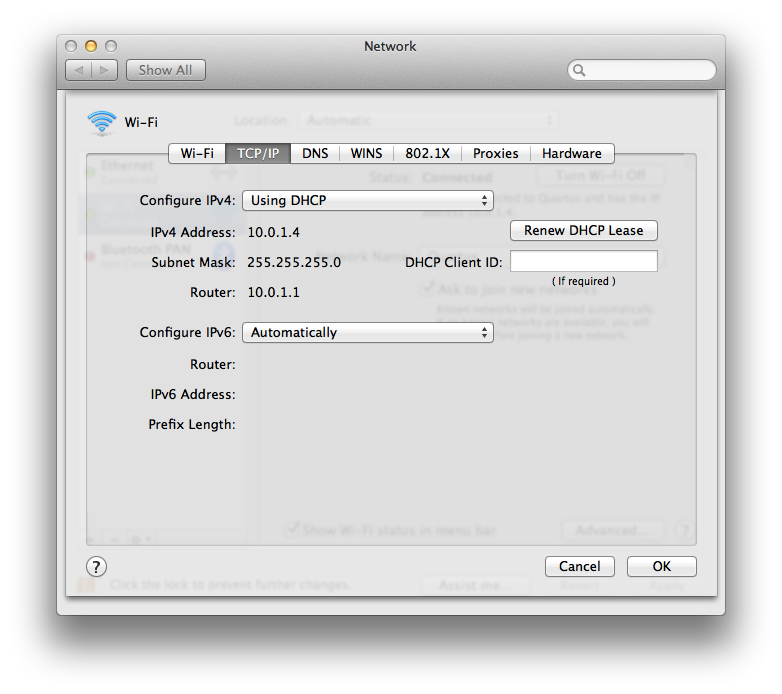
- Check your TCP/IP settings in the Network pane of the System Preferences. Click the "Renew DHCP lease" button
- Choose System Preferences from the Apple menu.
- Choose Network from the View menu.
- Select Wi-Fi, then click the Advanced button in the lower-left hand corner of the screen.
- Click the TCP/IP tab from the top of the screen.
- Click the "Renew DHCP lease" button.
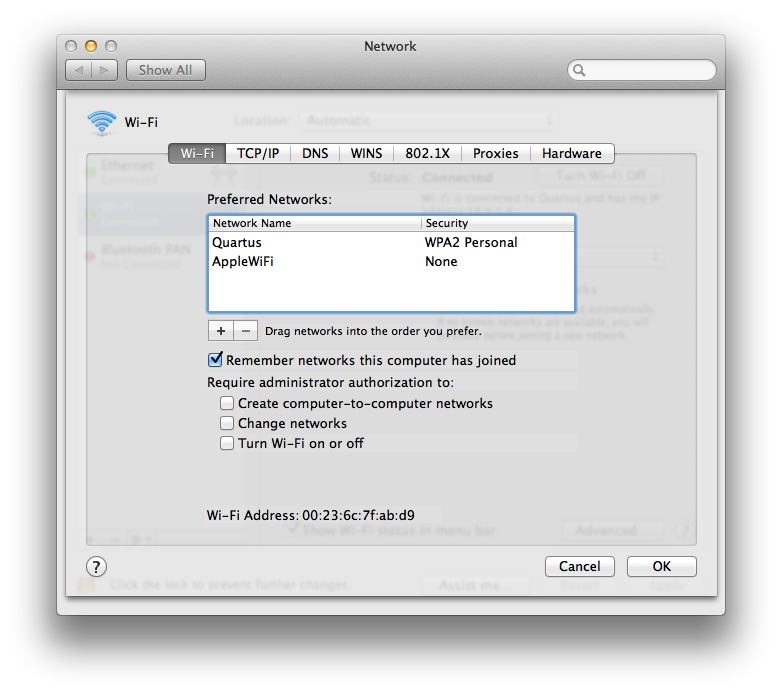
- Select the Wi-Fi tab and view your Preferred Networks list.
- Select each network and click the minus (-) sign to remove those networks from your Preferred Networks list.
- Click OK and close the Network preferences.
- Remove your stored network passwords using the Keychain Access Utility.
- Open Keychain Access from /Applications/Utilities. Your window will look like this:
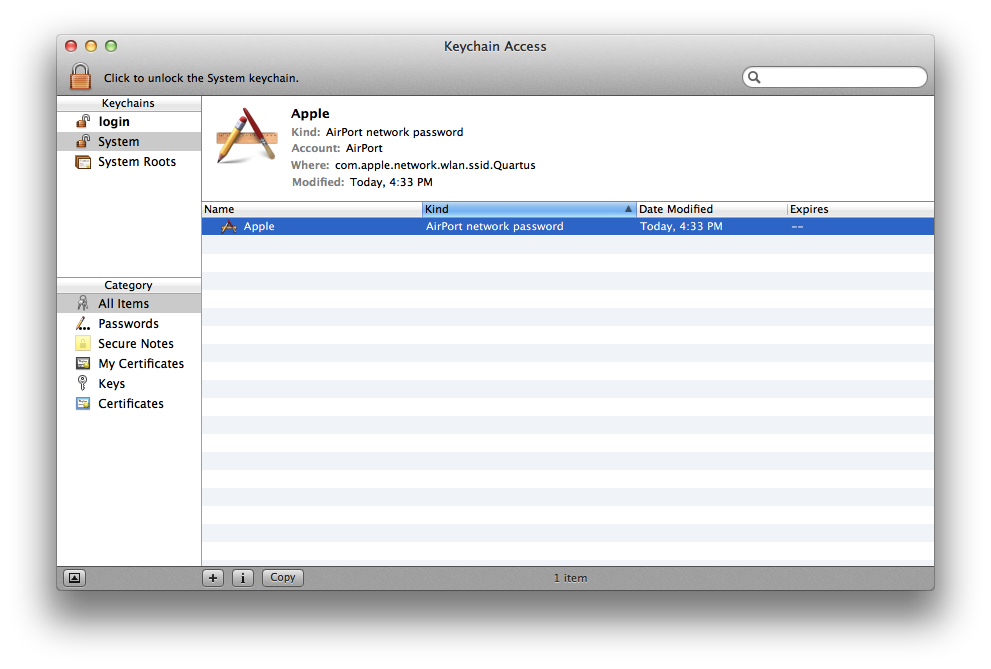
- Remove your AirPort network passwords from the login keychain: Select the "login" keychain from the Keychain sidebar. Click the "Kind" column to order the list of keychain items by their type. Remove all entries of the kind: "AirPort network password".
- Remove your AirPort network passwords from the System keychain: Select the "System" keychain from the Keychain sidebar. Click the "Kind" column to order the list of keychain items by their type. Remove all entries of the kind: "AirPort network password".
Note: The above steps will remove your Wi-Fi network passwords. If you do not know them, or if your network does not use passwords to restrict access, you should contact your network administrator.
- Restart your computer.
- Join your Wi-Fi network. You will need to enter your password for your network again if it requires one.
How to troubleshoot Wi-Fi connectivity in OS X Lion or earlier
https://support.apple.com/en-us/HT202222
Cheers!