Screen Shots

Hello


I have looked all over the place to figure out how to do a screen shot on my 2015 15" macbook pro with retina display. Everything I have come across tells me to do the following: hold command+shift+3 or command+shift+4 or command+shift+4+spacebar. I have tried all of these options and nothing happens. I don't see anything on my desktop nor do I hear a click sound like I have heard on youtube "how to" videos pertaining to my question. Can someone please tell me what I am doing wrong??? I would really appreciate the help!

MacBook Pro with Retina display

Posted on Jan 22, 2016 1:29 PM

Reply
3 replies

Jan 22, 2016 1:37 PM in response to naomijenn

How to take a screenshot on your Mac - Apple Support


Take a screenshot of your whole screen

  1. Press Command (⌘)-Shift-3.
  2. Find the screenshot as a .png file on your desktop.

User uploaded file

Take a screenshot of part of your screen

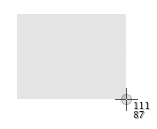
  1. Press Command-Shift-4. The pointer changes to a crosshair pointer.
  2. Move the crosshair pointer to where you want to start the screenshot.
  3. Drag to select an area. While dragging, you can hold the Shift key, Option key, or Space bar to change the way the selection moves.
    User uploaded file
  4. When you've selected the area you want, release your mouse or trackpad button. To cancel, press the Escape (esc) key before you release the button.
  5. Find the screenshot as a .png file on your desktop.

Jan 22, 2016 1:49 PM in response to naomijenn

You're doing nothing wrong... Those are the default keyboard shortcuts for screenshots. Keyboard shortcuts can be changed by going to System Preferences (under the Apple menu)->Keyboard->Shortcuts, look for Screen Shots in the list there. That will show you what your computer currently is using as the screen shot keyboard shortcuts. I can't imagine they'd be different from what you've seen in "how to" tutorials and are the defaults, but looking there will show you exactly what your Mac thinks the shortcuts are.

This thread has been closed by the system or the community team. You may vote for any posts you find helpful, or search the Community for additional answers.

Screen Shots

Welcome to Apple Support Community
A forum where Apple customers help each other with their products. Get started with your Apple Account.