HT204306: If you forgot the passcode for your iPhone, iPad, or iPod touch, or your device is disabled

Learn about If you forgot the passcode for your iPhone, iPad, or iPod touch, or your device is disabled
stephen158

Q: Disabled iPad cannot be reset using recovery mode

Someone with good it knowledge tampered with this iPad without permission and now it cannot be reset using recovery mode. Whilst plugged into iTunes, the software downloads, the iPad then shows the Apple symbol but then returns to the message "iPad is disabled Connect to iTunes"

iMac, Mac OS X (10.7), Excel Version 14.1.2

Posted on Feb 8, 2016 10:54 AM

Close

Q: Disabled iPad cannot be reset using recovery mode

  • All replies
  • Helpful answers

  • by Allen A,Solvedanswer

    Allen A Allen A Feb 9, 2016 2:55 PM in response to stephen158
    Community Specialists
    Feb 9, 2016 2:55 PM in response to stephen158

    Hi stephen158,


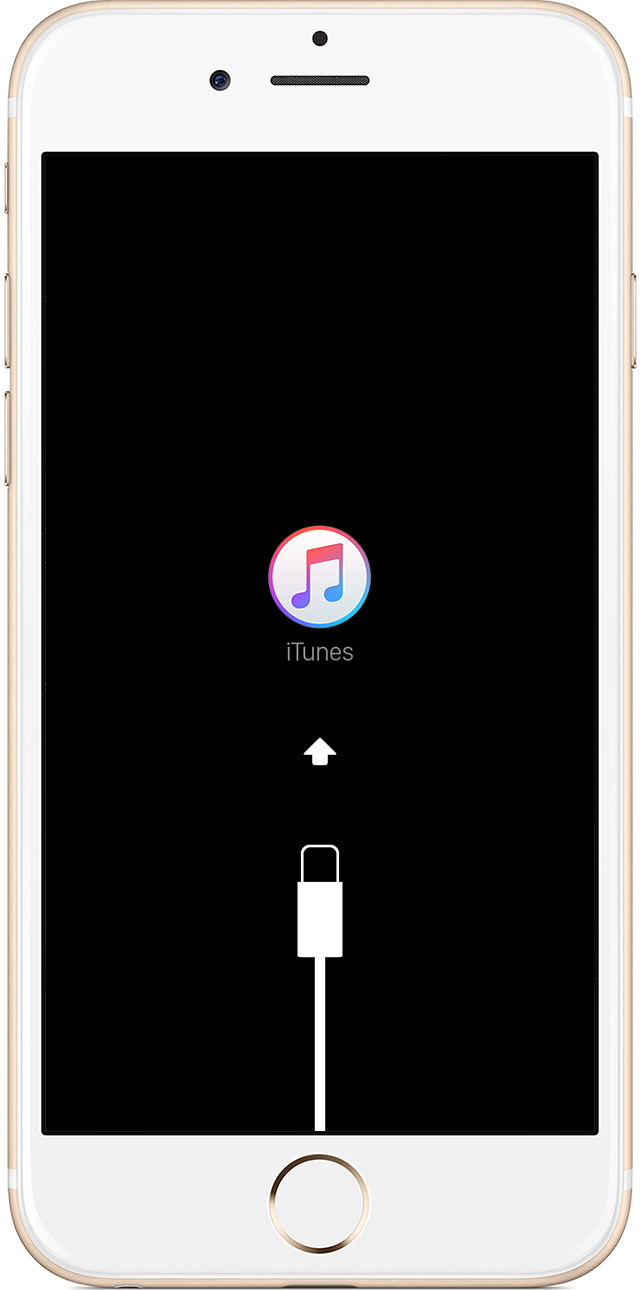
    I understand that, in the process of restoring an iPad in recovery mode, your iPad rebooted and returned to the 'Connect to iTunes' display. This can occur if the software download takes longer than 15 minutes, at which point the iPad will exit recovery mode and the software will continue to download. In this situation you should be able to place the iPad back into recovery mode and choose to Restore the device when prompted.

    1. Connect your device to your computer and open iTunes. If you don't have a computer, borrow one from a friend or go to an Apple Retail Store or Apple Authorized Service Provider for help.
    2. While your device is connected, force restart it: Press and hold both the Sleep/Wake and Home button for at least 10 seconds, and don't release when you see the Apple logo. Keep holding until you see the recovery mode screen.
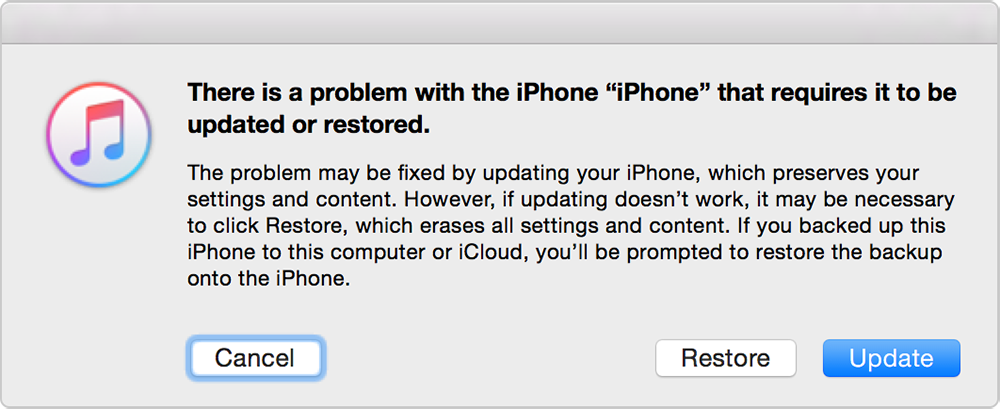
    3. When you see the option to Restore or Update, choose Update. iTunes will try to reinstall iOS without erasing your data. Wait while iTunes downloads the software for your device.
      If the download takes more than 15 minutes and your device exits recovery mode, you'll need to repeat these steps and choose Restore instead of Update when you get back to this step.
    4. After the Update or Restore completes, set up your device. If you previously backed up your device with iTunes or iCloud and had to restore your device in step 3, you might be able to restore from your backup during setup.

    If you can‘t update or restore your iPhone, iPad, or iPod touch
    https://support.apple.com/en-us/HT201263


    Cheers!