GPS suddenly stopped working on iPhone 4s

Hi,


The GPS on my iPhone 4 suddenly stopped working a few weeks ago. At first I thought it was the app, but I have noticed it is not working in other apps too, so I figure it must be with the GPS on the phone itself. I didn't change anything to cause the problem, it happened by itself.


In troubleshooting, I have reset the GPS several times following instructions found on Google. I downloaded an app called GPS Status and on first use it showed that I had some signal, however it was a cloudy day, so I wasn't too concerned. I thought the reset had fixed the problem.


No so...on a perfectly clear day I had "Bad Fix" on the GPS status and so GPS whatsoever on the Ski Tracks app or Argus app.


I reset the GPS again. Still no joy.


I updated the OS to 9.2.1, reset and re-callibrated the GPS doing the figure 8 sweep as suggested on Google with Aeroplane Mode off. I still have Bad Fix on GPS Status, no GPS on Ski Tracks and Google Maps hasn't a clue where I am. Naturally, location services in switched on for tall these apps.


Are there any other solutions?


Many thanks,

Rosaroo

iPhone 4S

Posted on Feb 27, 2016 3:03 AM

Reply
4 replies

Feb 28, 2016 11:22 AM in response to Ros

Hello Ros,

If the GPS on your iPhone is not working properly, try the following troubleshooting steps for Location services first. If these steps do not resolve your issue, you may need to update the iOS software. Be sure to back up your iPhone before making changes to it.


Get help with Maps on your iPhone, iPad, or iPod touch

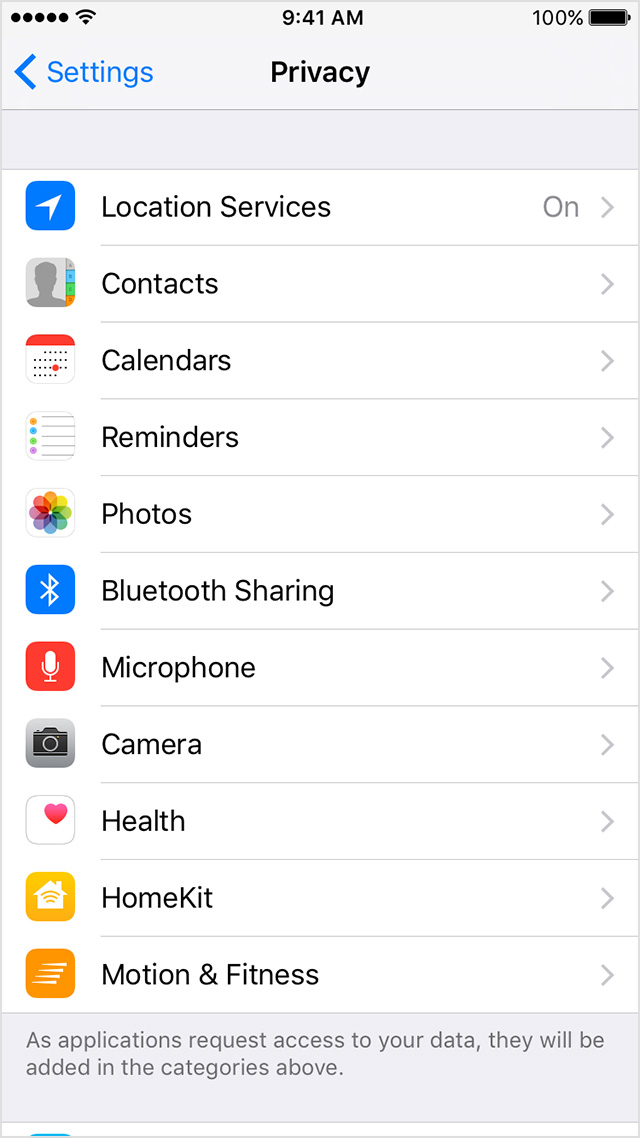
  1. Tap Settings > Privacy > Location Services and make sure that Location Services and Maps are turned on.
  2. Make sure that you've set the date, time, and time zone correctly on your device. Go to Settings > General > Date & Time. If possible, use Set Automatically.
  3. Restart your device.
  4. Make sure that cellular data or Wi-Fi is on.
  5. Try a different location or switch to a different Wi-Fi network.

Location Services uses GPS, Bluetooth, and crowd-sourced Wi-Fi hotspot and cell tower locations to determine your location. Learn more about Location Services on your iOS device.


About privacy and Location Services for iOS 8 and iOS 9

Turn Location Services on or off

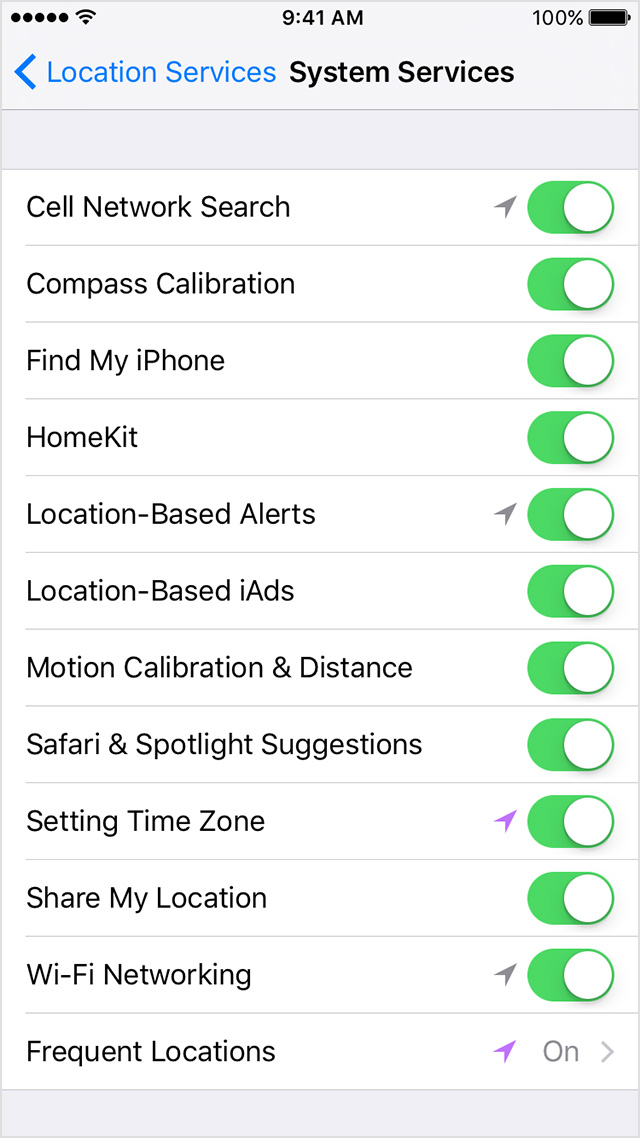
You can turn Location Services on or off at Settings > Privacy > Location Services. You can turn Location Services on either during the Setup Assistant process or later through the Location Services setting. You can individually control which apps and system services have access to Location Services data. When Location Services are off, apps can't use your location in the foreground or background. This will limit the performance of various Apple and third-party apps.

Settings > Privacy > Location Services.

User uploaded file

Settings > Privacy > Location Services > System Services.

User uploaded file


Reset or disable Location Services

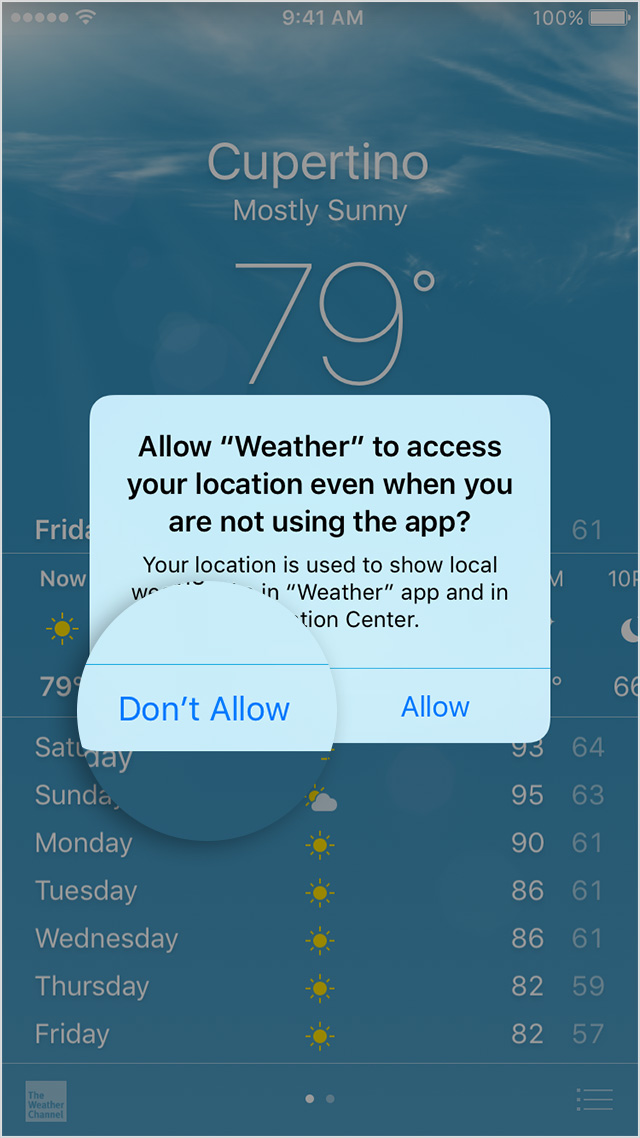
Location warnings are the requests that apps (such as Camera, Compass, and Maps as well as location-based third-party apps) make to use Location Services with those apps. An app will ask for permission the first time it needs to access Location Services data. Tapping Allow will give that app permission to use Location Services as needed. Tapping Don't Allow will prevent an app from accessing Location Services data. Apps won't use your location until they have asked for your permission and you grant permission.

User uploaded file

If you would like to reset all of your location settings to the factory default, go to Settings > General > Reset and tap Reset Location & Privacy. When your location and privacy settings are reset, apps will stop using your location until you grant them permission.

Improve GPS accuracy

GPS accuracy varies depending on the number of visible GPS satellites. Locating all visible satellites can take several minutes, with accuracy gradually increasing over time. Use these tips to improve GPS accuracy:

  • Make sure that you've set the date, time, and time zone correctly on the device in Settings > General > Date & Time. If possible, use Set Automatically.
    Important: Incorrect settings on your computer can sync to your device. Verify the date, time, and time zone on any computer that syncs with your device.
  • Restart your device.
  • Verify that you have a cellular or Wi-Fi network connection. This allows the Assisted GPS (A-GPS) on the device to locate visible GPS satellites faster, in addition to providing initial location information using the Wi-Fi or cellular networks.
    Microcells (sometimes called Femtocells) aren't supported with Location Services.
  • Keep a clear view of the horizon in several directions. Keep in mind that walls, vehicle roofs, tall buildings, mountains, and other obstructions can block line of sight to GPS satellites. When this occurs, your device will automatically use Wi-Fi or cellular networks to determine your position until the GPS satellites are visible again.


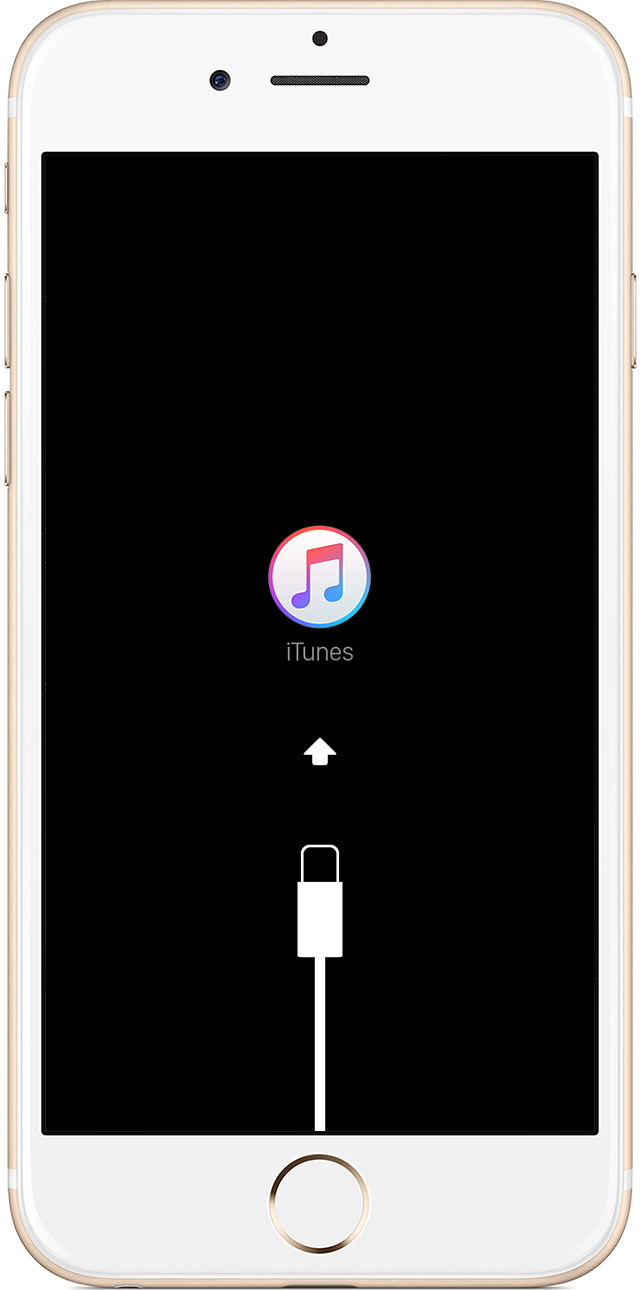
Put your device in recovery mode and set it up again

Put your device in recovery mode and set it up again

  1. Connect your device to your computer and open iTunes. If you don't have a computer, borrow one from a friend or go to an Apple Retail Store or Apple Authorized Service Provider for help.
  2. While your device is connected, force restart it: Press and hold both the Sleep/Wake and Home button for at least 10 seconds, and don't release when you see the Apple logo. Keep holding until you see the recovery mode screen.


    User uploaded file

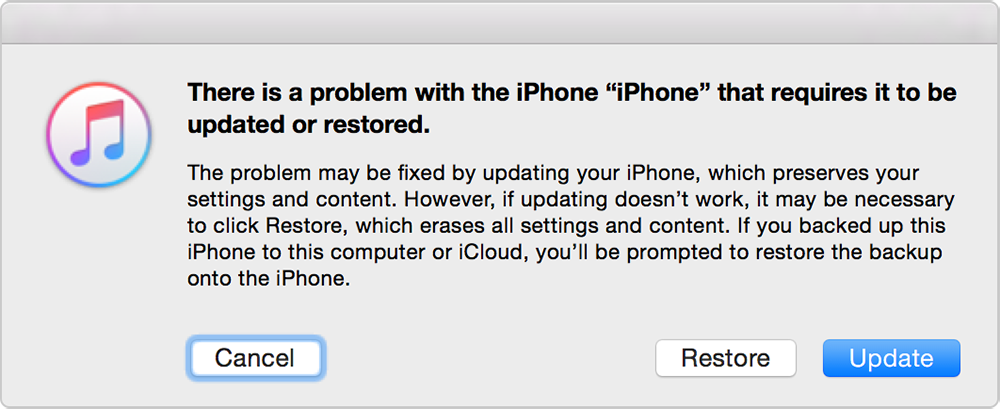
  3. When you see the option to Restore or Update, choose Update. iTunes will try to reinstall iOS without erasing your data. Wait while iTunes downloads the software for your device.
    If the download takes more than 15 minutes and your device exits recovery mode, you'll need to repeat these steps and choose Restore instead of Update when you get back to this step.


    User uploaded file

  4. After the Update or Restore completes, set up your device. If you previously backed up your device with iTunes or iCloud and had to restore your device in step 3, you might be able to restore from your backup during setup.


Take care,

Feb 29, 2016 4:22 AM in response to judysings

Wow, that's a lot of information.


These are the steps I took prior to posting:

Tips: Improving phone GPS performance

  1. Turn phone off/on
  2. Turn location services off/on
  3. Perform a GPS reset: 1. Double tap the home button. This will bring up tile sized images of all currently running apps. Swipe the screens of all apps upwards to close them. 2. Then go into settings and turn on airplane mode.3. When you've done that go to settings, general, reset and choose reset network settings (you will need to re-enter your wifi passwords!)4. Once your phone has reset go to settings, location services, turn it off then on again.5. Then go settings > privacy > location services > system services, setting time zone OFF.

AND:

  • Launch the Settings application on the iPhone by tapping its icon on the home screen.
  • Slide the "Airplane Mode" switch to "On." This disables all the iPhone's radio reception hardware, including GPS. Wait for approximately one minute and then slide the "Airplane Mode" switch to "Off." The iPhone reconnects to all its radio services.
  • Launch an application that makes use of the iPhone's gyroscope and digital compass hardware, such as the native Maps or Compass apps.
  • Physically move the handset in a large figure eight pattern several times to recalibrate the gyroscope and digital compass. The application should be running during this procedure to ensure the iPhone has activated the sensors you are recalibrating.
  • Hold the iPhone's Power button for two seconds and slide the red "Slide to power off" button on the screen to the right if the device is still exhibiting GPS problems. This shuts the iPhone down.
  • Wait for approximately one minute and press the Power button again for two seconds to start the iPhone up again.


I will try your first suggestion above, however I won't be able to complete Steps 4 and 5 as I only have WIFI access in public places, and that means indoors without the option to try another network. Hmm... I'm not sure how setting the time and date automatically will make any difference but I will try it. Again, I assume I have to be online to do this?


I will try disabling individual location services.


I have already updated the OS as I mentioned in my original post. I am not willing to set up the phone as new again, as that is always fraught with all kinds of risks.


The week ahead is cloudy and snowing so I don't expect to have immediate success.


Thanks for your time Judy.

Mar 11, 2016 7:00 AM in response to judysings

Hi Judy,


Still no joy here. Beautiful clear skies and I'm in the same location/surroundings where the GPS previously worked perfectly.

I am not able to connect to WIFI or cellular while I am outside. My understanding is that GPS does not require an internet connection.

I simply cannot risk trying to "Update" while in recovery mode, because there is no option to cancel or back out of this if it doesn't work. The only option is to Restore. There is too much else at risk of getting messed up in a Restore. Any previous backup is since the GPS stopped working, so I would re-install the problem.


What I don't understand, is how is it possible that it stopped working in the first place?


Ros

This thread has been closed by the system or the community team. You may vote for any posts you find helpful, or search the Community for additional answers.

GPS suddenly stopped working on iPhone 4s

Welcome to Apple Support Community
A forum where Apple customers help each other with their products. Get started with your Apple Account.