I think you did not prepare the drive properly. If you have the original drive that was in your MBP, then install it in an external enclosure if you haven't done so already. Now here's what you do:
Boot Using OPTION key:
1. Restart the computer.
2. Immediately after the chime press and hold down the
"OPTION" key.
3. Release the key when the boot manager appears.
4. Select the external disk drive.
5. Click on the arrow button below the icon.
After your computer starts up open Disk Utility and do this:
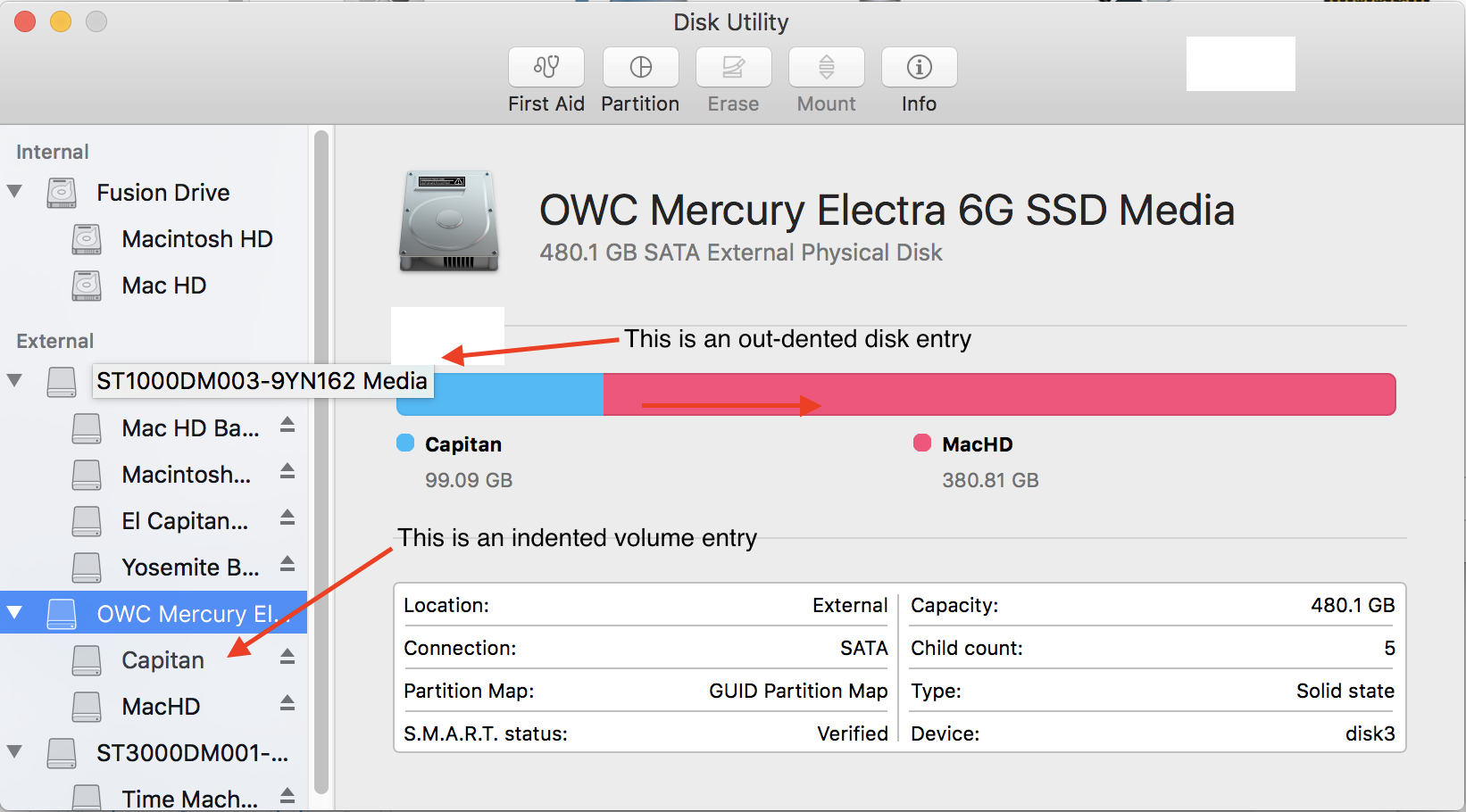
- After Disk Utility loads select your newly installed SSD (this is the out-dented entry with the mfgr.'s ID and size) from the left side list. Click on the Erase tab in the Disk Utility toolbar. A panel will come down.
- Set the partition scheme to GUID. Set the format type to Mac OS Extended (Journaled.) Click on the Apply button and wait until the process has completed.
- Select the indented volume entry on the SSD and click on the Erase button in the toolbar. Provide a volume name in the panel an set the format type to Mac OS Extended, Journaled. Click on the Erase button. You now have a properly partitioned and formatted Mac disk.
- Clone El Capitan using Restore Option of Disk Utility:
- Restart the computer and after the chime press and hold down the COMMAND and R keys until the utilities menu screen appears.
a. Select Disk Utility from the main menu then press the Continue button.
b. Select the Destination volume - indented entry on the SSD - from the left side list.
c. Select the Restore option in the Edit menu. A panel will drop down.
d. Select the Source volume - the indented entry of your external drive - from the drop down menu.
e. Double-check you got it right, then click on the Restore button.
Destination means the external drive. Source means the internal SSD. Remember that a volume is an indented entry under the physical out-dented drive entry.
Changes in Disk Utility in El Capitan.
Disk Utility is somewhat different in usage if you need to partition, re-partition, or format a disk for use with your Mac. Please read these instructions if you are using El Capitan.
1. Restart the computer and after the chime press and hold down the COMMAND and R keys until the menu screen appears. Select Disk Utility from the main menu and click on the Continue button.
2. After Disk Utility loads select the indented volume you wish to partition and/or erase from the left side list. Click on the Partition or Erase icon in the Disk Utility toolbar. The Partition icon may be grayed out if the device has never been partitioned for the Mac. If this is the case, then you need to select the out-dented physical disk entry in the sidebar.
3. If the Partition icon is not active, then select the out-dented entry as mentioned above. Click on the Erase icon in the toolbar. A panel will dropdown in which you can select the partition scheme - GUID - and the Format type - Mac OS Extended, Journaled - from two dropdown menus. If the disk has been partitioned, then you can erase it by just selecting the Erase icon in the toolbar. Set the format type to Mac OS Extended (Journaled) in the panel’s dropdown menu. In either case once configured you can click on the Erase button and wait until the process has completed.
As you can see in the image below what the out-dented and indented entries are in the sidebar. At the top is the toolbar. In this image the Partition icon is active because the selected disk is already partitioned. The Erase icon is now inactive because no volume is selected to erase.
For more help with the new Disk Utility please see: Hands-on with Disk Utility in El Capitan.