Apple Notes
HI
I don't know if I am doing anything wrong but i am on OS 9.2.1 and I have disabled and restarted Notes and I cannot use it with the pencil.
Is there anything I am missing?
Cheers
LG
iPad Pro-OTHER, iOS 9.2.1
HI
I don't know if I am doing anything wrong but i am on OS 9.2.1 and I have disabled and restarted Notes and I cannot use it with the pencil.
Is there anything I am missing?
Cheers
LG
iPad Pro-OTHER, iOS 9.2.1
Hi LadyGigglesnort,
Thanks for your question. I understand you are having issues using the Apple Pencil with the Notes app. Are you able to use the Apple Pencil with other apps? Initially, I would suggest you restart your iPad Pro, unpair the Apple Pencil and then pair it again. Take a look at the resource below for more information:
Use Apple Pencil with iPad Pro
Take care,
HI there
Many thanks for your reply.
My pencil works fine with other applications. I've unpaired and paired the pencil. I've uninstalled and downloaded the Notes application. I've also restarted my iPad Pro as well but still no luck.
Cheers!
DEbb
Hi LadyGiiglesnort,
Thanks for providing a little more information about your issue. Since the Notes app is part of the iOS operating system, and not a separate app, I don't understand your response "I've uninstalled and downloaded the Notes application." If you have a backup of your iPad Pro (iCloud or iTunes), you could try updating the iOS to put a fresh copy of the Notes app on your iPad.
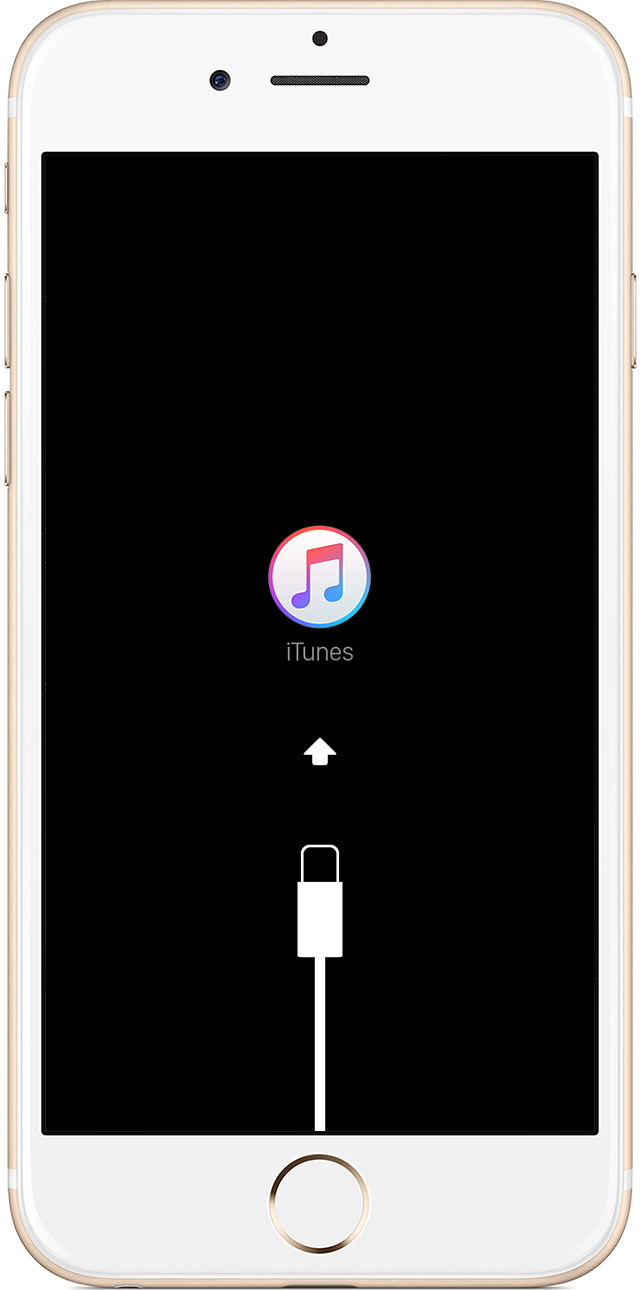
Put your device in recovery mode and set it up again
- Connect your device to your computer and open iTunes. If you don't have a computer, borrow one from a friend or go to an Apple Retail Store or Apple Authorized Service Provider for help.
- While your device is connected, force restart it: Press and hold both the Sleep/Wake and Home button for at least 10 seconds, and don't release when you see the Apple logo. Keep holding until you see the recovery mode screen.
- When you see the option to Restore or Update, choose Update. iTunes will try to reinstall iOS without erasing your data. Wait while iTunes downloads the software for your device.
If the download takes more than 15 minutes and your device exits recovery mode, you'll need to repeat these steps and choose Restore instead of Update when you get back to this step.
Source: If you can‘t update or restore your iPhone, iPad, or iPod touch
Take care,
Apple Notes