Documents and Data memory jumped

IToday i was just cleaning up some memory on my phone by deleting some apps, videos, and pictures. I had taken quite a few over the past three days. Last night after going through my bursts, and deleting unwanted pictures. I emptied my recently deleted folder and did a quick cleanup by using the trick of holding down the hold button. Under settings it said I had about 14 GB of memory available. Today I deleted about 10 more videos and a couple of apps.


When I synced my phone my Documents & Data jumped to 15.5 GB and app memory from about 2.6 GB to 9.6 GB. It did not reflect the memory change of the 10 videos I deleted as well.


I did try sending a pretty large video through email, which seemed to slow the phone down a bit until I cancelled it.


I did the usual tricks, cleaning internet cache, deleted and reinstalling heavily used apps, deleting my email account and reinstalling it. Deleting old text massage conversations, especially those with media in them. Deleting call history and voicemails. Nothing changed.


I do not use iCloud for storage so I cannot see what's taking up the memory.


Spending some time in the forum I found some others with the same issue, but they were able to pinpoint it to WhatsApp. I do not use this app. My most used apps are Facebook, Safari, Email, Instagram, and Snapchat.


When I synced it a bit ago, it seems the "other" and Document and Data have gone down a little. Documents and Data is down to 14.95 GB.


My next step is to do a restore, but was wondering if anyone had any suggestions. I tried to put as many details I could.


I have a 64 GB IPhone 6 with the latest iOs update.

Posted on Mar 14, 2016 11:57 PM

Reply
3 replies

Mar 16, 2016 9:32 AM in response to Squirrel78

Hello there, Squirrel78.


It sounds like you're trying to manage content and space on your iPhone 6. The following Knowledge Base article offers up some great information in regard to how manage space:


Check your storage on your iPhone, iPad, and iPod touch


Use your iOS device to check its storage

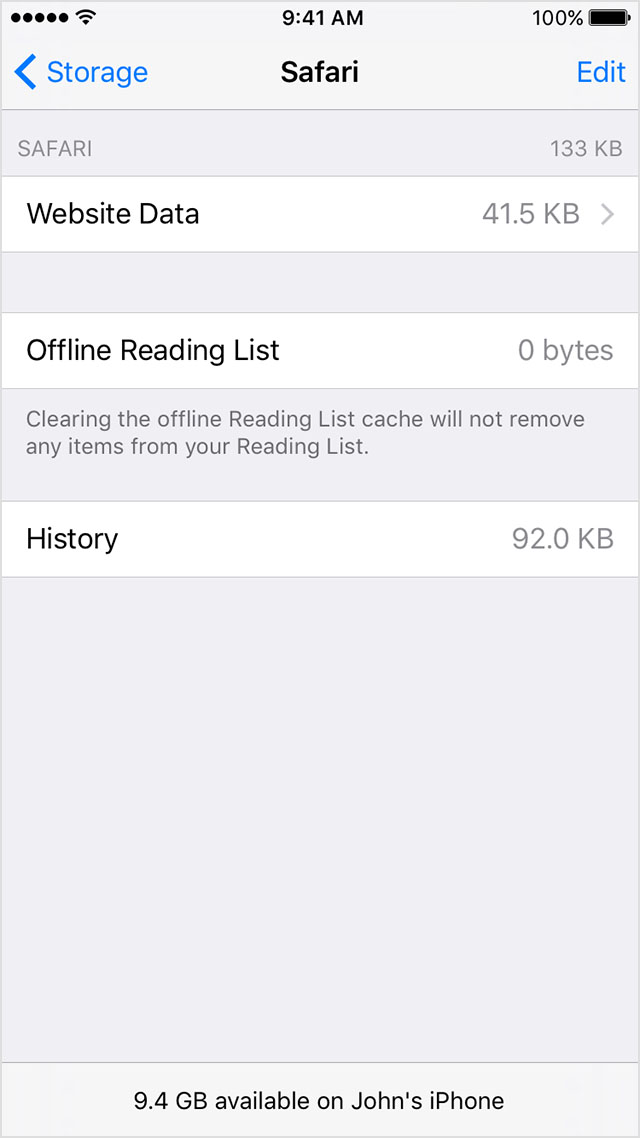
Tap Settings > General > Storage & iCloud Usage > Manage Storage.

You'll see a list of your apps, and how much storage each one uses. Tap an app for more detailed information about its usage.User uploaded file

User uploaded file


Depending on the app, you might be able to delete some of its content, or delete the app and all of its content. If your device is almost full, or you get a Storage Almost Full alert, remove some less-used content.

User uploaded file

Use iTunes to check the storage on your iOS device

  1. Open iTunes on your computer.
  2. Connect your device to your computer.
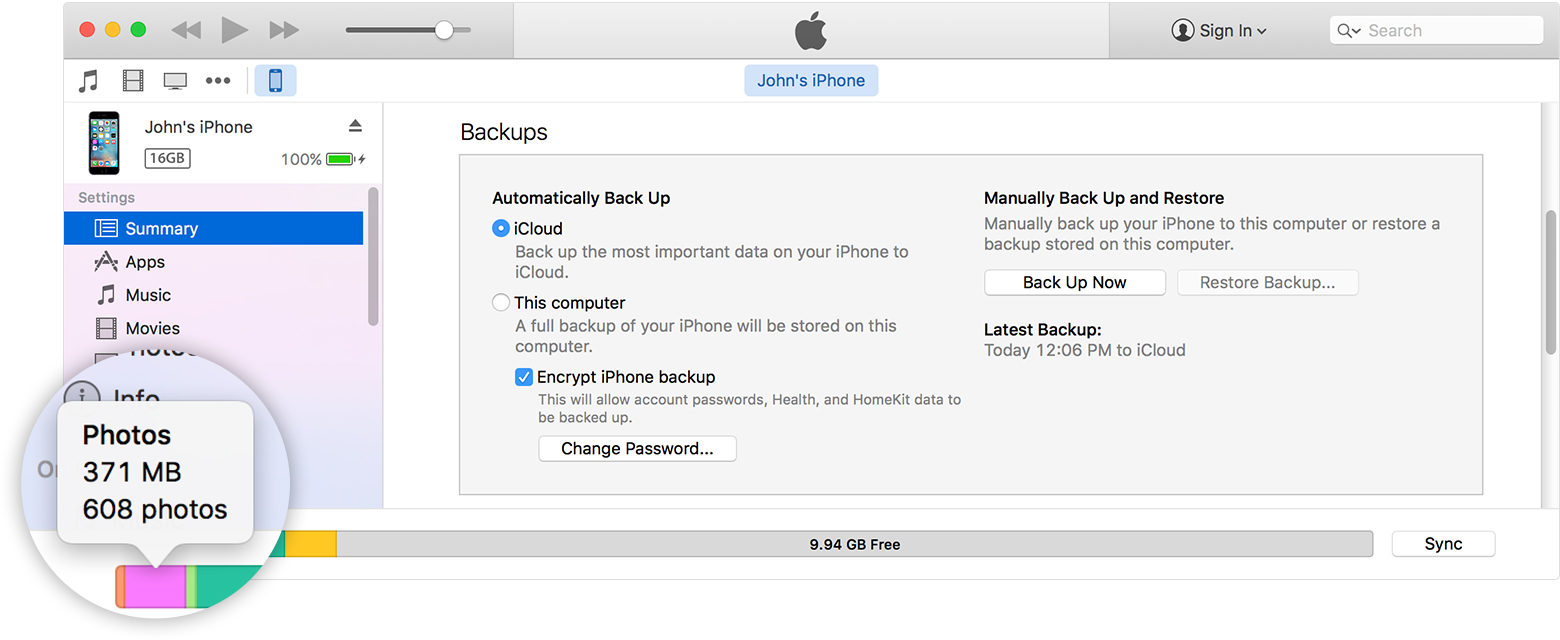
  3. In iTunes, select your device. You'll see a bar that shows how much storage your iOS content uses, divided by content type.
  4. Hover your mouse over a content type, like Other or Apps, to find more information:
    User uploaded file

Here is a list of the types of content on your iOS device, and what each type includes:

  • Audio: Songs, audio podcasts, audiobooks, voice memos, and ringtones
  • Video: Movies, music videos, and TV shows
  • Photos: Camera Roll content, Photo Stream, and Photo Library
  • Apps: Installed apps
  • Books: iBooks books and PDF files
  • Documents & Data: Safari Offline Reading List, files created within apps, and app content like contacts, calendars, messages, and emails (and their attachments)
  • Other: Settings, Siri voices, system data, and cached files

More about cached files in "Other" iOS storage

Cached files are created when streaming or viewing content like music, videos, and photos. When you stream music or video, that content is stored as cached files on your iOS device. iTunes categorizes cached music, videos, and photos as Other instead of actual songs, videos, or photos.

If storage amounts on an iOS device differ from what you see reported in iTunes

Since iTunes categorizes cached files as Other, reported usage for Music or Videos might differ. To view usage on your iOS device, go to Settings > General > Usage > Manage Storage.

If you want to delete the cached files from your iOS device

Your iOS device automatically deletes cached files when it needs more space. You don't need to delete them yourself.

User uploaded file

Learn more


Thanks for reaching out to Apple Support Communities.


Kind Regards.

Mar 26, 2016 1:32 PM in response to Squirrel78

I have a 128 gig Iphone 6 and had 96 gigs of available memory available before I plugged my phone in to do ITunes back up on the computer. After the back up it created a 79.6 gig Documents and Data folder that I can not delete from the phone or through ITunes which put it there in the first place. This was not wanted nor did it ever prompt me to allow (whatever it is) this to be put on the phone memory. I have removed email and put it back on which only put less then 1 gig of memory back on the phone. I have deleted app history and caches. I deleted history in Utube and Safari browser. I have searched blog after blog and have only found 3rd party apps that would allow me to remove this folder without resetting the entire phone (trying to avoid these). Phone worked perfectly fine before I plugged it in to ITunes and I just wanted to do a back up in case phone was lost. I bought 128 gig phone to avoid issues like this and phone was not slow and I never had to worry about running out of space.

This thread has been closed by the system or the community team. You may vote for any posts you find helpful, or search the Community for additional answers.

Documents and Data memory jumped

Welcome to Apple Support Community
A forum where Apple customers help each other with their products. Get started with your Apple Account.