Hello there, guyinlv.
It sounds like your iPhone 5s is no longer being recognized after upgrading to the latest versions of iOS and iTunes. The following Knowledge Base Article offers up some great, in-depth steps for troubleshooting:
If iTunes doesn‘t recognize your iPhone, iPad, or iPod
When iTunes on your computer doesn't recognize your connected device, use these steps. Try again after each step:
- Make sure that you have the latest version of iTunes that your system supports.
- Check that you have the latest software on your Mac or Windows PC.
- Make sure that your device is turned on.
- If you see a Trust this Computer alert, unlock your device and tap Trust. If the alert continues to appear, you might need to reset your lockdown folder.
- Unplug all USB accessories from your computer except for your device. Try each USB port to see if one works. Then try a different Apple USB cable.
- Restart your computer and iPhone, iPad, or iPod.
- To see if your device needs service, try another computer. If you have the same issue again, contact Apple Support.
{...}
- In Windows 7, click
 > Control Panel > System and Maintenance > Device Manager. If asked, enter your password. In the list under Universal Serial Bus Controllers, find the Apple Mobile Device USB Driver. Even if you can't find the Apple driver, follow the steps below based on what you see or don't see:
- In Windows 8, swipe in from the screen's right edge. Tap Search and enter Device Manager, then tap Device Manager. If asked, enter your password. In the list under Universal Serial Bus Controllers, find the Apple Mobile Device USB Driver. Even if you can't find the Apple driver, follow the steps below based on what you see or don't see:
- In Windows 10, click the search box in the bottom-left corner, type Device Manager, and press enter. In the list under Universal Serial Bus Controllers, find the Apple Mobile Device USB Driver. Even if you can't find the Apple driver, follow the steps below based on what you see or don't see:
If you don't see  ,
,  , or
, or  by the Apple Mobile Device USB Driver, check for third-party software conflicts. Then if you still need help, restart your Apple Mobile Device Service or contact Apple Support.

If you see next to the Apple Mobile Device USB Driver, right-click on the driver and choose Enable from the shortcut menu. Then if you still need help, contact Apple Support.
If you see or by the Apple Mobile Device USB Driver, you need to reinstall the driver:
- Right click on Apple Mobile Device Driver, then select Uninstall.
- When asked, select "Delete the driver software for this device." Click OK to continue.
- In the Device Manager window, right-click on Universal Serial Bus controllers and select Scan for hardware changes.

- Wait while Windows reinstalls the driver.
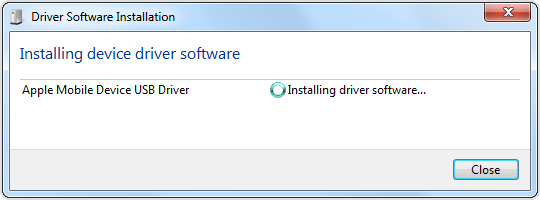
- If these steps don't fix the issue, contact Apple Support.
If the Apple Mobile Device USB Driver isn't in the list, contact Apple Support.
Thanks for being a part of Apple Support Communities.
Kind Regards.


