Hello there, Joanie.
It seems you're having issues with Calendar events are not being retained or reflected across your devices and sometimes deleted as well. The following Knowledge Base article offers a great and in-depth list of troubleshooting recommendations:
Get help using iCloud Contacts, Calendars, or Reminders
Make sure that iCloud Contacts, Calendars, and Reminders are available. If there's an issue, try again after it's fixed. If there isn't an issue, try the steps below.
Remember to back up your contacts, calendars, and reminders, so you don't lose anything.
After each step, see if you still need help:
- Check for updates to your iPhone, iPad, iPod touch, Mac, or PC. To use iCloud, your devices need to meet the system requirements.
- See if the date and time settings on your iPhone, iPad, iPod touch, Mac, or PC are correct.
- Make sure that you're signed in to iCloud with the same Apple ID on all your devices and check your settings.
- On your iPhone, tap Settings > iCloud. Check your Apple ID and make sure that you turn on what you want to update (Contacts, Calendars, or Reminders).
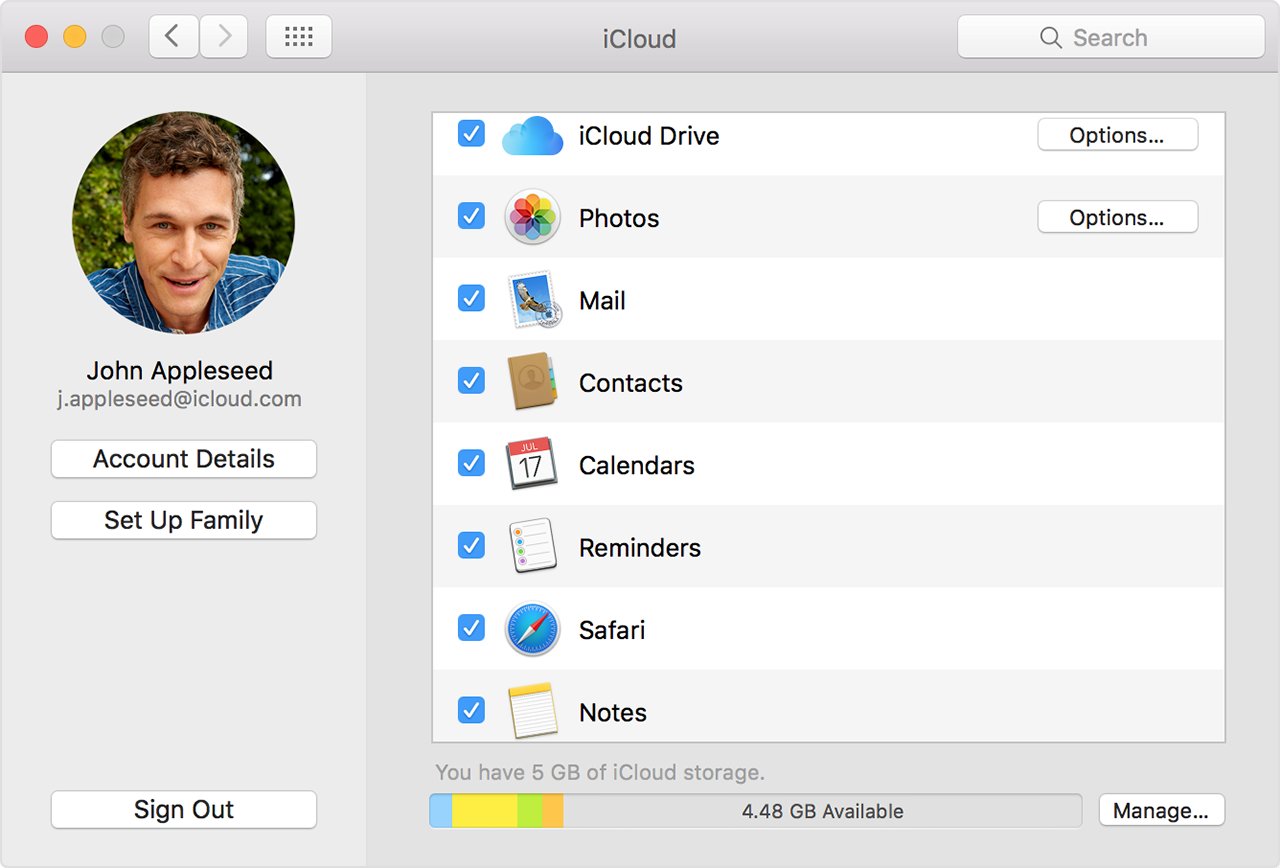
- On your Mac, choose Apple menu > System Preferences > iCloud. Check your Apple ID and make sure that you select what you want to update (Contacts, Calendars, or Reminders).
- On your PC, open iCloud for Windows. Check your Apple ID and and make sure that you select what you want to update (Mail, Contacts, Calendars, and Tasks). Reminders are called Tasks in iCloud for Windows.
- Open Safari and go to www.apple.com to check your connection. if you can’t open the page, get help connecting to the Internet.
- Open a secure website, like your Apple ID account page, to see if you can access port 443. If the website won't open, contact your Internet service provider for help. Safari needs access to port 443 to update your information in iCloud.
- Keep your data within the limits. If you go over the limit, your data won't stay up to date.
If you still need help, try the steps for your device below.
{...}
After each step, check your contacts, calendars, or reminders.
You can refresh your calendars and reminders from the Calendars app:
- Open the Calendar app.
- Choose View > Refresh Calendars.
Since the iCloud Birthdays calendar updates hourly, you might not see changes to birthdays in the Contacts or Calendars app for an hour.
If you store and edit your events in iCloud instead of another account, like On My Mac, Exchange, or Google, then iCloud will automatically update your calendars. If you use multiple accounts on your Mac like iCloud, Gmail, and Yahoo, make sure that iCloud is your default Calendar account:
- Open the Calendar app.
- Choose Calendar > Preferences.
- On the General tab, make sure that one of your iCloud calendars is the default.
After setting up iCloud Reminders, you might need to quit and reopen Reminders on your Mac. Then make sure that you set up your account correctly in Reminders:
- Open the Reminders app.
- Choose Reminders > Accounts.
- Make sure that you're signed in with your Apple ID.
- Quit the Calendar and Reminders apps.
- Choose
Apple menu > System Preferences and click iCloud.
- Deselect Calendars and Reminders (or Calendars & Reminders on OS X Mountain Lion).
On OS X Mountain Lion and Mavericks, click Delete from Mac when asked.
- Close System Preferences and wait about a minute.
- Choose Apple menu > System Preferences and click iCloud.
- Select Calendars (or Calendars & Reminders on OS X Mountain Lion).
- Open Calendar and Reminders.
After you restart your computer, see if you fixed the issue.
Thanks for reaching out to Apple Support Communities.
Cheers.


