Hello there, Osman.
It sounds like you're having issues trying to sync purchased content and PDF's from iTunes to your iPhone 5c. The following Knowledge Base article offers up some great information in regards to how to accomplish that:
Move content from iTunes on your computer to your iPhone, iPad, or iPod touch
By default, iTunes manages the content of your iTunes library (including your music, TV shows, movies, and more) manually, which gives you control over the content you want to take with you on your iPhone, iPad, or iPod touch. This is useful if your iTunes library contains more items than can fit on your device.
If you're a member of Apple Music or have an iTunes Match subscription, you have iCloud Music Library turned on. When you have iCloud Music Library turned on, you can't manually manage music. You can still manage videos using the steps below.
- Connect your device to your computer.
- Open iTunes. Make sure that you have the latest version.
- Choose the content that you want to add to your device from your iTunes library.

- Drag the content to your iPhone, iPad, or iPod. A panel should appear. Locate your device.

If you're using an iPhone, you can only add music or video from a single iTunes Library.
If you're using an iPad or iPod, you can add music from multiple iTunes Libraries, but video from only one iTunes Library.
Check to make sure that the "Manually manage music and videos" option is turned on:
- Connect your device to your computer.
- Open iTunes. Make sure that you have the latest version.
- Locate and click on your device.

- In the left sidebar, click Summary.
- Scroll down to the Options section.
- Click the box next to "Manually manage music and videos."
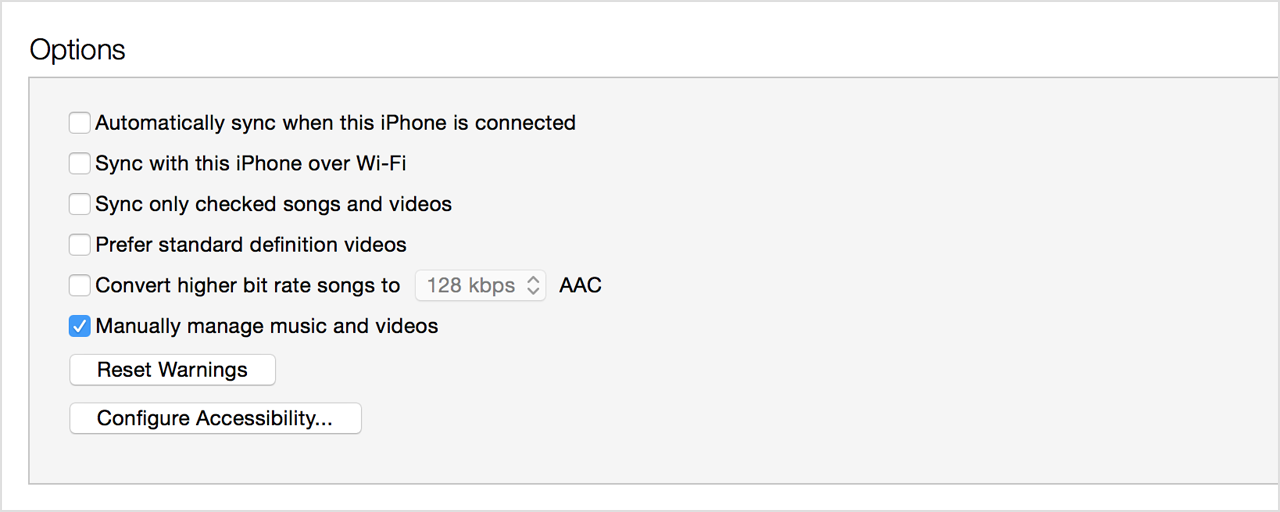
- Click Apply.
You might see a message that your device is synced with another library. This means that you've used a different computer to sync your device in the past, and iTunes can't sync without first erasing and replacing all iTunes content on your device.
This article also provides some great input for syncing PDF's:
Use iBooks with PDF documents on your iPhone, iPad, or iPod touch
The first time that you open iBooks after you update to iOS 9.3 or OS X 10.11.4, you'll be prompted to use iCloud. Learn more about syncing your books and PDFs using iCloud.
You can also add PDFs to your iTunes library on your computer by dragging and dropping the PDF into your iTunes Book library. The files will appear when you are preparing your device to sync. If you're using OS X Mavericks or later, drag and drop your PDFs into your iBooks library using iBooks for Mac. All PDF or iBook files in your iBooks library are available to sync to your iOS device via iTunes.
To sync a PDF from your computer to iBooks on your iPhone, iPad, or iPod touch:
- Select your iOS device. (Learn how to sync your data with iTunes.)
- Under Settings, click Books.
- Select Sync Books.
- If iTunes is set to sync only selected books, make sure that there's a check in the checkbox next to the PDF you want to sync.
- Click Sync.
You can also use iTunes to back up your PDF files. To transfer PDFs to your computer and back them up, transfer purchases from your iOS device to your computer. These files are not in an iTunes Backup. Learn more about what's contained in iTunes and iCloud backups.
Thanks for reaching out to Apple Support Communities.
Cheers.


