How to use picture in picture in version 10.0.9

I was having to make a video for a class that I'm taking in school and one of the requirements is to use picture in picture. I can't find it anywhere! Any suggestions?

iMac, OS X Mavericks (10.9.4), I need help on what to do about it!

Posted on Apr 18, 2016 12:45 PM

Reply
1 reply

Apr 18, 2016 1:15 PM in response to Scouter10

From the iMovie Help:


Add a picture-in-picture effect

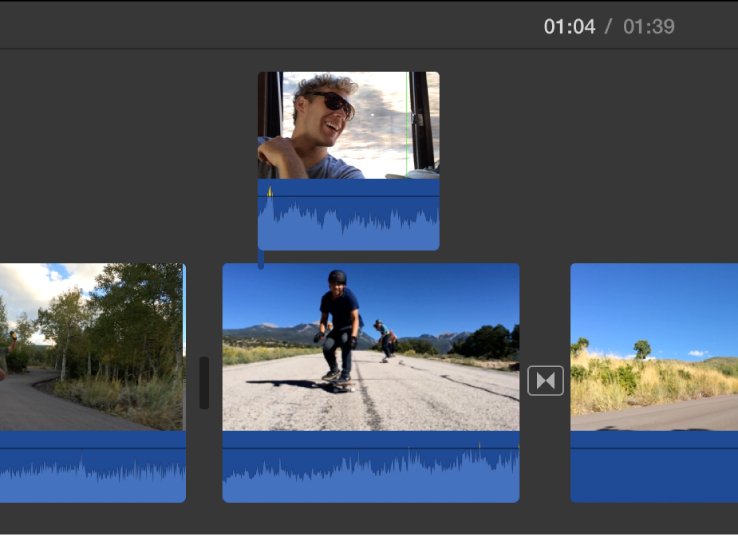
  1. Select a clip or range that you want to use as a picture-in-picture clip, and drag it above a clip in the timeline.User uploaded file
  2. When you see the green Add icon (+), release the mouse button.
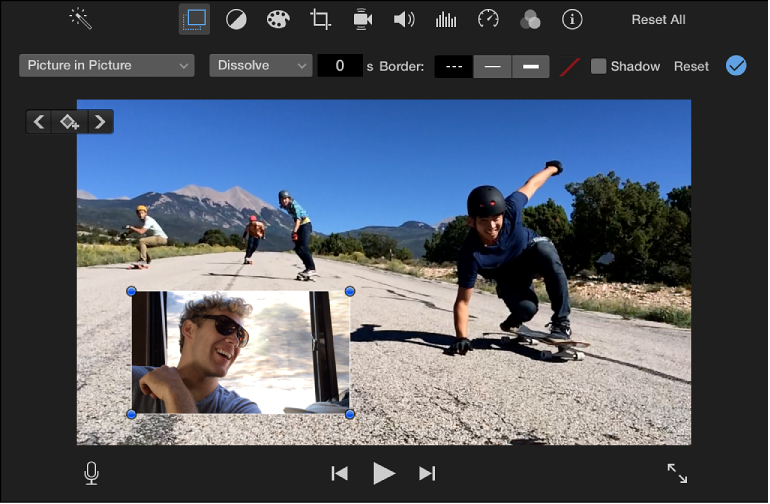
  3. If the video overlay controls aren’t shown, click the Video Overlay Settings button.User uploaded file
  4. Click the pop-up menu on the left and choose Picture in Picture.In the viewer, the picture-in-picture clip appears in an inset window on top of the clip it’s attached to
  5. .User uploaded file
  6. To reposition the picture-in-picture clip, drag it to a different spot within the clip, or to a different clip. You can also drag the ends to lengthen or shorten it.
  7. To apply the change, click the Apply button User uploaded file in the picture-in-picture controls.

This thread has been closed by the system or the community team. You may vote for any posts you find helpful, or search the Community for additional answers.

How to use picture in picture in version 10.0.9

Welcome to Apple Support Community
A forum where Apple customers help each other with their products. Get started with your Apple Account.