Big Den

Q: Kyocera printer on home network has disappeared and can't be found

Hi


I have a home network of a Mac and PC and two printers a Kyocera and an Oki networked via a Netgear D7800, the two printers go into an Ethernet hub and then into the D7800 and the Mac and PC go directly into the D7800 via Ethernet cable.


All has been well for the past year and up until two days ago when I switched on one morning to have the error message that there was no Internet connection for either computer. All the LED's were solid and lit on the router but no Internet connection. I therefore did the good old 'on/off' of the router and the Internet connection returned OK. I did not change any settings.


I have subsequently discovered the the two printers had disappeared from the Mac so I tried to reinstall them. The Oki has been found and reinstalled OK but takes ages to print when it was previously more or less instantaneous to print. The Kyocera can't be found at all and I have tried to install it via its standard IP address but it still can't be found or communicated with.


I have updated the firmware on the D7800 to the latest version and updated the Mac OS to the latest version along with the latest Mac printer drivers for the Kyocera printer but with no success- the printer still not showing in the list of printers and Oki that does show is still incredibly slow when it prints.


Any ideas what's going on and appreciate any ideas or suggestions for remedy's to this situation as I'm getting very frustrated!


Thanks


Denis

Posted on May 11, 2016 8:43 AM

Close

Q: Kyocera printer on home network has disappeared and can't be found

  • All replies
  • Helpful answers

  • by pedro d,

    pedro d pedro d May 12, 2016 10:47 AM in response to Big Den
    Community Specialists
    May 12, 2016 10:47 AM in response to Big Den

    Help there, Denis.


    It seems you're having issues with printer performance and not being recognized on your Mac computer. The following Knowledge Base article offers up some great initial troubleshooting:


    Get help resolving printer issues on your Mac


    If your Mac doesn't see your printer or have the software for it

    These steps may help if you tried to print from your Mac, but your printer doesn't appear in the Printer pop-up menu, or your Mac displays a message that software for your printer isn't available.

    1. Make sure that your printer is ready to print. Check it for paper and other supplies, and resolve any error lights or error messages. Check the printer’s documentation or contact the manufacturer if you need help with an error.
    2. If your printer is connected to the USB port of your Mac, disconnect the printer.
    3. Your Mac downloads software for most printers automatically, so it's usually unnecessary to install software from the printer manufacturer. Always check for updates to make sure that your Mac has the latest information about the printer.
    4. If your printer isn't connected to your wired network, Wi-Fi network, or the USB port of your Mac, reconnect it now.
    5. Open an item that you want to print, then choose Print from the File menu.
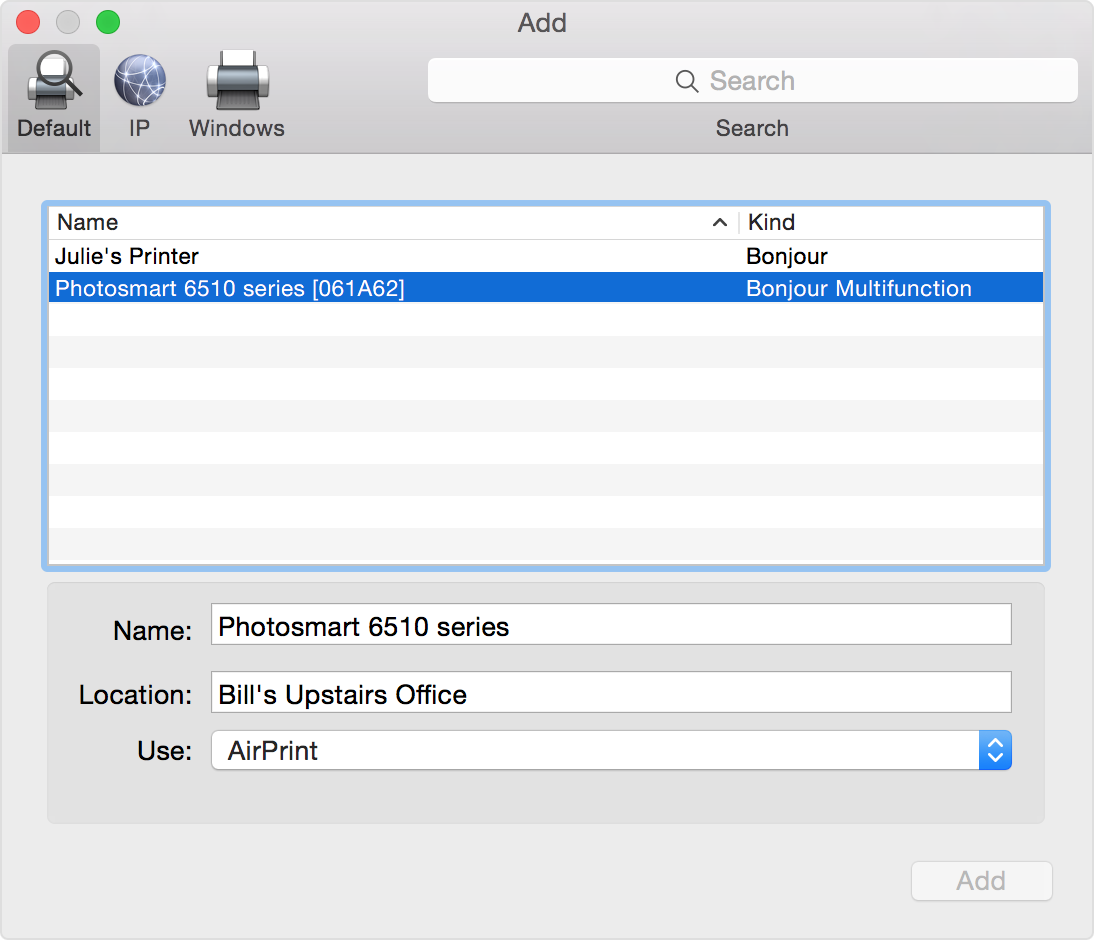
    6. Choose your printer from the Printer pop-up menu, which lists printers that are nearby or connected directly to your Mac. You may need to wait a moment for the printer to appear in the menu. If your printer doesn't appear, choose Add Printer from the same menu. A new window opens:

    Add Printer window


    The icons in this window offer several ways to add a printer:

    • Default: Choose Default to display the list of printers connected to your Mac or discoverable on your local network. You can use the search field at the top of the window to narrow your search. If you don't see your printer in this list, your printer may use an older protocol that requires you to specify its IP address.
    • IP: Choose IP if your printer is connected to your network and you know the printer's IP address or host name. If you don't have this information, ask your network administrator or check your printer's documentation.
    • Windows: Choose Windows if your printer is connected to a PC using printer sharing, or is connected to your network using the Windows SMB/CIFS protocol. You may first need to set up File Sharing to connect to the networked Windows resource.

    If you still can't see your printer or successfully add it, contact the printer manufacturer for support.

    If you have some other printing issue

    These steps may resolve printing issues that have no other clear cause:

    1. Open the Printers & Scanners pane of System Preferences, then select your printer and click the minus sign to remove the printer from the list.
    2. Follow the steps in the previous section to add your printer.
    3. If the issue persists, reset the printing system, then follow the steps in the previous section once more.

    If the issue remains unresolved, take these final steps to move aside any currently installed printer drivers:

    1. Reset the printing system again.
    2. Rename the folder at /Library/Printers:
      • From the Finder, choose Go > Go to Folder. Then type /Library and click Go.
      • Click once on the Printer folder to select it, then press Return to begin renaming the folder. Type Printers-old, then press Return to save the new name.
    3. Follow the steps in the previous section once more.


    Thanks for reaching out to Apple Support Communities.


    Kind Regards.