_pasho

Q: Lock screen passcode and Apple Pay

Hi,


Today I disabled the passcode and got my cards wiped out. Fantastic! Added them back - the purchase history is gone, awesome!


I just want to get rid of the freaking password on the lock screen. When I cycle I wear gloves - can't use the finger print reader to unlock. Occasionally I need my iPhone to check the maps, and to do that I have to type my pass every time. I got onto Apple Pay to save me some trouble entering my card pin few times a day when I purchase something. With that I get the convenience of entering my passcode much more often when in gloves. What an improvement!


What kind of security problem are you trying to solve with this silliness? To authorise a transaction I need to scan my finger or enter a pin anyway. It makes sense to protect the sensitive parts - wallet, account management. For everything else it's an annoying overkill.


Regards,

Pavel

iPhone SE, iOS 9.3.2, null

Posted on Jul 3, 2016 10:17 AM

Close

Q: Lock screen passcode and Apple Pay

  • All replies
  • Helpful answers

  • by deadman.walking,

    deadman.walking deadman.walking Jul 3, 2016 10:19 AM in response to _pasho
    Level 2 (199 points)
    Jul 3, 2016 10:19 AM in response to _pasho

    Set a passcode on your iOS device to help protect your data. (If your device supports Touch ID, you can often use your fingerprint instead of your passcode.) Then your device will require your passcode when you do the following:

    • Turn on or restart your device
    • Slide to unlock your screen (you can change this)
    • Update your software

    • Erase your device
    • View or change passcode settings
    • Install iOS Configuration profiles

               Set up a passcode        

            Change your settings      

           Get help with passcode    

    Set up a passcode

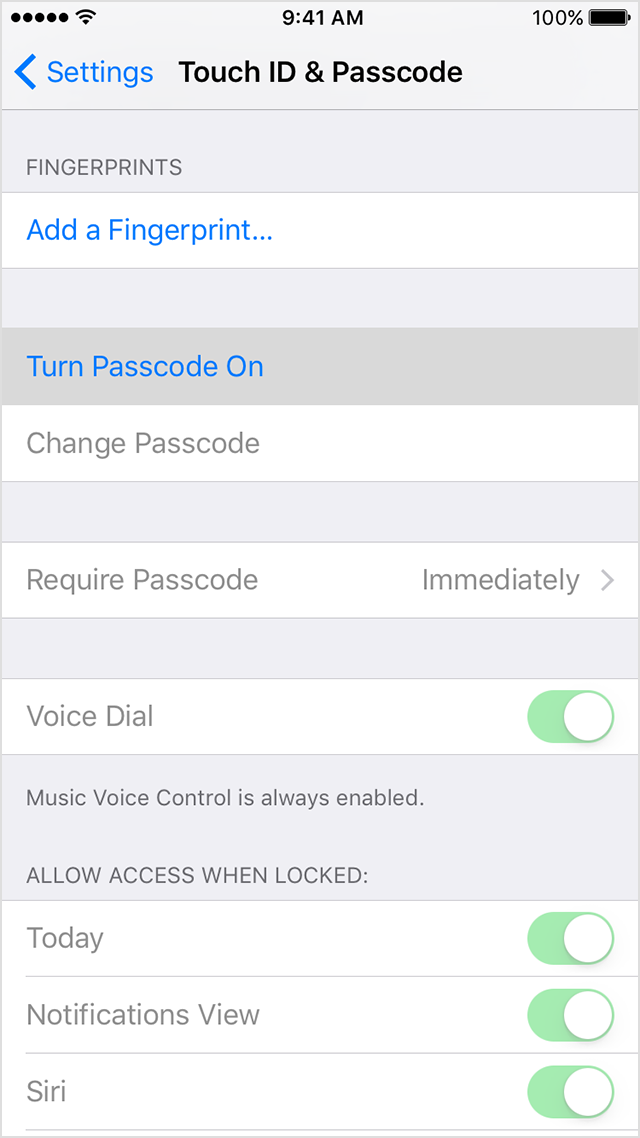
    1. Go to Settings > Touch ID & Passcode. On devices without Touch ID, go to Settings > Passcode:
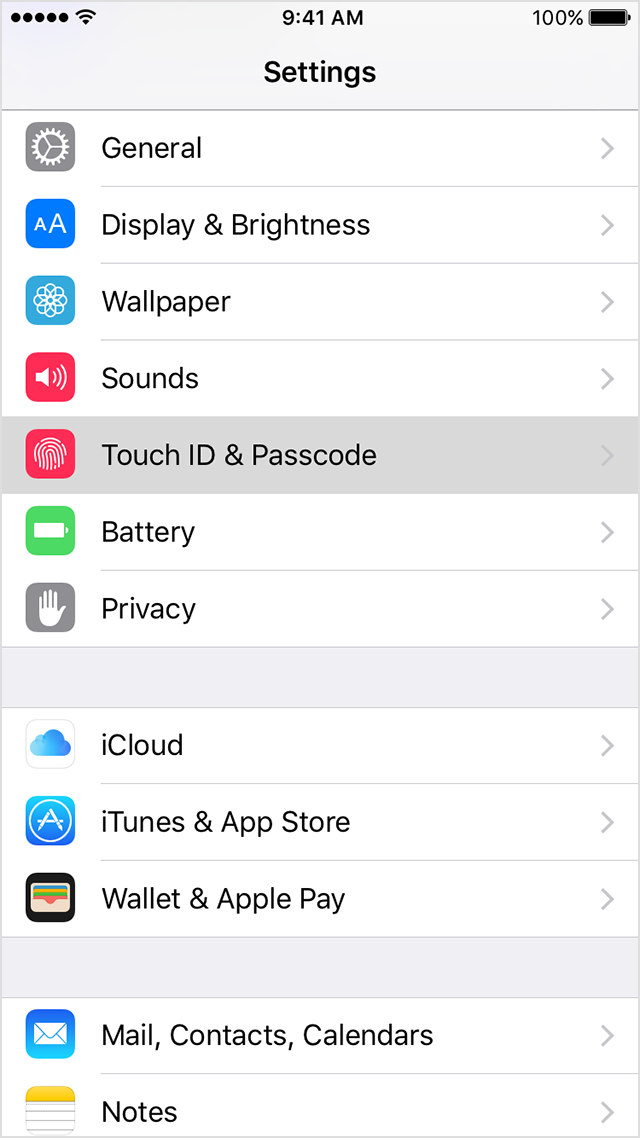
    2. Tap Turn Passcode On.
    3. Enter a six-digit passcode. Or tap Passcode Options to switch to a four-digit numeric code, a custom numeric code, or a custom alphanumeric code.
    4. Enter your passcode again to confirm it and activate it.

    Change your passcode or passcode settings

    Go to Settings > Touch ID & Passcode. On devices without Touch ID, go to Settings > Passcode.
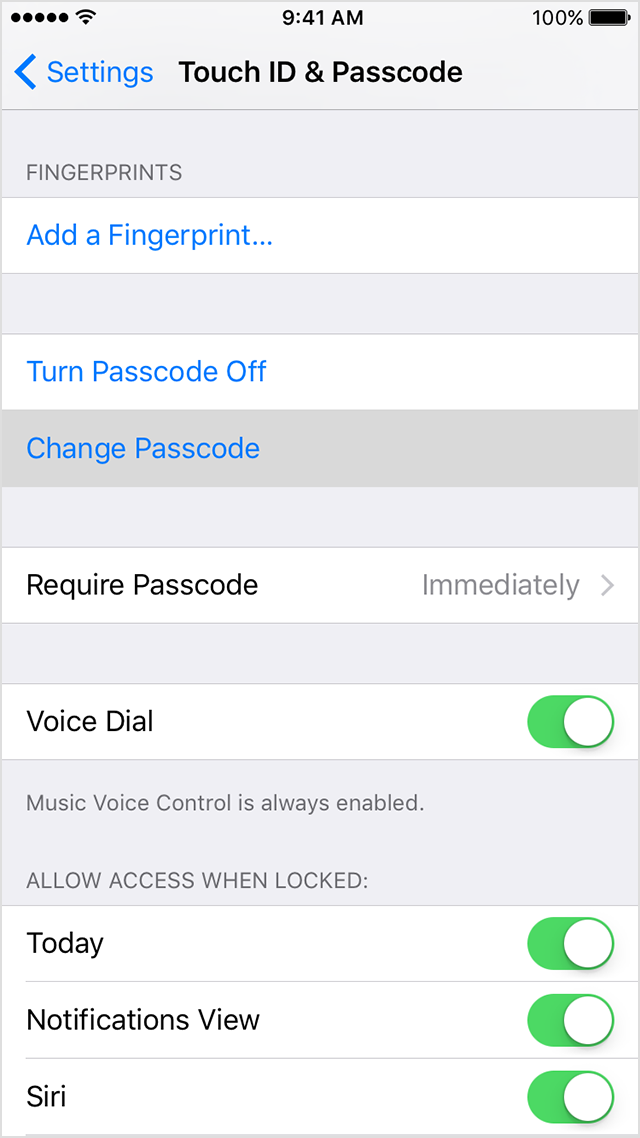
    You'll find several settings and options:

    • Turn Passcode Off: Tap this option to turn off your passcode.
    • Change your passcode: Enter a new six-digit passcode. Or tap Passcode Options to switch to a four-digit numeric code, a custom numeric code, or a custom alphanumeric code.
    • Require Passcode: By default with this setting, as soon as you lock your screen, you need to enter your passcode to unlock. If you don't want an immediate passcode requirement, change this setting (For your security, if you use Touch ID or Apple Pay, you can't change the immediate passcode requirement).
    • Allow Access When Locked: Use this option to allow access to some features when your device is locked, including Notifications View, Siri, and Control Center.
    • Erase Data: Choose whether to erase your device automatically after ten failed passcode attempts.

    Get help

    Follow the steps in this section for help with things like passcode settings, alerts, and forgotten passwords.

    If an alert says to change your passcode or you can't adjust your passcode settings

    Configuration profiles and email accounts based on Microsoft Exchange (common with business or education devices) sometimes have passcode policies that cause issues like this:

    • You can't turn off your passcode.
    • You can't change passcode settings because they're unavailable, gray, or dimmed.
    • You see an alert that asks you to change your passcode.


    Contact your IT administrator for help. If you don’t use a configuration profile or Microsoft Exchange account, or if your device is personally owned, contact Apple Support.

    If you forgot your passcode

    If you or someone else enters the wrong passcode too many times, your device will disable itself temporarily. If so, get help with a forgotten passcode or disabled device. Or, if you forgot your Restrictions passcode, learn what to do.


  • by _pasho,

    _pasho _pasho Jul 3, 2016 10:37 AM in response to deadman.walking
    Level 1 (5 points)
    iPhone
    Jul 3, 2016 10:37 AM in response to deadman.walking

    Did you understand the problem I've explained? I don't want to have a passcode on my lock screen, but I want the Apple Pay at the same time. It doesn't seem possible, which is pretty annoying.


    If you enable Apple Pay, you have to authenticate every time you want to an iPhone. That's an overkill if you wear gloves. Security should protect sensitive things. Requiring password to launch maps is silly.

  • by Meg St._Clair,

    Meg St._Clair Meg St._Clair Jul 3, 2016 10:44 AM in response to _pasho
    Level 9 (58,419 points)
    iPhone
    Jul 3, 2016 10:44 AM in response to _pasho

    _pasho wrote:


    Did you understand the problem I've explained? I don't want to have a passcode on my lock screen, but I want the Apple Pay at the same time. It doesn't seem possible, which is pretty annoying.

    No, it's not an option. Sorry.

  • by _pasho,

    _pasho _pasho Jul 3, 2016 10:57 AM in response to Meg St._Clair
    Level 1 (5 points)
    iPhone
    Jul 3, 2016 10:57 AM in response to Meg St._Clair

    Ok, thank you for the confirmation.

    An improvement opportunity )

  • by Meg St._Clair,

    Meg St._Clair Meg St._Clair Jul 3, 2016 11:03 AM in response to _pasho
    Level 9 (58,419 points)
    iPhone
    Jul 3, 2016 11:03 AM in response to _pasho

    _pasho wrote:


    Ok, thank you for the confirmation.

    An improvement opportunity )

    It is highly unlikely that Apple would compromise security in the way you want. However, you're free to submit feedback to them:


    http://www.apple.com/feedback