Dictionary Dashboard Widget

Recently,, I deleted the dictionary widget because it stopped working in my dashboard. I tried deleting the .plist files and everything beforehand and made this mistake. Now I can't get it back. Does anyone know how I can reinstall it?

MacBook Pro, OS X El Capitan (10.11.5)

Posted on Jul 7, 2016 8:52 AM

Reply
3 replies

Jul 8, 2016 6:47 AM in response to william.m.baker

Hello there, william.m.baker!


Thanks for reaching out to the Apple Support Communities! Sounds like you are trying to get Widgets installed back to your Mac. I know I love to be able to access all my Widgets and install ones that I need as well. Check out this article here with steps about Mac Basics: Dashboard gives you quick access to frequently used info.


Adding Dashboard widgets

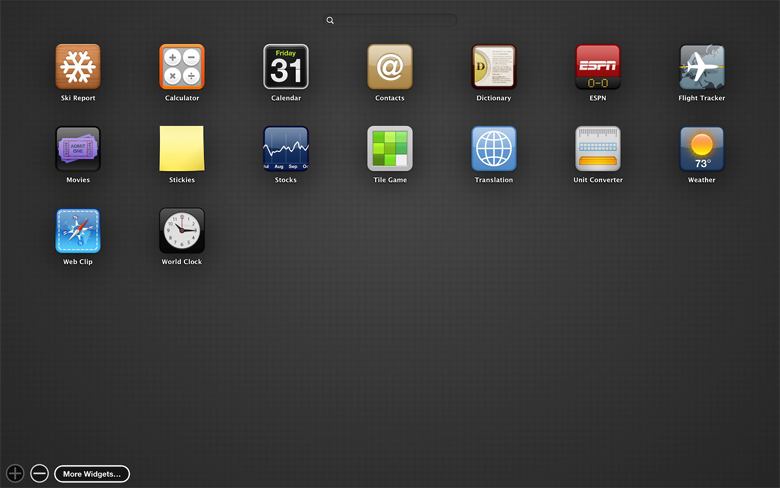
To see all the widgets on your Mac, click the add (+) button in the lower-left corner of the screen. This enters the widget browser. It shows you all the widgets installed on your Mac.
User uploaded file

To add a widget to Dashboard, click an icon in the widget browser. Or start typing the name of the widget in the search field and click the widget to add it to your Dashboard. You can even add more than one copy of the same widget. This can be useful if you need to track time in multiple time zones, or want to create multiple Stickies.

Download and install more widgets by clicking the More Widgets button. This takes you to the Apple Dashboard downloads webpage.


Also, you can check out this article: OS X El Capitan: Get quick info with Dashboard.


Cheers!

Jul 13, 2016 5:05 AM in response to william.m.baker

Hello!


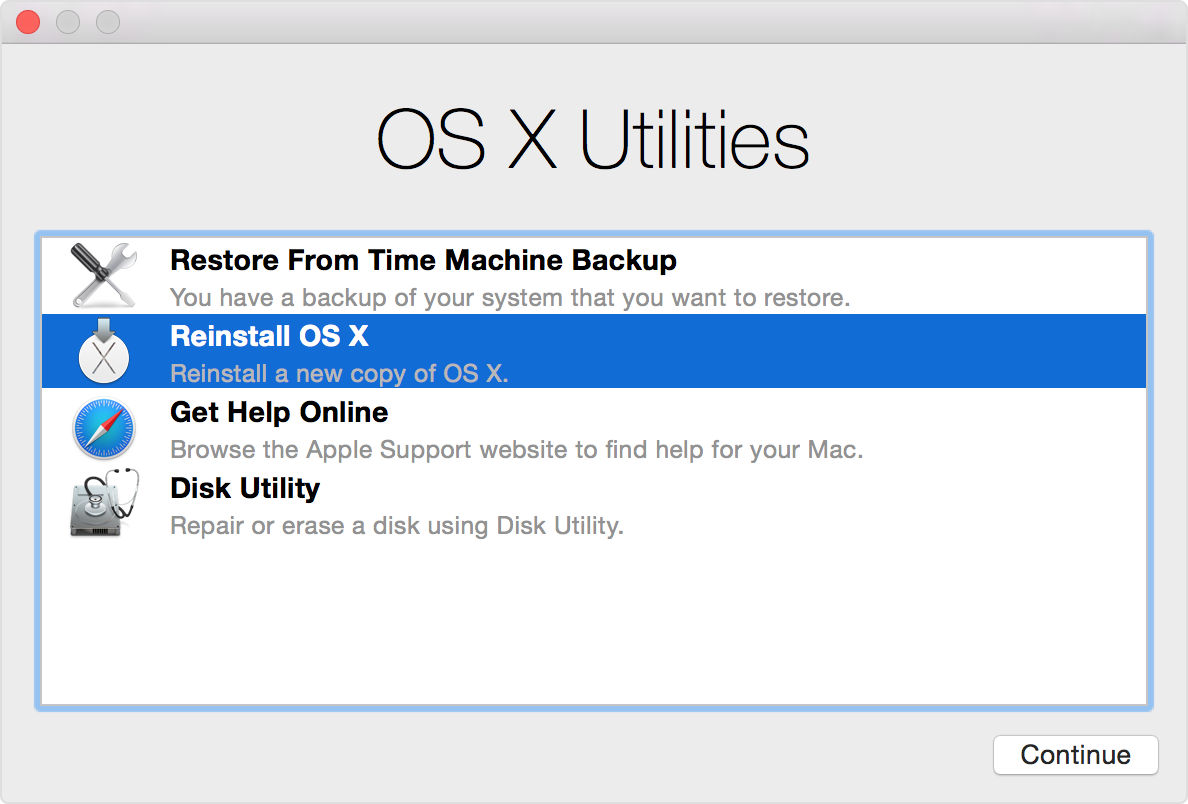
If you are not able to reinstall the widget completely, it might be a good idea to reinstall the OS and see if that puts the widget back on the computer for you. Check out this article about How to reinstall OS X on your Mac.


Reinstall OS X from Recovery

If have a recent Mac, you can use OS X Recovery to reinstall OS X.

User uploaded file

  1. Turn on your Mac.
  2. Immediately after you hear the startup sound, hold the Command and R keys on your keyboard.
  3. Release the keys after the Apple logo appears.
  4. If prompted, select a Wi-Fi network, or connect your Mac to the Internet using an Ethernet cable.
  5. After the Recovery menu appears, select the option to Install OS X.
  6. Follow the onscreen prompts to select your destination disk and install OS X.

These steps reinstall the latest version of OS X that you previously had installed on your Mac.


Keep in mind this will not delete your personal files, however, you should always have a backup of your computer just in case.

This thread has been closed by the system or the community team. You may vote for any posts you find helpful, or search the Community for additional answers.

Dictionary Dashboard Widget

Welcome to Apple Support Community
A forum where Apple customers help each other with their products. Get started with your Apple Account.