Learn what to do if you see an alert when you send a message or if you can’t send or receive messages.
- Make sure that your iPhone, iPad, or iPod touch is updated to the latest version of iOS.
- If you have an iPhone or iPad (Wi-Fi + Cellular), check for a carrier settings update.
- Check your network connection. To send a message as iMessage or MMS, you need a cellular data or Wi-Ficonnection. To send an SMS message, you need to have a cellular network connection. If you have Wi-Fi Calling turned on, you can send SMS messages over Wi-Fi. Contact your carrier for more information.
- Check with your carrier to see if the type of message you’re trying to send, like MMS or SMS, is supported.
- If you’re trying to send group MMS messages on an iPhone, turn on MMS Messaging. If you don't see an option to turn on MMS Messaging or Group Messaging on your iPhone, contact your carrier.
- Make sure that you entered the correct phone number or email address for the recipient.
If you still need help, find your issue below to see what to do next.
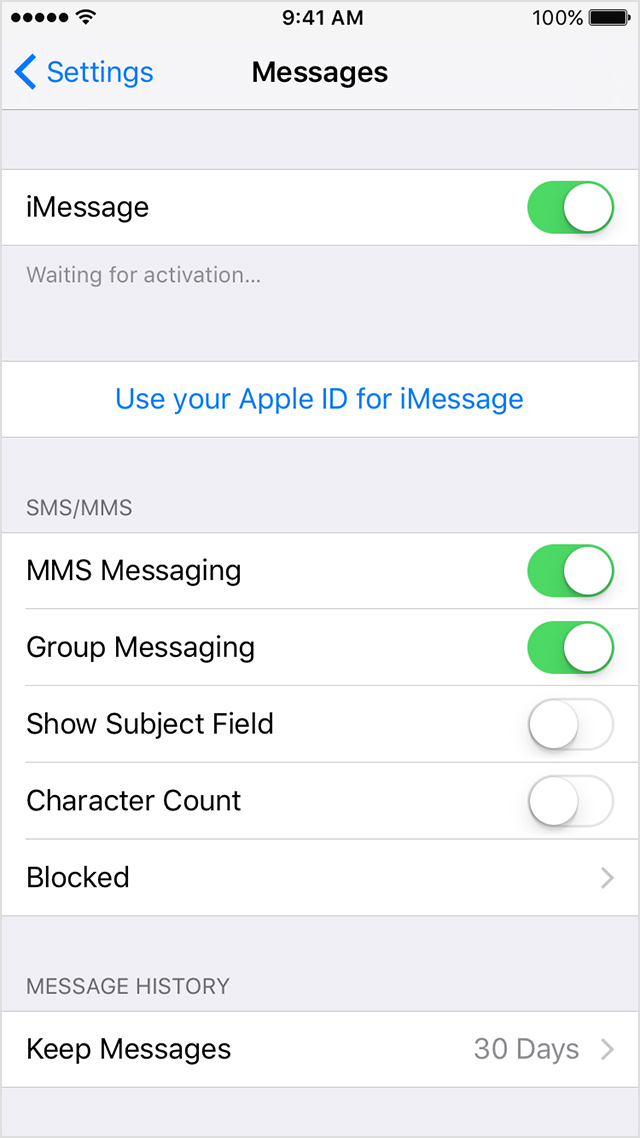
Make sure that the date and time on your device is correct. If the date and time aren't correct, you can change it. Then follow these steps:
- Go to Settings > Messages.
- Turn off iMessage.
- Then turn on iMessage again.
If you still can’t activate iMessage, contact Apple Support.
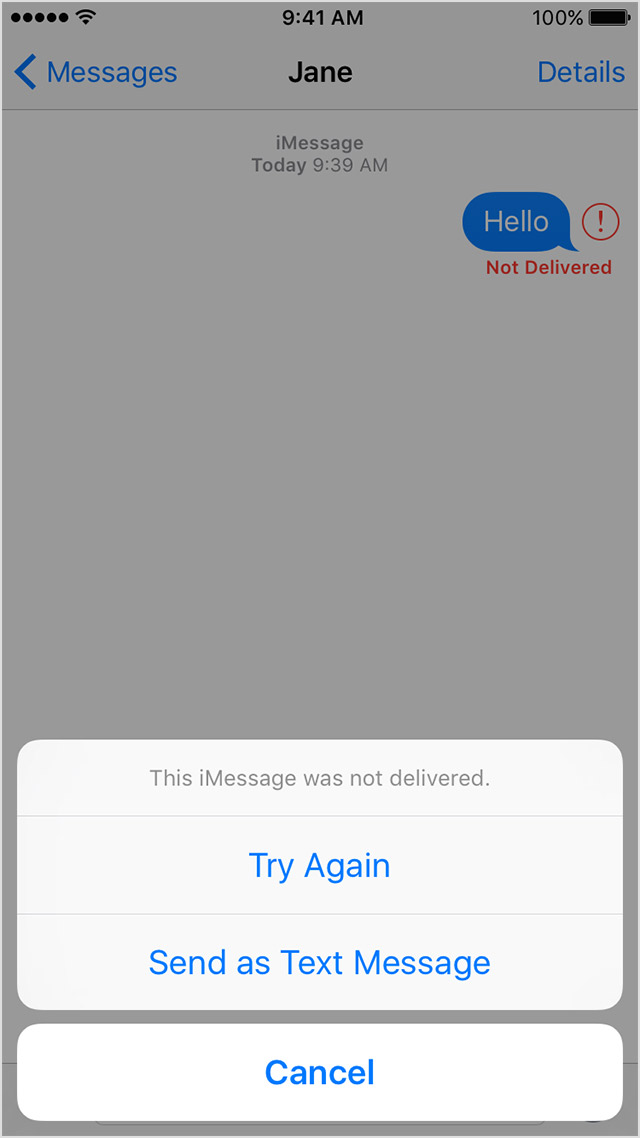
If you try to send a message and you see  with an alert saying Not Delivered, follow these steps:
- Tap , then tap Try Again.
- If you still can’t send the message, tap , then tap Send as Text Message. Messaging rates might apply. Contact your carrier for more information.
Your iMessage settings may be set to receive iMessages and start conversations from your Apple ID instead of your phone number. Check your settings to see if your phone number is set to send and receive messages: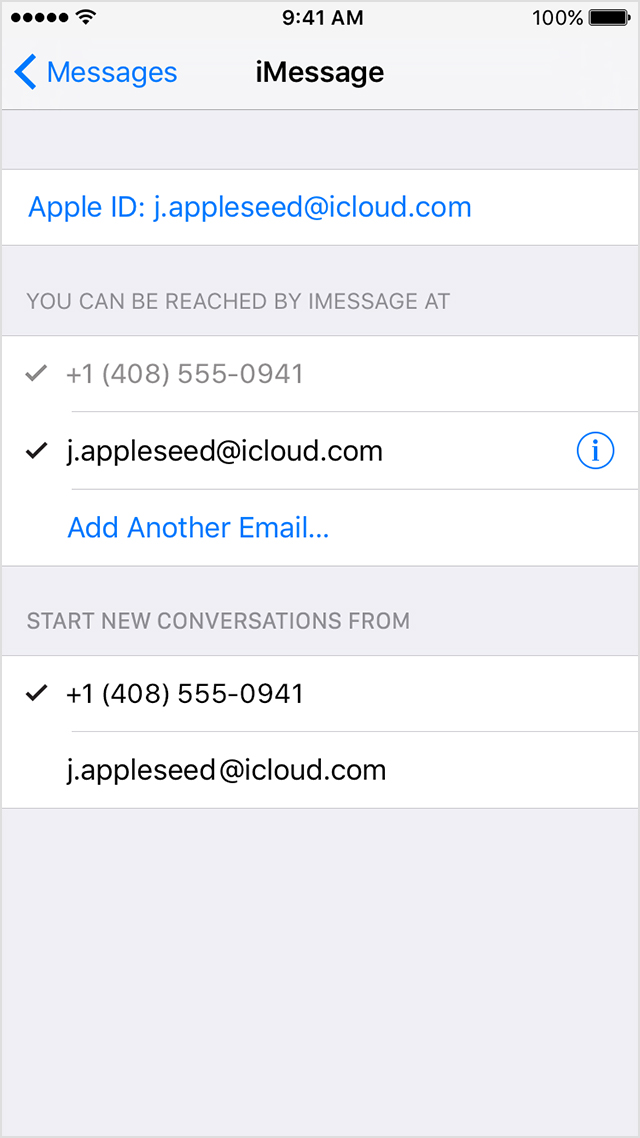
- Go to Settings > Messages.
- Tap Send & Receive.
- Make sure that your phone number is listed and selected under You Can Be Reached By iMessage At and under Start New Conversations From.
If you don't see your phone number listed, you can add it. Follow these steps:
- On all of your iOS devices, go to Settings > Messages > Send & Receive.
- Tap your Apple ID, then tap Sign Out.
- On your iPhone, go back to Settings > Messages > Send & Receive.
- Tap Use your Apple ID for iMessage, then sign in with your Apple ID.
- Make sure that your phone number and Apple ID are listed under You Can Be Reached By iMessage At.
- On your other iOS devices, go back to Settings > Messages > Send & Receive.
- Tap Use your Apple ID for iMessage, then sign in with your Apple ID.
If you don’t have an iPhone, you can only send and receive messages with your Apple ID to other Apple devices using iMessage. To use iMessage, go to Settings > Messages > Send & Receive and make sure that you’re signed in with your Apple ID. If you have an iPhone, you can link your iPhone number to your Apple ID so you can send and receive iMessages from your phone number. You can also set up Text Message Forwarding so you can send and receive MMS and SMS messages on all of your Apple devices.
You might reply to a group conversation and receive your own message. Or you might get a new phone number and see your old one listed as a recipient in an existing group conversation. If you have issues with a group message, you might need to delete the conversation and start a new one. Follow these steps:
- Open Messages and find the conversation you want to delete.
- Swipe left over the conversation, then tap Delete.
After you delete the group conversation, start a new one:
- Open Messages and tap
 .
. - Enter the phone numbers or email addresses of your contacts.
- Write a new message, then tap Send.
When you delete a conversation, you can't recover it. If you want to save parts of a conversation, take a screenshot. To save an attachment in a conversation, touch and hold the attachment, tap More, then tap Save.
