Adding my music to a used iPod Nano 6th get that I bought?
I purchased a used iPod Nano 6th Gen. How can I add my music to it?
I purchased a used iPod Nano 6th Gen. How can I add my music to it?
Hello BGViper52,
Thanks for using Apple Support Communities.
I see that you would like to add music to your iPod nano (6th generation). I know it's nice to be able to know how to add music to your device. I'm happy to help assist you with this.
You want to use iTunes to add music to your iPod nano. Use Sync your iPhone, iPad, or iPod touch with iTunes on your computer using USB, specifically, this section:
Sync your content with iTunes
Follow these steps to manually sync the content from your computer to your iOS device:
- Open iTunes. Make sure that you have the latest version.
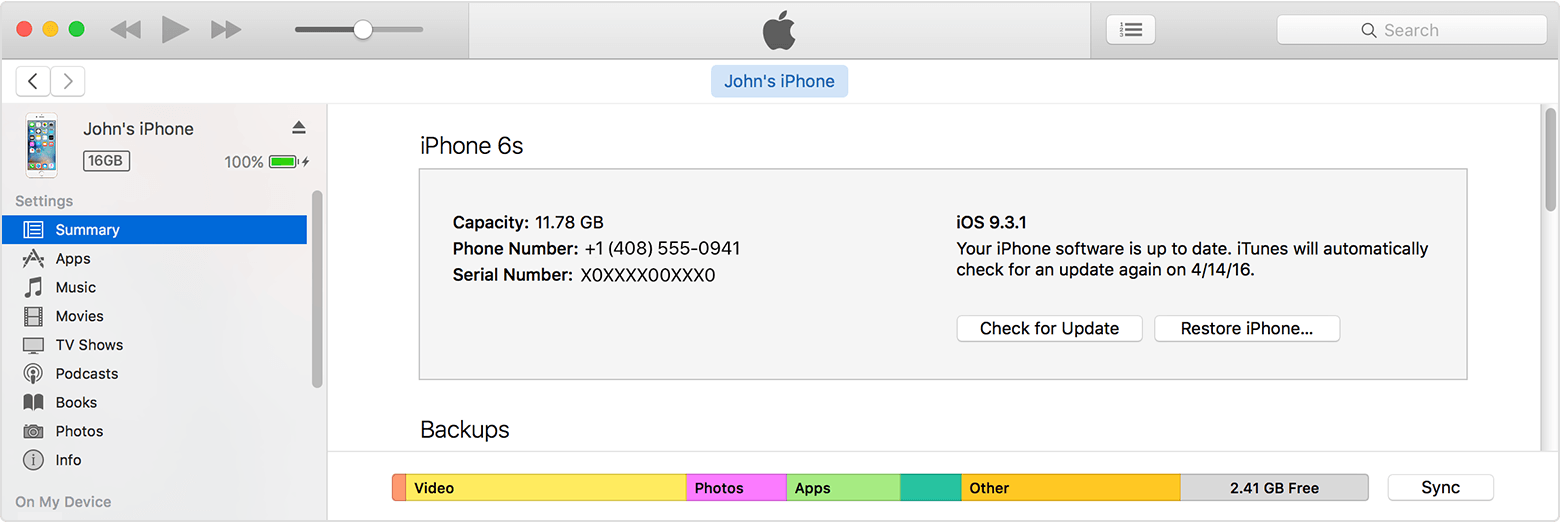
- Connect your device to your computer using the included USB cable. Your connected device appears as an icon in the upper-left corner of the iTunes window. Learn what to do if you don't see the icon.
- Click on the device icon
. Look under Settings on the left side of the iTunes Window for a list of the content types that you can sync from your iTunes library to your device.
If you don't have certain content in your iTunes library, you might not see some tabs. For example, if you don't have any podcasts in your library, you won't see a Podcast tab.
iTunes can't sync certain content, including mail accounts, notes, or bookmarks. Use iCloud to manage your mail, notes, and bookmarks across your devices. Some iOS apps might use iTunes’s File Sharing feature to transfer content instead of syncing.
- Click the content type that you want to sync.
- In the main iTunes window, click the box next to Sync to turn on syncing for that content type. If there's a check in the box, syncing for that content type is already on.
If you see a message that your iOS device is synced with another iTunes library after clicking the box, your iOS device was previously connected to another computer. If you click "Erase and Sync" in that message, all content of the selected type on your iOS device is replaced with content from your computer. Content that you didn't turn on syncing for isn't deleted from your iOS device. You can only sync your iOS device with one iTunes library at a time.
If you use iCloud or other services to keep your content up to date, syncing through iTunes might be disabled.
- After you turn on syncing for a content type, you'll see additional options to customize your sync settings. Use these options to make sure that you’re syncing the content that you want synced.
- Repeat steps 4–6 for each content type that you want to sync.
- Click the Apply button in the lower-right corner of the screen to save your sync settings. If syncing doesn't start automatically, click the Sync button.
After you turn on syncing, your content syncs each time that you connect your iOS device to your computer and have iTunes open.
If you see a message that some of your content couldn't sync, your computer might not be authorized for that type of content. Make sure that your computer is authorized for the content that you're trying to sync.
Additional information can be found here:
Have a great day!
Adding my music to a used iPod Nano 6th get that I bought?