Hello anthonylemay,
Thanks for using Apple Support Communities.
I see that when you are in OS X, your Wi-Fi connection is loosing a connection every five minutes. But when you are in Windows 10 Boot Camp, your Wi-Fi connection is fine. I understand that having a reliable Wi-Fi connection is of the upmost importance. I can imagine that you're ready to get this issue resolved. Let's see how I can help out.
Please take a look at Use Wireless Diagnostics to help you resolve Wi-Fi issues on your Mac, and use wireless diagnostics on your Mac to suggest solutions for potential issues, specifically, this section:
You can open Wi-Fi Diagnostics from the Wi-Fi menu. Try to connect to your Wi-Fi network, then use these steps to begin.
- Quit any other apps that are open.
- While pressing the Option key, click the Wi-Fi menu.
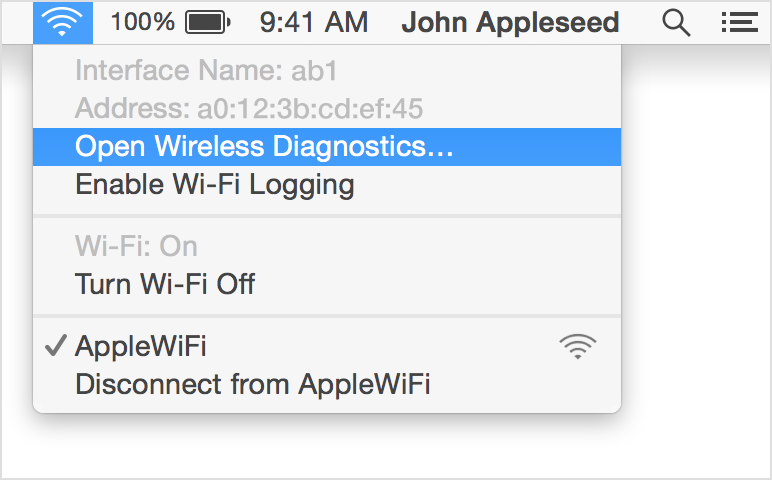
- Choose Open Wireless Diagnostics from the Wi-Fi menu.
- Enter an administrator name and password when prompted.
This opens the Wireless Diagnostics utility. Read the introduction in the window that appears, then click Continue. Wireless Diagnostics then tests the Wi-Fi connection to your base station or router, and checks your Wi-Fi configuration settings.
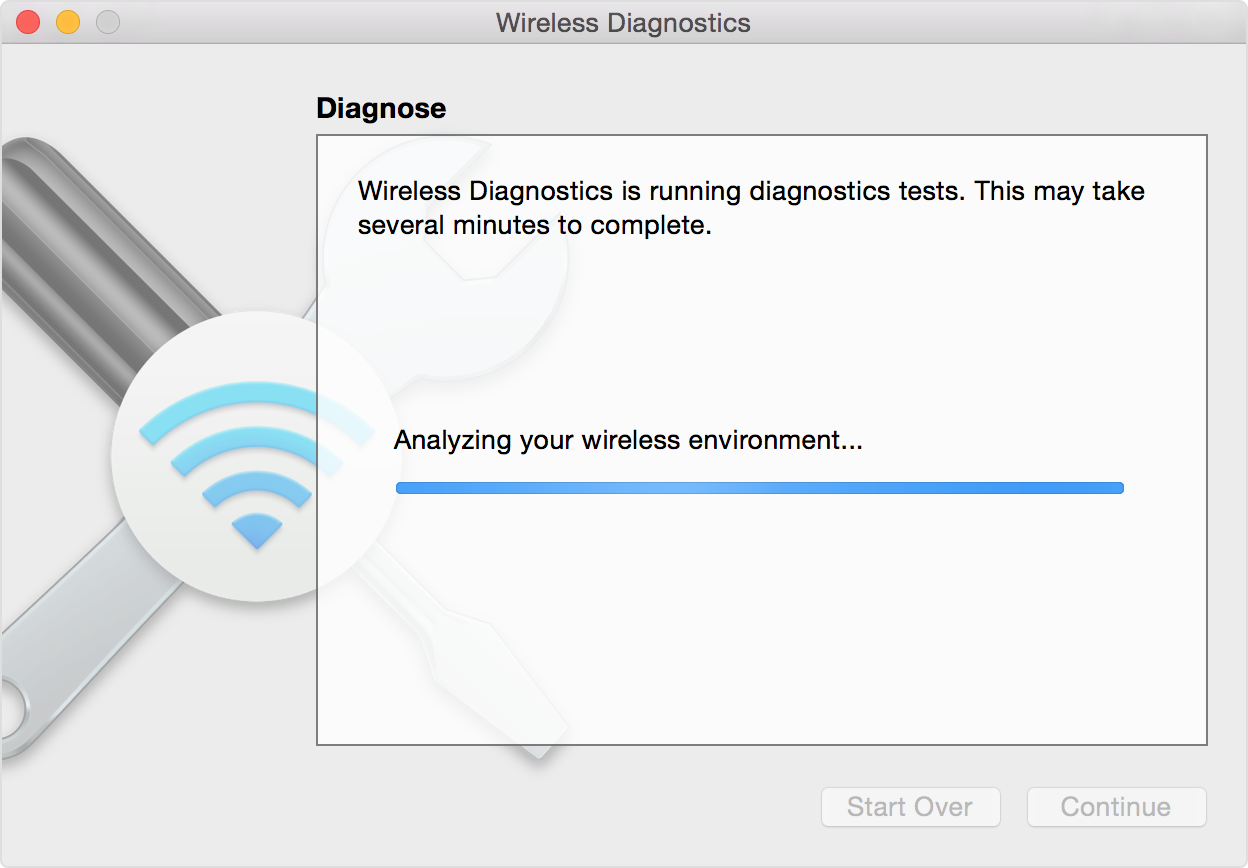
If no issues are found, Wireless Diagnostics lets you know that your Wi-Fi connection appears to be working. Click Continue to see the summary screen. If an issue is intermittent, you can select the option to monitor your Wi-Fi connection to diagnose your connection further.

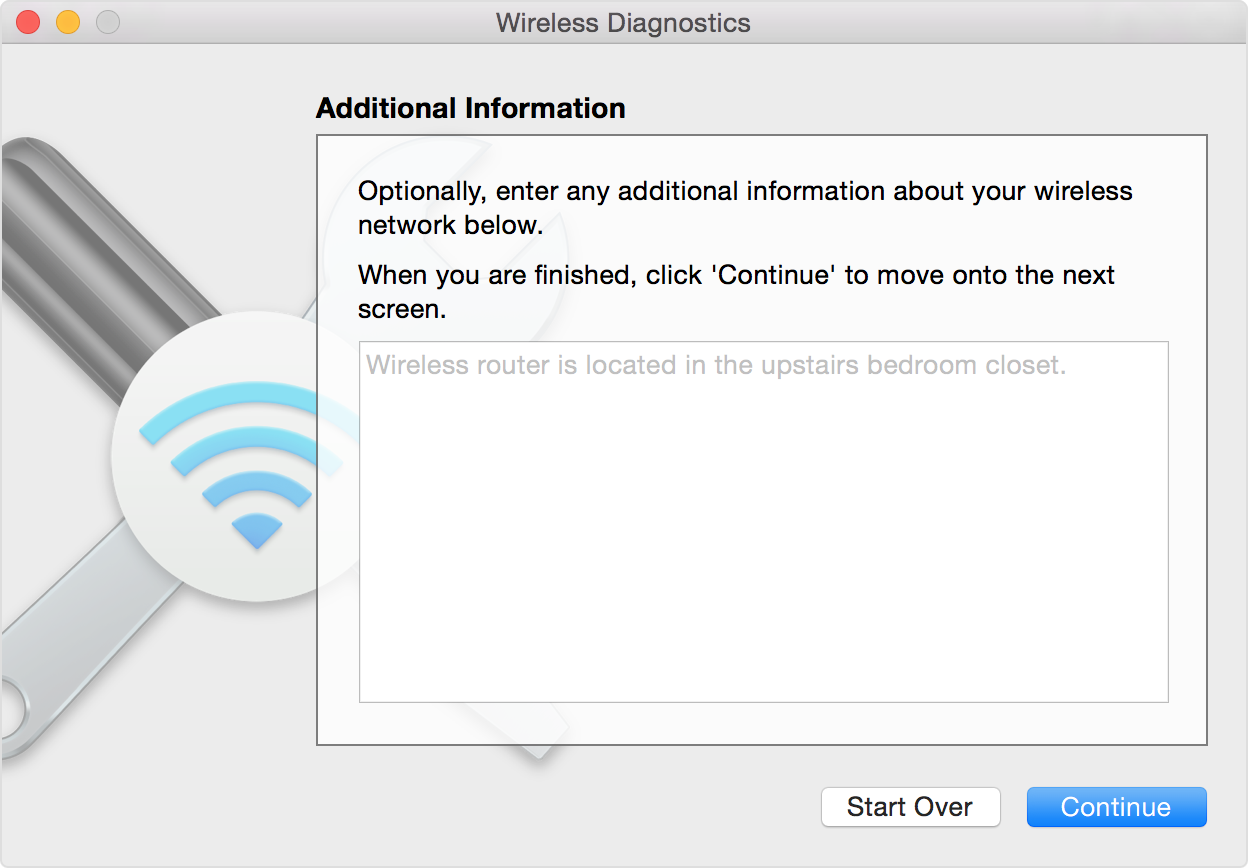
At the Additional Information window you can enter a description of your Wi-Fi network or where your router is located. The information you include here is saved in a log file that's created when you finish Wireless Diagnostics.
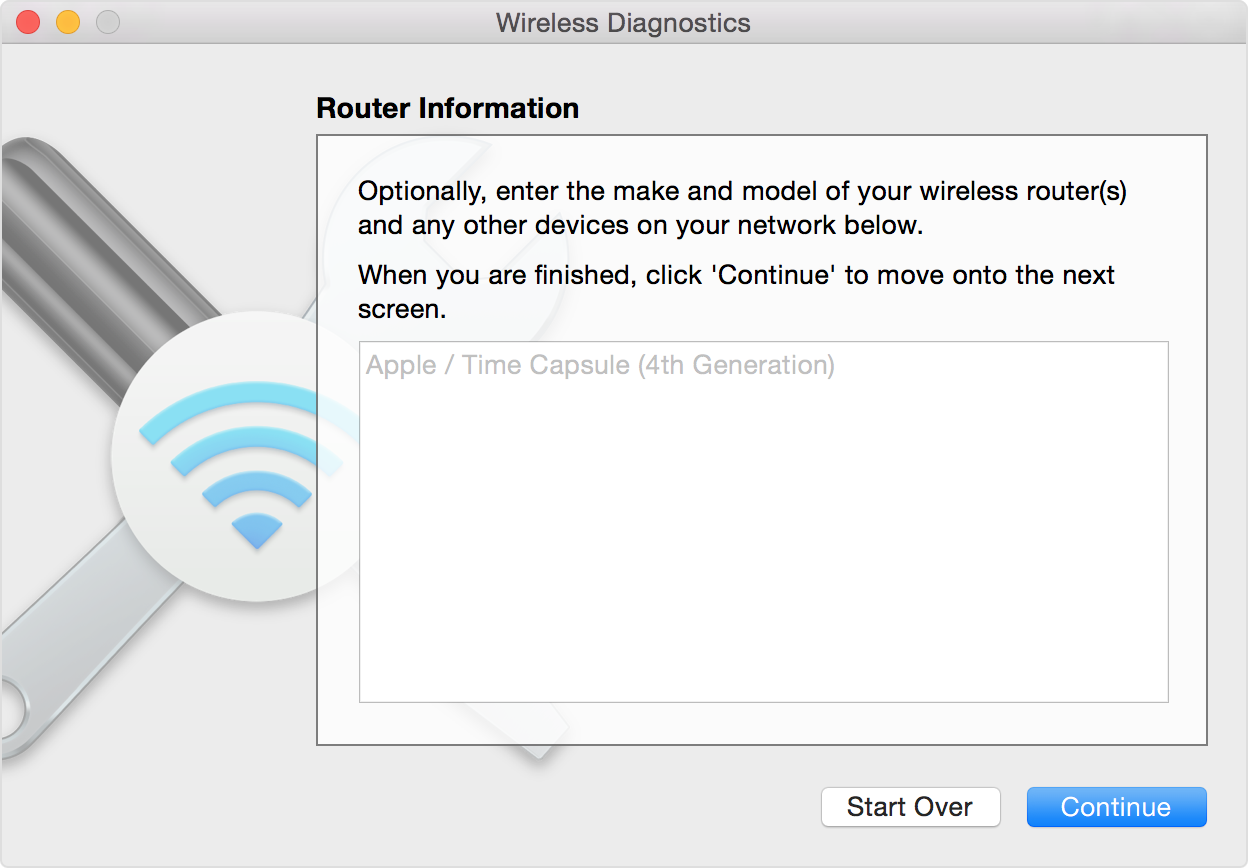
Click Continue to see the Router Information screen. Enter the brand, model, and firmware version the Wi-Fi base station or router is using if you want to include this information in the log.
Click Continue to see a summary of what Wireless Diagnostics finds. The summary provides a list of any issues that were found and recommendations for fixing those issues. Click the info button next to an item to see more information.
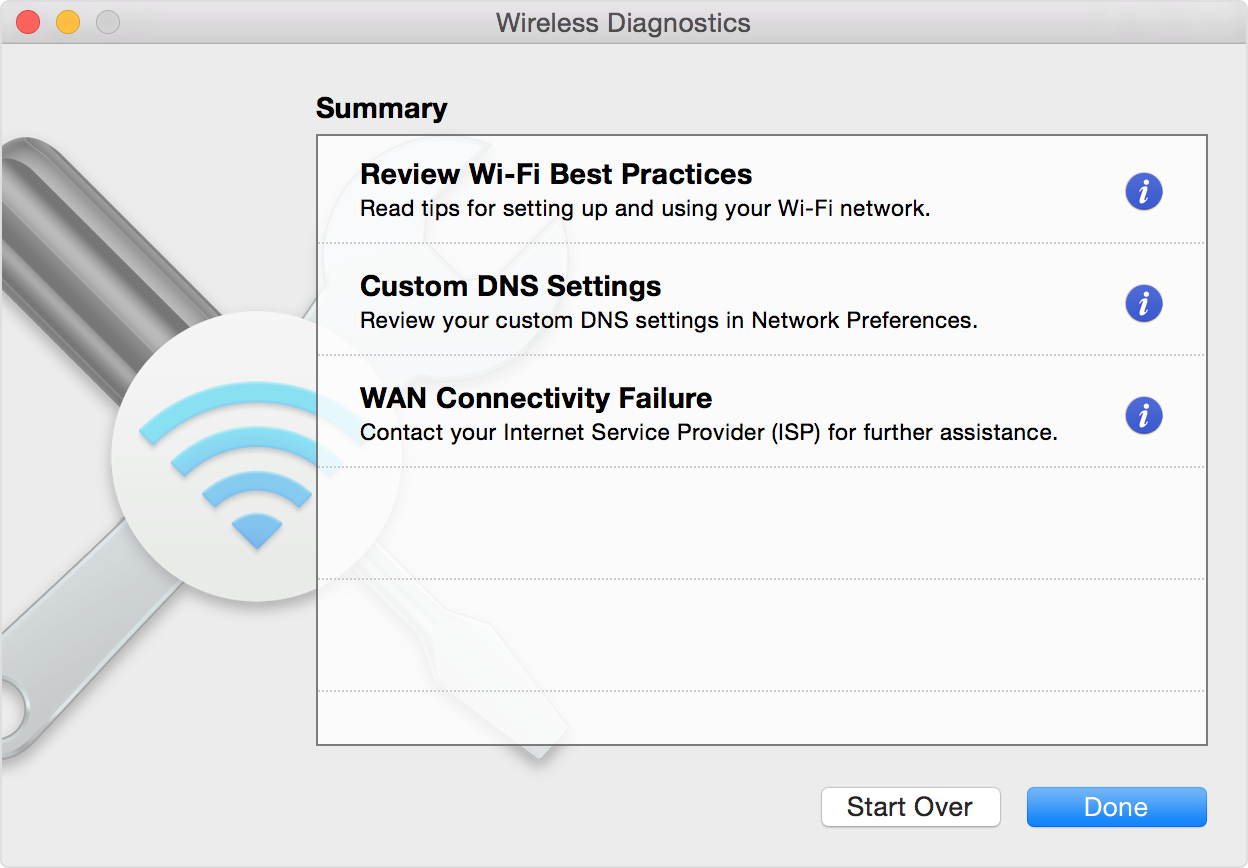
For example, the following suggestions might be offered if your DNS settings appear to be configured incorrectly:
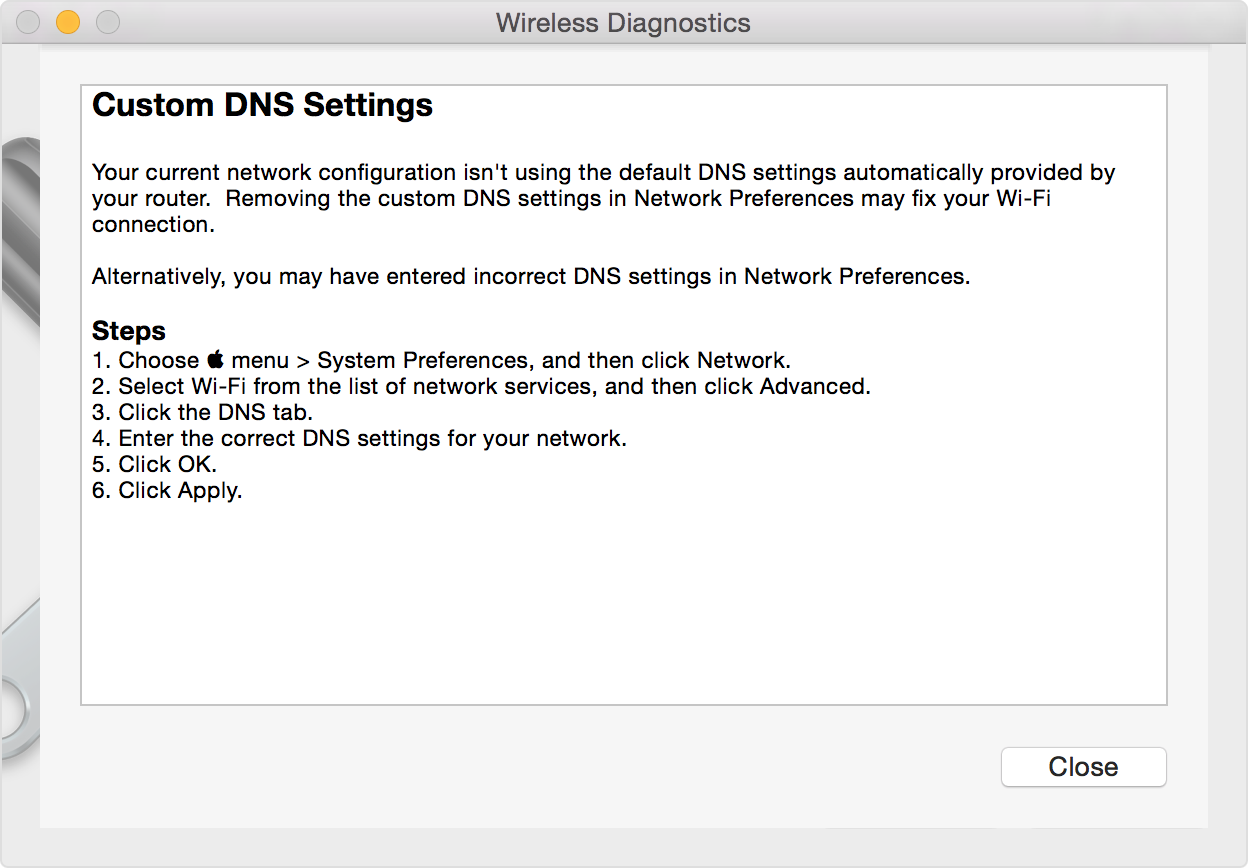
Follow the recommended steps for each item, then click Close when you're finished.
If you change your Wi-Fi settings as recommended by Wireless Diagnostics, but it doesn't fix your issue, try setting your Mac to forget or remove the previous Wi-Fi settings for your Wi-Fi network. Then join your Wi-Fi network again. This step prevents your Mac from trying to connect to your network using an older configuration.
Best Regards.


