Combine two Macs to One

Good Afternoon,

Just purchased a second-hand iMac (21.5in, 2.7GHz i5, 8GB RAM, 1TBhd) from a coworker. Plan to combine my old MBP and my wife's old iMac onto the one new system with two user IDs. Believe we are both running El Capitan, will do clean wipe and install of Sierra on new machine before any migration.

Questions:

  • Anything special procedure to follow when bringing our stuff over, can I use migration assistant for each account?
  • What is the best way to combine the songs from our two iTunes Libraries?
  • Once we have one library we would like to end up sharing it on the new system.

    What is the best way, put the new library on an external drive, in the shared folder, or even on an SDXC card?

  • Is there anything I am missing or likely to screw up in this entire process?


Thank you for your help and insights

Jerome

iMac, macOS Sierra (10.12), 21.5, i5 2.7GHz, 8GB RAM, 1TB HD

Posted on Sep 20, 2016 2:51 PM

Reply
1 reply

Sep 21, 2016 10:05 AM in response to C. Jerome

HI C. Jerome,

Congrats on the iMac you got! I understand that you have some questions about getting all of your content from both of your other computers set up on this one.

For moving the data over to the new computer, you can definitely use Migration Assistant to make the process run smoothly for you. This article has information on how to go through those steps:

Move your content to a new Mac - Apple Support

Once the content is on the new iMac, each account will have its iTunes library as well. If the music in those libraries was purchased from the iTunes store, it may be best to share the music with each other using Home Sharing, so that you don't run into authentication issues trying to play music from a different Apple ID. This article has more information on Home Sharing:

Use Home Sharing to share iTunes content with other devices - Apple Support

When moving your iTunes library, you can simply drag the library files to an external storage device. Once there, you'll just want to configure iTunes to recognize the new location. This article has more information on how to do that:

Locate and organize your iTunes media files - Apple Support

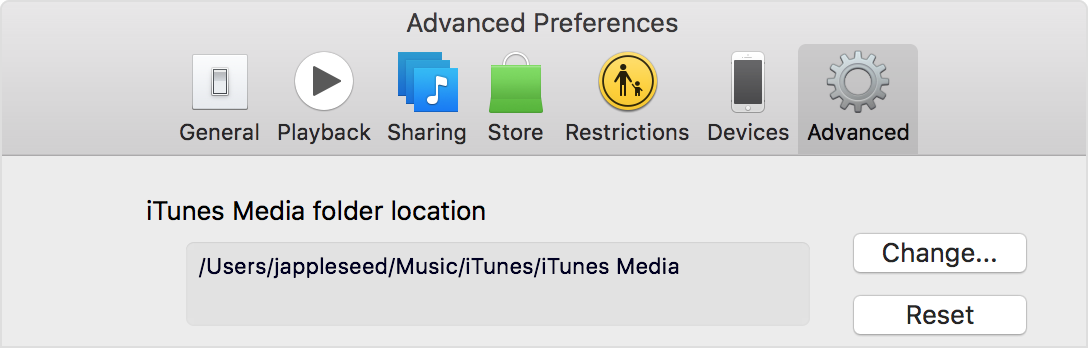
Find and change the iTunes Media folder location

On the Advanced tab:

  • Look in the box under "iTunes Media folder location" for the location of your iTunes Media folder.
  • To change the location, click the Change button and enter a new location.
    User uploaded file

After you change the location of the folder, existing files won't be moved unless you consolidate your files. To consolidate your files:

  • Mac: From the menu bar at the top of your computer screen, choose File > Library > Organize Library and select "Consolidate files." Then click OK.
  • Windows: Hold down the Control and B keys to open the iTunes menu bar. Choose File > Library > Organize Library, and select "Consolidate files." Then click OK. Learn more about menus in iTunes for Windows.

You can also:

Reset your media folder to the default location (the iTunes folder). To reset the folder's location, click Reset to the right of the location box.


Thanks for using the Apple Support Communities. Cheers!

This thread has been closed by the system or the community team. You may vote for any posts you find helpful, or search the Community for additional answers.

Combine two Macs to One

Welcome to Apple Support Community
A forum where Apple customers help each other with their products. Get started with your Apple Account.