Hello KennKaa,
I understand you are trying to download and install macOS Sierra on your MacBook Pro, but after several attempts, the application won't install. Based on your model and the fact that you have OS X El Capitan currently on your system, macOS Sierra should be able to install. Are you seeing any errors when you try?
Upgrade to macOS Sierra
The first thing I want to suggest is that you make sure you have a backup of your computer before making significant changes to it. If you have not already done so, please refer to the instructions below:
Use Time Machine to back up or restore your Mac
Next, let's confirm that you have enough free space on your Macintosh HD for this installation:
- Open the Finder Application
- On the Menu Bar, click Go > Computer
- Right-Click on Macintosh HD and choose Get Info
- What does your computer show for Capacity and for Available (usually represented in GB)?
macOS Sierra requires 8.8GB of storage space to install.
Let's also use Disk Utility to verify there are no issues with your Macintosh HD. Because you have OS X El Capitan installed on your MacBook, we can access Disk Utility from macOS Recovery.
About macOS Recovery
To start up from macOS Recovery, hold down Command (⌘)-R immediately after turning on or restarting your Mac. Release when you see the Apple logo.
Startup is complete when you see the utilities window:
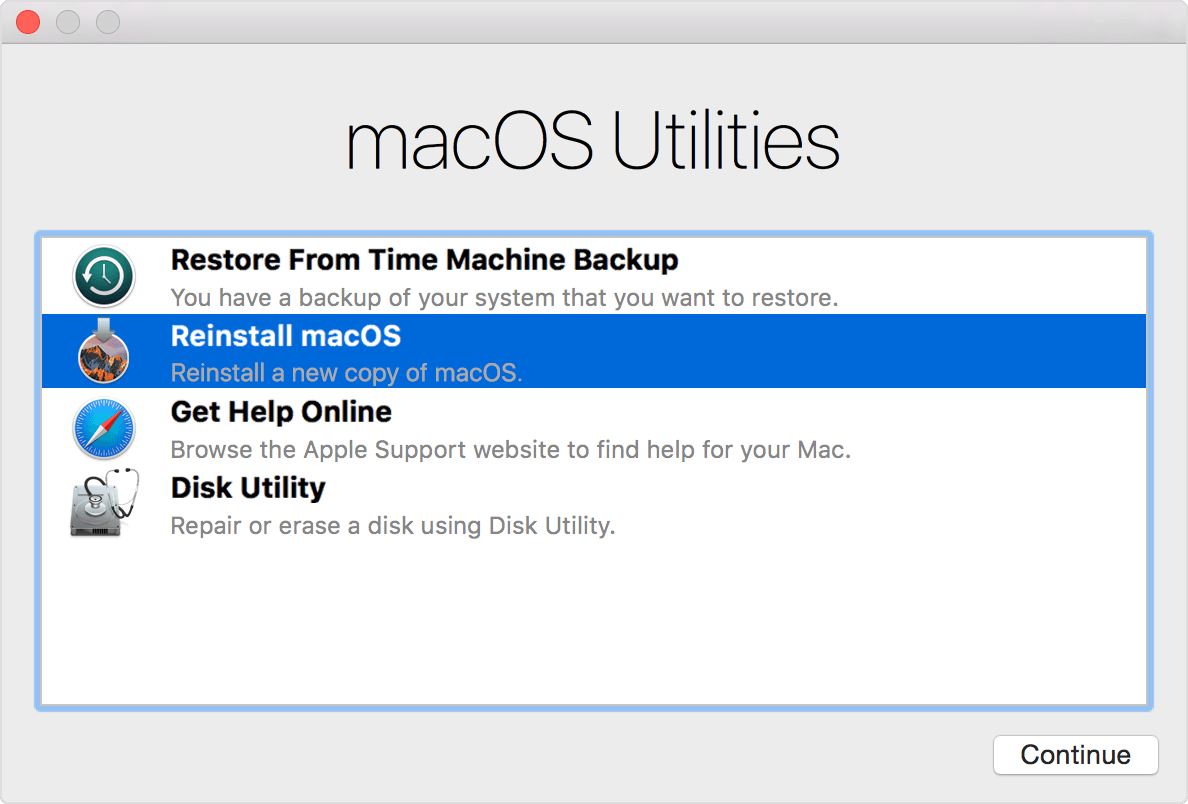
Disk Utility: Use Disk Utility to repair or erase your startup disk or other hard disk.
Disk Utility for Mac: Repair a disk using Disk Utility
-
Choose Apple menu > Restart. Once your Mac restarts and you hear the startup chime, hold down the Command and R keys.
When the Apple logo appears, you can release the keys.
-
Click Disk Utility, then click Continue.
-
In the sidebar, select the disk you want to repair.
-
Click the First Aid button  .
.
If Disk Utility tells you the disk is about to fail, back up your data and replace the disk. You can’t repair it. Otherwise, continue to step 6.
-
Click Run.
If Disk Utility reports that the disk appears to be OK or has been repaired, you’re done. You can click Show Details to see more information about the repairs. Otherwise, you may need to do one of the following.
-
If Disk Utility reports “overlapped extent allocation” errors, two or more files occupy the same space on your disk, and at least one of them is likely to be corrupted. You need to check each file in the list of affected files. Most of the files in the list have aliases in a DamagedFiles folder at the top level of your disk.
-
If you can replace a file or re-create it, delete it.
-
If it contains information you need, open it and examine its data to make sure it hasn’t been corrupted.
-
If Disk Utility can’t repair your disk or it reports “The underlying task reported failure,” try to repair the disk or partition again. If that doesn’t work, back up as much of your data as possible, reformat the disk, reinstall macOS, then restore your backed-up data.
If your Mac has a Fusion Drive and you see a flashing question mark or alert, see the troubleshooting section of the Apple Support article About Fusion Drive.
If you continue to have problems with your disk or it can’t be repaired, it may be physically damaged and need to be replaced. For information about servicing your Mac, see Find out how to service or repair your Mac.
To quit, choose Restart or Shut Down from the Apple menu (). To start up from a different startup disk, if available, choose Startup Disk from the Apple menu, then select a startup disk and click Restart.
You mentioned that you have downloaded the macOS Sierra installer several times. Let's remove whatever installers are currently in the Applications folder and try one more time.
- Open Finder.
- Open the Applications folder.
- If you see one or more OS X Installer files, drag them to the Trash and empty the Trash.
How to get macOS Sierra
macOS Sierra requires one of the following Mac models and versions of OS X. It also requires at least 2GB of memory and 8.8GB of storage space.
To find your model, memory, storage, and version of OS X, choose About This Mac from the Apple menu ().
- MacBook Pro (Mid 2010 or newer)
- OS X El Capitan v10.11
KennKaa, since you have tried downloading from your Purchases in the Mac App Store, this time, try clicking on the highlighted link below that takes you directly to the macOS Sierra page and click the download button.
- Search the App Store for macOS Sierra, or go directly to the macOS Sierra page.
- Click the Download button on the macOS Sierra page. A file named Install macOS Sierra downloads to your Applications folder.
- After download is complete, Install macOS Sierra opens automatically. (You can also open it from the Applications folder, Launchpad, or Spotlight.) Click Continue and follow the onscreen instructions.
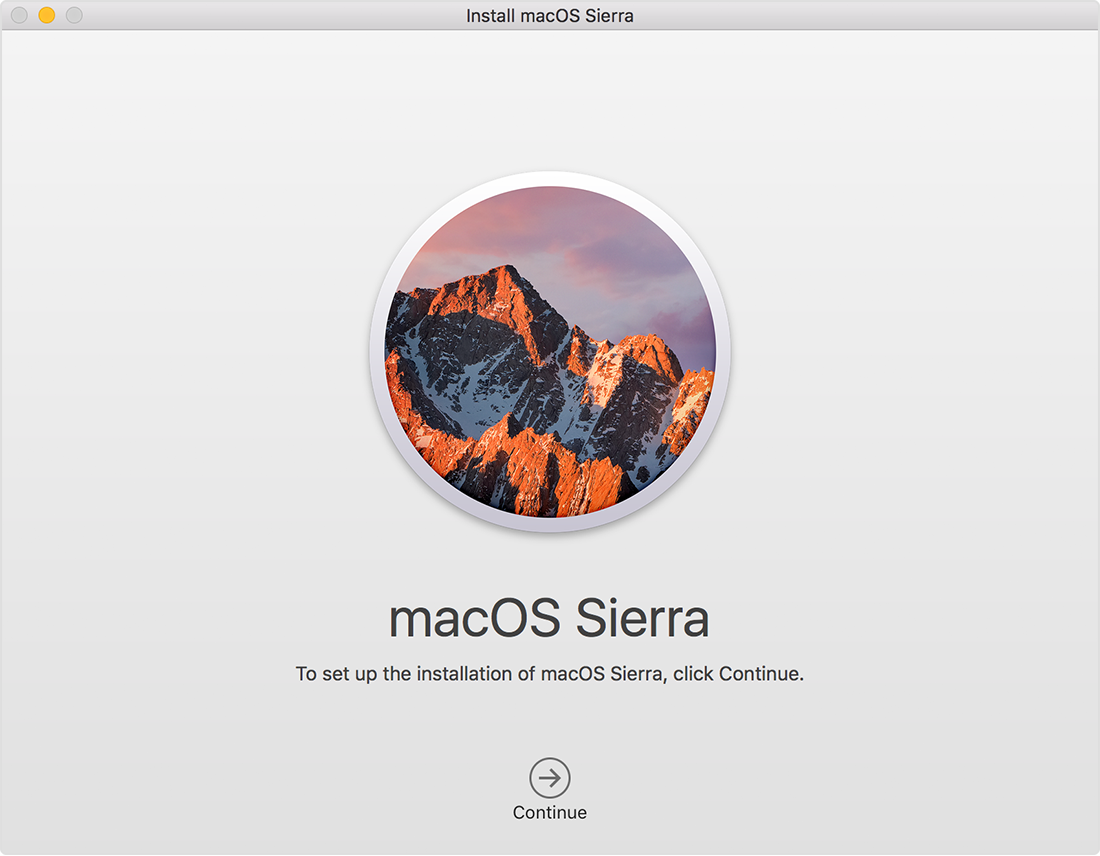
- During installation, your Mac might restart several times. It then performs some initial setup tasks in the background. While those tasks are underway, activities such as using Spotlight or Mail might not seem as fast as they were before.
- If you don't want macOS Sierra to download automatically, deselect “Download newly available updates in the background” in App Store preferences.
- If your Mac doesn't meet the Sierra requirements, you might be able to upgrade to El Capitan, the previous version of the Mac operating system.
- If you previously downloaded El Capitan, Yosemite, Mavericks, or another earlier version of OS X, you can download it again from the Purchased tab of the App Store.
KennKaa, try these steps to install macOS Sierra, and do not restart your computer unless you are directed to do so during the installation. If the issue persists, please reply to this thread with additional information, including any error messages you see, and we'll investigate further with you.
Take care.