Using new work/movement fields in latest version of iTunes for Windows

At last Apple has recognised that not all classical music consists of 'songs'. Great news, but something that is causing a great deal of intensive work. My iTunes library contains a considerable amount of classical music which will benefit from conversion, so my question is - is there any shortcut I can use to convert my existing itunes library to this format? Having to go into each individual track and having to enter the work title each time followed by the movement details is bad enough with a symphony of only four movements, what about when I come to oratorios like Handel's Messiah. Even harder is something like Bach's St. Matthew Passion! Copying the compact discs I have would be just as time-consuming as the Gracenote database details almost invariably need editing once imported. This is also assuming if it also will include the data. Any tips would be welcome!

Posted on Nov 11, 2016 3:23 AM

Reply
2 replies

Nov 11, 2016 5:03 PM in response to Barkingmad103

Hello Barkingmad103,


Thanks for that info and choosing the Apple Support Communities. The good news is the following steps will be helpful in resolving your issue of converting your classical music to the new feature of organizing your music as works and movements:


Organize your music as works and movements

  1. Select all of the songs that should be in the same work.
  2. From the menu bar at the top of your computer screen or at the top of the iTunes window, choose Edit > Get Info.
    If the message "Are you sure you want to edit information for multiple items?" appears, click Edit Items.
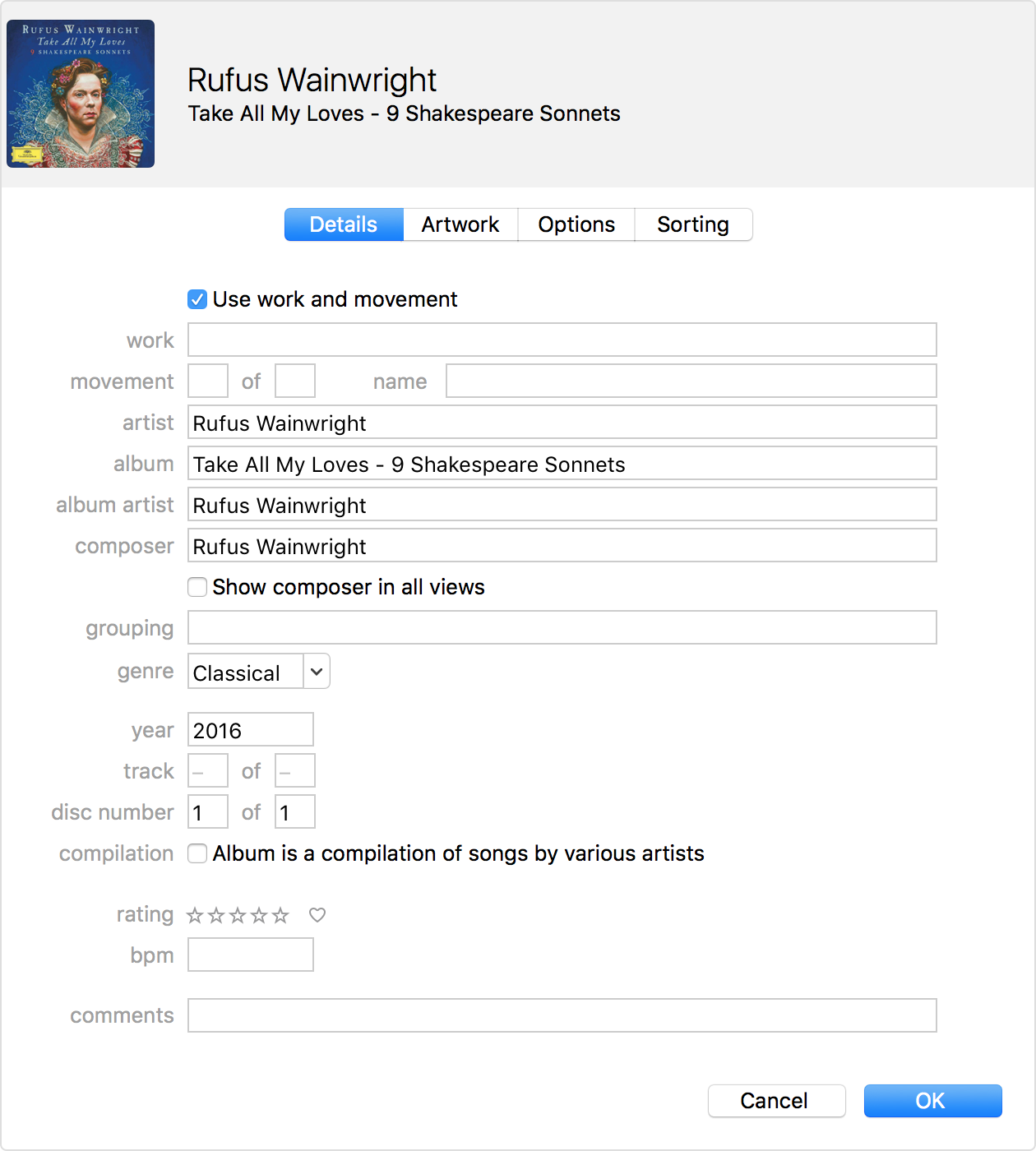
  3. On the Details tab, select "Use work and movement."
    User uploaded file
  4. In the field to the right of "work," enter the name of the work.
  5. Leave the first field to the right of "movement" empty. In the second field, enter the total number of songs that you’ve selected to group together (the total number of movements).
  6. Click OK.
  7. Select the first song of the movement, then from the menu bar at the top of your computer screen or at the top of the iTunes window, choose Edit > Get Info.
  8. In the first field to the right of "movement," enter the movement number.
  9. In the "name" field to the right of "movement," enter the movement's name.
  10. Repeat with other songs in the movement by using the Next and Previous buttons at the bottom of the Get Info window.
  11. Click OK.


Organize your classical music in iTunes


Cheers!

This thread has been closed by the system or the community team. You may vote for any posts you find helpful, or search the Community for additional answers.

Using new work/movement fields in latest version of iTunes for Windows

Welcome to Apple Support Community
A forum where Apple customers help each other with their products. Get started with your Apple Account.