Podcasts won't delete from "Unplayed" feed. Can anyone help?
Podcasts won't delete (manually or when played). I don't have a PC or MAC so don't use iTunes. Can anyone help?
The same thing has been happening to my phone for the past few months. I had even updated to newest iOS a few weeks ago, but now I am finally annoyed enough to search a solution.
I have random playback issues like described above and podcast episodes that delete for a minute and reappear.
I have done all of the steps above, but it is still happening. There is no pattern that I can see for which episode decides to stick around for a while. Episodes do finally and randomly disappear, but not because I listened again or manually deleted them.
It may be worth noting that in addition to the previous persons steps, I have also re-listened to a podcast or two to see if that would prompt the troublesome episode to delete ... but nope, that doesn’t work either.
Sunshine did not pursue the solution further, but I am still having the issue. Can somebody offer further assistance?
Sunshine025, note the three settings screens in the image below for the Podcast app defaults, Stations and Shows. Be sure Delete Played Episodes is ON in the Podcasts app settings (left pic). Also, the Show settings (right pic) can override that default setting if you have Custom Settings>Delete Played Episodes OFF.
Hope that solves the problem.
iOS 11 Podcasts App Tips - Simpler, but a Major Departure from iOS 10
(as of 18Oct17)
The iOS 11 Podcasts App took a major step toward simplicity over previous versions, however, after first introducing Stations as a replacement for iTunes Playlists with iOS 10, it now forces a manual transition to Stations since iTunes Playlists no longer appear in the app. It also only permits Autoplay within Stations, introduces the term Shows and eliminates the Mark As Played feature for an individual podcast Episode or a selected group of Episodes.
To move around the app, one needs to understand three terms:
SETTINGS - PODCASTS APP, STATIONS AND SHOWS
It is wise to choose your preferences in iPhone>Settings>Podcasts before you subscribe to several Shows as those preferences will be the defaults for each Show. You can also change preferences for a particular Show, such as the PBS NewsHour by going to Library>Shows>PBS NewsHour, clicking the blue three-dot icon to the right of the Show’s name, then choosing Settings.
Note you can choose to download Only New Episodes as they become available, All Unplayed Episodes or none, should you choose to review an Episode’s title in Available Episodes on its Show’s screen before downloading it. You can also choose to keep played Episodes, should you wish to listen to them repeatedly, or delete them automatically once heard. Played Episodes remain on your device for 24 hours after being played, though the titles remain in Available Episodes on the Shows screen. A previous Episode, if still available, can be downloaded again by clicking the plus sign to the right of its title.
Below are my settings preferences for the Podcasts App (left), Stations (center) and Shows (right), which might be a handy starting point, if you have questions or problems.
SUBSCRIBING TO A SHOW
You can subscribe to a Show using the search icon at the bottom of the app or through iTunes. You can also choose to download a single Episode rather than to subscribe to all future Episodes of a Show.
CREATING A STATION
Stations can be created, named and edited in the app at Library>Edit (upper right)>New Station or in iTunes. Shows can be added to a Station or removed by opening the Station in the Library screen and choosing Edit (upper right)>Settings>Choose Podcasts, then placing (or removing). a check mark to the right of the Show. A Station’s Shows can also be added or removed in iTunes.
You can Sort&Play all Episodes within the Station or when grouped by Show within a Station. The Sort&Play choices are Manual Show Order, Oldest to Newest, Newest to Oldest or Manual.
AUTOPLAY
Episodes can only be Autoplayed within a Station; but not in Listen Now, the Library Episodes list or in a Shows screen. Simply open a Station in the Library and click the top Episode. The remaining Episodes will play in sequence. In each Station’s settings you can designate whether the Episodes are sorted and played from oldest to newest, the reverse or manually. Episodes not fully downloaded can be streamed when on Wifi, however, Autoplay will stop at the Episode, if only on mobile data, regardless of the Podcasts App settings for mobile data.
PLAY NEXT
If you want to designate a particular Episode to play next, open its Episode screen, click on the blue three-dot icon to the right of Play and select Play Next. If the Ep you designated is in a different Station, it will play next, then Autoplay will return to the original Station and continue where it left off.
SLEEP TIMER
While playing an episode tap the Play Bar at the bottom of the screen. You will see the horizontal Play progress bar and the Sleep Timer right under it.
PLAY TIME PROGRESS INDICATOR
The play time remaining shows up in the Episode screen being played. The time progress for the Episode being played can be seen by opening the Play Bar along the bottom of the screen, on the Lock Screen and, for the iPhone 6S and later, in the Control Center using 3D Touch. Just press-and-hold the Play icon.
SIRI
Siri enhances convenience and SAFETY, particularly when driving or walking quickly. For example just say “Play Podcasts Station xxx” to have Siri open the app and Autoplay available Episodes in a Station. Using single word Station names will minimize Siri errors.
REMOVING AN EPISODE
To remove an Episode from a Station, Episodes or Listen Now simply swish it to the left. It will no longer be in the list, however, it can be retrieved in Available Episodes on its Show page.
SYNC WITH iTUNES
As you transition to the iOS 11 Podcasts app, there may be some glitches when you first sync with iTunes. The best solution is to clean up iTunes after syncing by correcting mismatches. From then on syncing should be more accurate. Be sure to turn on Sync in the Podcasts app settings and check both Sync blocks in:
For complex Podcasts users the cleanest way to perfectly sync the Shows and Stations between your Podcasts app and iTunes podcasts might be to delete the Podcasts app and it’s stored data, restart you iPhone, download the Podcasts app again, select your preferred Podcasts app settings, then Sync. Before doing the sync be sure the two sync boxes are checked in iTunes>Preference>Store and iPhone>Settings>Podcasts. To delete the Podcasts app and all its stored data, Go to Settings/General/iPhone Storage/Podcasts and select “Delete App,” give it time to refresh screen, then exit.
FEEDBACK TO APPLE
Two email methods exist to transmit your alerts, suggestions and concerns to Apple. As we learned passing through adolescence, one loses one’s audience quickly with whiney, ****** and rude comments, though, of course, we all tolerate it from children as they develop.
HELP REFERENCES
Delete music, movies, apps, books, and other content from your iPhone, iPad, or iPod touch
Delete podcasts
You can unsubscribe from podcasts or delete individual episodes in the Podcasts app.
Unsubscribe from a podcast
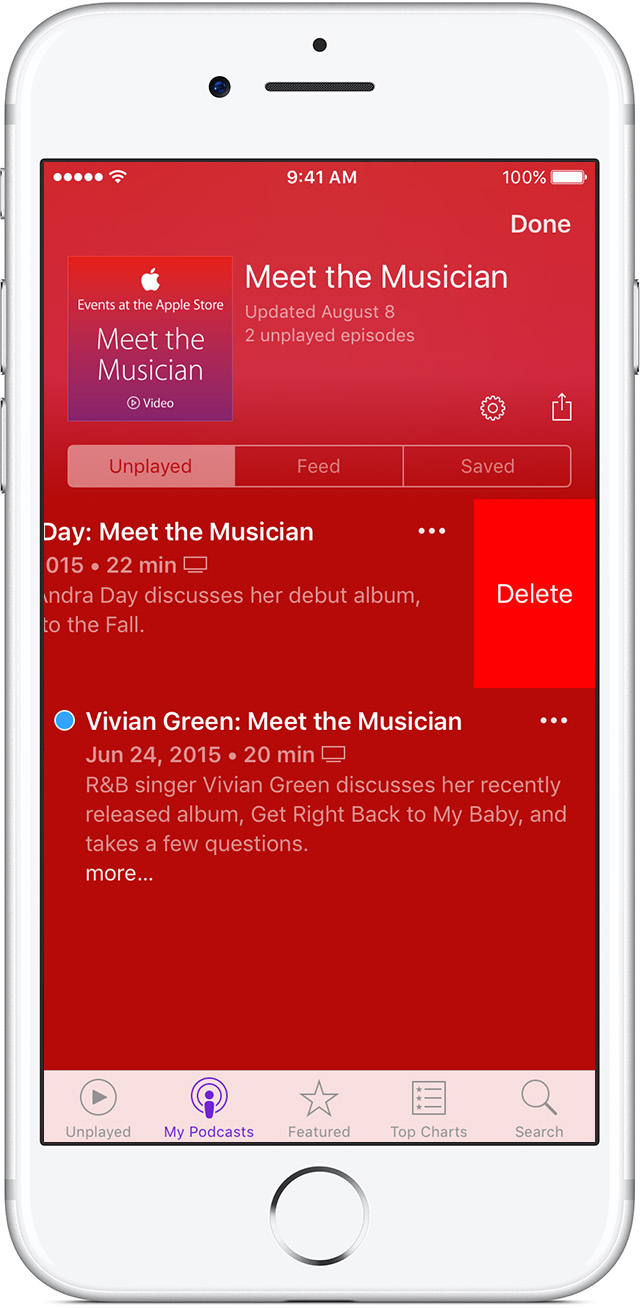
In the My Podcasts tab, find the podcast that you want to unsubscribe from. Swipe left on the episode, and tap Delete.
Delete a specific episode
Find the episode that you want to delete. Swipe left on the episode, and tap Delete.
Hi Chris, thanks for the reply. I had tried these steps before posting, but to be sure I tried again and got the same result.
It seems to only effect certain episodes though (with no pattern relating to podcast channel or date). The episodes I was struggling with when I originally posted I've since somehow got rid of, but now have a new bunch that have outstayed their welcome. Not to mention the playback issues I'm having since this problem arose.
To fill you in with exactly what happens: After I swipe on the episodes I'm trying to delete it does disappear for a second or two, but then reappears in my unplayed feed. Even when I unsubscribe from the podcast the episode will still return to the unplayed feed after being deleted.
I've tried playing around with settings, like turning auto-sync off but this had no effect. Also there seems to be no difference when trying it with episodes I've downloaded.
Also I've noticed that episodes skip back to the beginning whenever playback is interrupted (such as when opening a video file with audio or connecting to a Bluetooth device). This has only begun happening since I've had difficulty deleting episodes.
Thanks Chris, if you (or anyone) could help it'd be appreciated!
If an app you installed unexpectedly quits, stops responding, or won’t openCheck for iOS and app updates
- Make sure that you're using latest version of iOS.
- Open the App Store and tap Updates.
- If updates are available, tap Update All.
- If asked, enter your Apple ID password.
Did you ever resolve this problem? I'm having the exact same issue, including the skipping back/rewinding when play is interrupted.
Thanks,
Martin
Podcasts won't delete from "Unplayed" feed. Can anyone help?