My iPhone always says checking for update no matter what I do. How can I fix this?
I've already tried resetting my phone, resetting the network, and trying different networks. Nothing is working please help me update.
iPhone 6 Plus, iOS 9.3.4
I've already tried resetting my phone, resetting the network, and trying different networks. Nothing is working please help me update.
iPhone 6 Plus, iOS 9.3.4
will I need to do this everytime?or next time I see an update I will be able to do it without using itunes?
Before you update
Make a backup of your device using iCloud or iTunes.
Update your device using iTunes
If you can’t update wirelessly on your iOS device, you can update manually using iTunes on a computer that you trust. If your computer is using Personal Hotspot on the iOS device that you’re updating, connect your computer to a different Wi-Fi or Ethernet network before you update.
- Install the latest version of iTunes on your computer.
- Connect your device to your computer.
- Open iTunes and select your device.
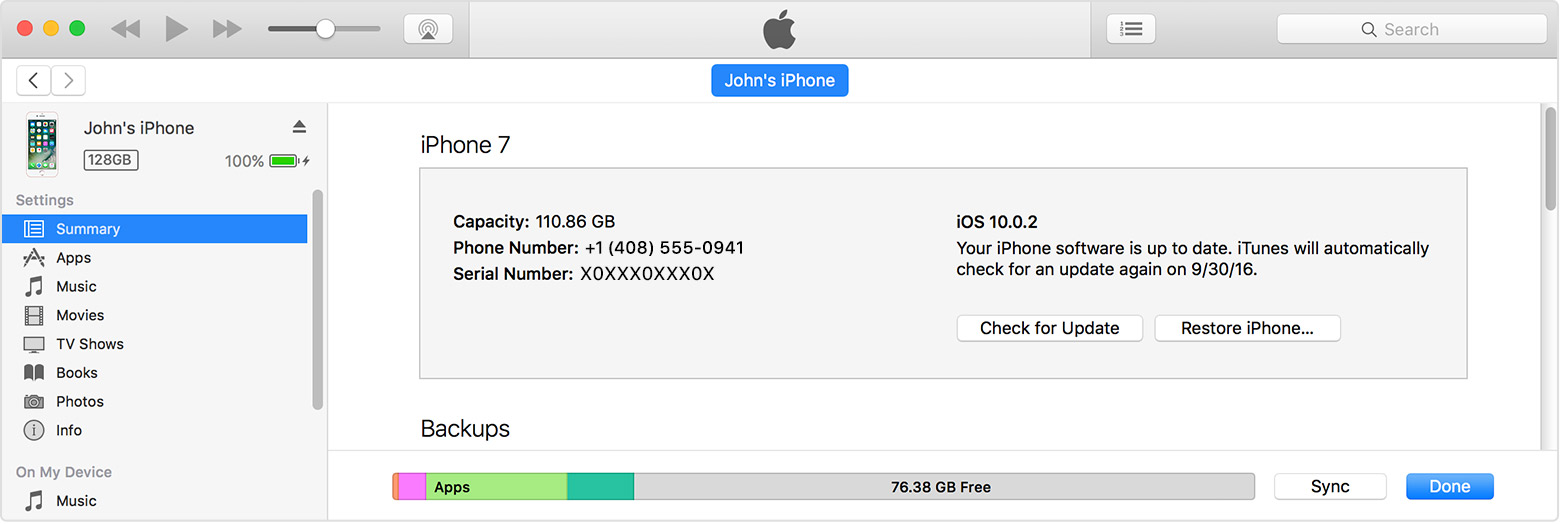
- Click Summary, then click Check for Update.
- Click Download and Update.
- If asked, enter your passcode. If you don't know your passcode, learn what to do.
If you see error messages in iTunes or need more space to update
Get help if you see error messages while updating your device with iTunes. Or if you need more space for an update, you can delete content from your device manually.
If you are still having trouble with the update, follow the steps below from If you can‘t update or restore your iPhone, iPad, or iPod touch
Put your device in recovery mode and set it up again
- Make sure that you're using the latest version of iTunes.
- If iTunes is already open, close it. Connect your device to your computer and open iTunes. If you don't have a computer, borrow one from a friend or go to an Apple Retail Store or Apple Authorized Service Provider for help.
- While your device is connected, force restart it with these steps:
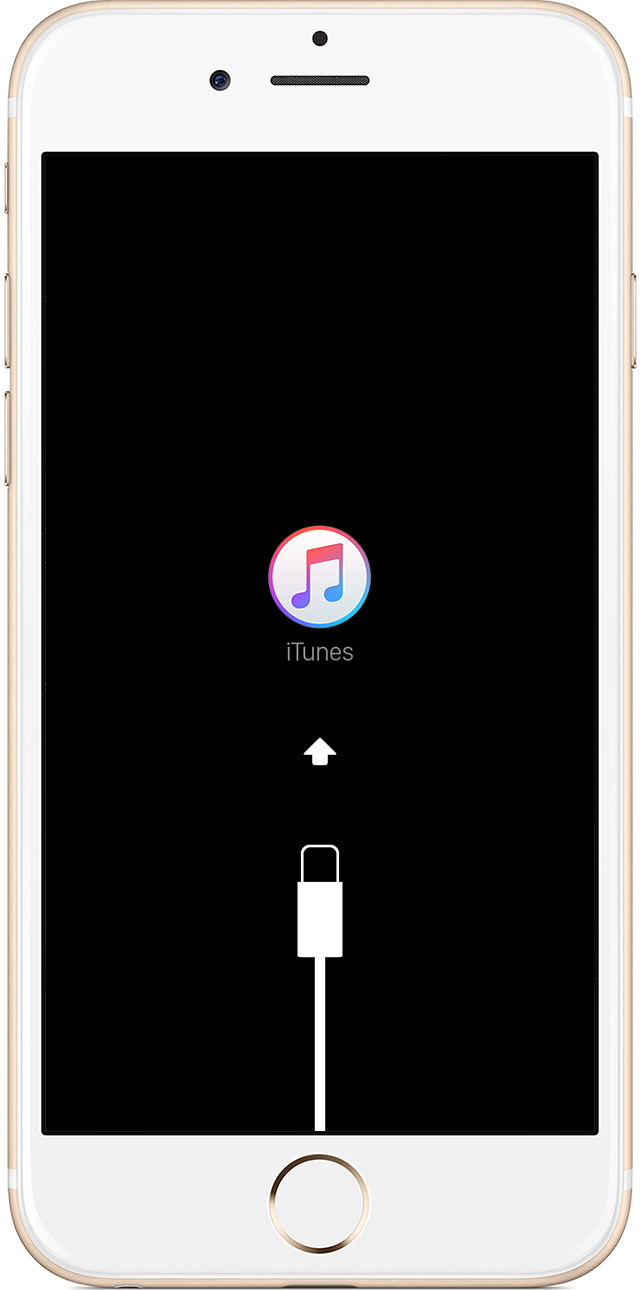
- On an iPhone 6s and earlier, iPad, or iPod touch: Press and hold the Sleep/Wake and Home buttons at the same time. Don't release the buttons when you see the Apple logo. Keep holding both buttons until you see the recovery mode screen.
- On an iPhone 7 or iPhone 7 Plus: Press and hold the Sleep/Wake and Volume Down buttons at the same time. Don't release the buttons when you see the Apple logo. Keep holding both buttons until you see the recovery mode screen.
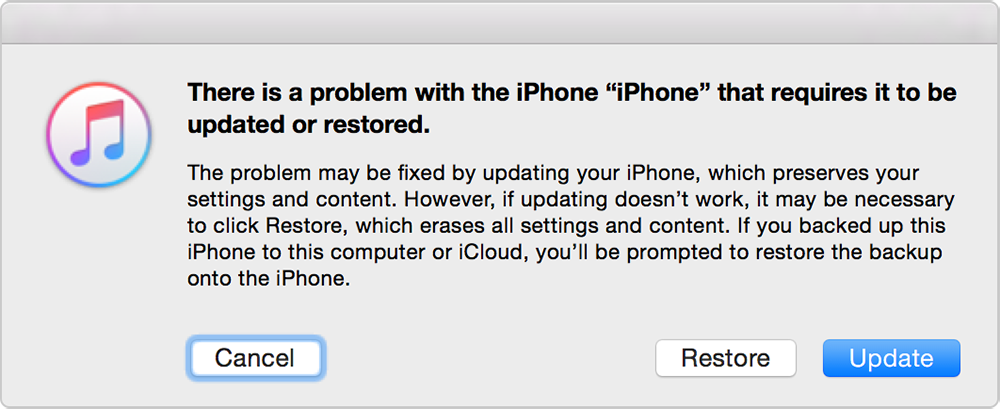
- When you see the option to Restore or Update, choose Update. iTunes will try to reinstall iOS without erasing your data. Wait while iTunes downloads the software for your device. If the download takes more than 15 minutes and your device exits recovery mode, let the download finish, then repeat these steps.
- After the Update or Restore completes, set up your device.
Cheers.
My iPhone always says checking for update no matter what I do. How can I fix this?