Hi alpe31,
Thank you for using Apple Support Communities. Based on what you stated, it seems like you are not able to make calls from the Mac. There are some settings you should check to make sure things are set correctly. I would recommend you read this article and use it to help troubleshoot the issue.
Use iPhone Cellular Calls with any Mac, iPhone, iPad, or iPod touch that meets the Continuity system requirements. It works when your devices are near each other and set up as follows:
- Each device is signed in to iCloud with the same Apple ID.
- Each device is signed in to FaceTime with the same Apple ID.
- Each device has Wi-Fi turned on.
- Each device is connected to the same network using Wi-Fi or Ethernet.
- On iPhone, go to Settings > Phone > Calls on Other Devices, then turn on Allow Calls on Other Devices.
- On iPad or iPod touch, go to Settings > FaceTime, then turn on Calls from iPhone.
- On Mac, open the FaceTime app, then choose FaceTime > Preferences. Click Settings, then select Calls From iPhone.
If your carrier supports Wi-Fi calling on other devices, you can set up those devices to make and receive calls even when your iPhone isn't turned on or nearby. Learn about Wi-Fi calling.
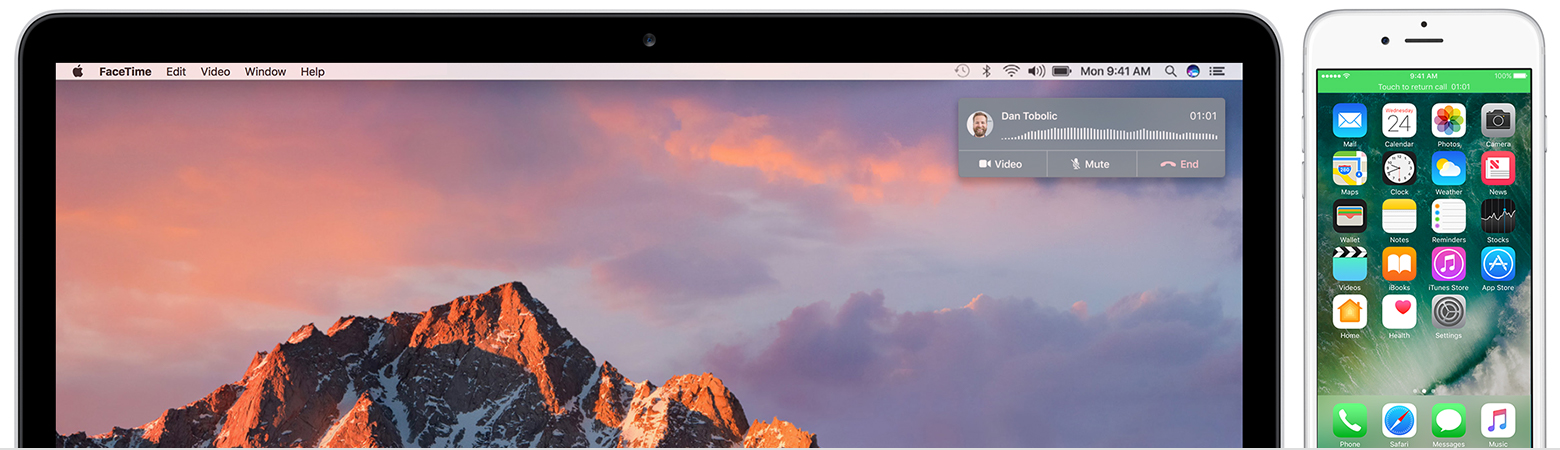
Make a call on your iPad or iPod touch
- Tap a phone number in Contacts, Calendar, Safari, or other app that automatically detects such data.
- Or open the FaceTime app and enter the phone number in the search field. Tap the phone number in the search result, then tap Call.
Make a call on your Mac
- Move the pointer over any phone number in Contacts, Calendar, Safari, or other app that automatically detects such data. Click the arrow in the box that outlines the phone number, then choose Call [phone number] Using iPhone.
- Or open the FaceTime app and enter a phone number in the search field. Control-click the phone number in the search result, then choose the phone number from the pop-up menu.
Use Continuity to connect your Mac, iPhone, iPad, iPod touch, and Apple Watch
Cheers.


