Good morning louisemusic,
Welcome to the Support Communities!
Thanks for your question. I understand you are trying to update the software on your iPod nano, but you keep getting an error message about another application using files on the iPod.
The first thing I would suggest is to make sure your Windows OS and your iTunes applications are up to date.
Get the latest version of iTunes
If you are using an anti-virus application, it may be scanning files and interfering with the update, so the second thing I would suggest is to disable the anti-virus program temporarily so that you can complete the installation.
Resolve issues between iTunes and third-party security software
If the issue persists, you may need to uninstall all of iTunes components and reinstall iTunes for Windows. This does not affect your iTunes library, but you should have a backup of your library before making significant changes to your computer.
Manage and back up your iTunes media library
Remove and reinstall iTunes and related software components for Windows 7 and later
If you are still not able to update your iPod nano, you may need to put it in Disc mode, format it (which erases the contents), and restore the device back to factory settings.
How to use disk mode on your iPod
- Make sure that your iPod has a battery charge.
- Reset your iPod.
- For iPod nano (7th generation), press the Sleep/Wake and Home buttons at the same time until you see the Apple logo.
- For iPod nano (6th generation), press the Sleep/Wake and Volume Down buttons at the same time until you see the Apple logo.
- When you see the Apple logo, hold down the Volume Up and Volume Down buttons at the same time until your iPod enters disk mode.
iPod nano (7th generation) and iPod nano (6th generation) have Multi-Touch displays for navigation. If you have an earlier model of iPod nano, use the steps for iPod models with a Click Wheel.
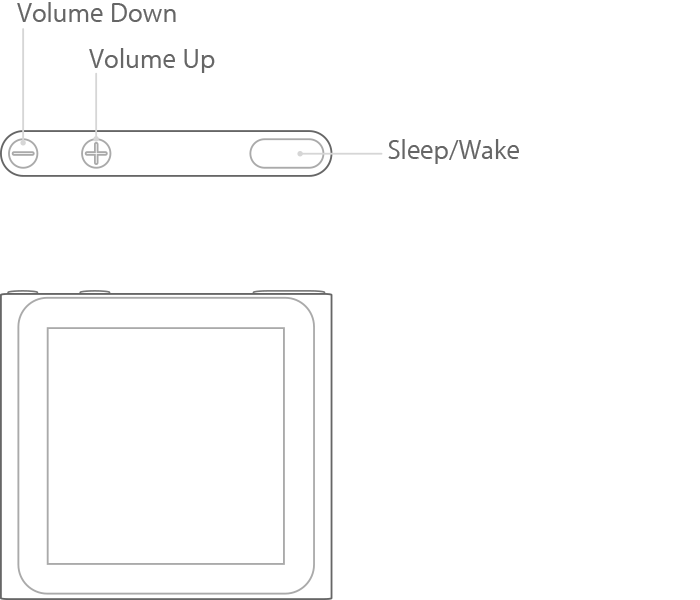
iPod nano (6th generation)
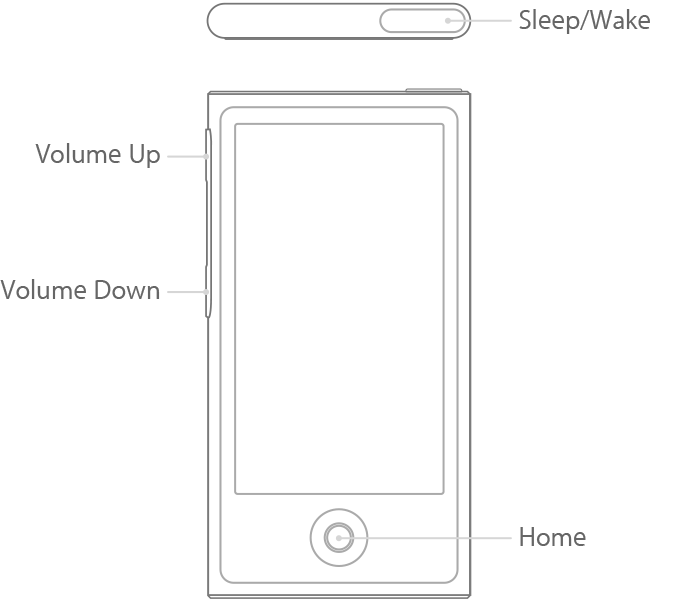
iPod nano (7th generation)
Restore your iPhone, iPad or iPod touch to factory settings
- Select your iPod when it appears in iTunes.
- In the Summary panel, click Restore [device].
- Click Restore again to confirm. Then iTunes erases your device and installs the latest iOS or iPod software.
After your device restores to factory settings, it restarts. Now you can set it up as new.
Take care.


