Transfer CD music to I Pod Nano

I am trying to transfer a music cd from my lap top to my iPod Nano via iTunes.

Although the I Pod isn’t shown in Device manager there is the I Pod icon on the I Tunes top left bar next to the CD icon.

The list of songs has been put into I Tunes but when I try to drag and drop the songs both individually or collectively I see the NO Entry logo.

Please advise how I can get the songs into my I Pod?

iPod nano, OS X Mountain Lion (10.8.5)

Posted on Feb 26, 2017 2:12 AM

Reply
1 reply

Feb 27, 2017 12:21 PM in response to harryfromwakefield

Hello harryfromwakefield,

After reviewing your post, it sounds like iTunes recognizes the iPod nano and is listed in the sidebar, but when you try to sync content to it, it does not let you. There are a couple things you can check to try and manually manage the content on the iPod. I would recommend you read this article and use it to help troubleshoot the issue.

  1. Open iTunes. Make sure that you have the latest version.
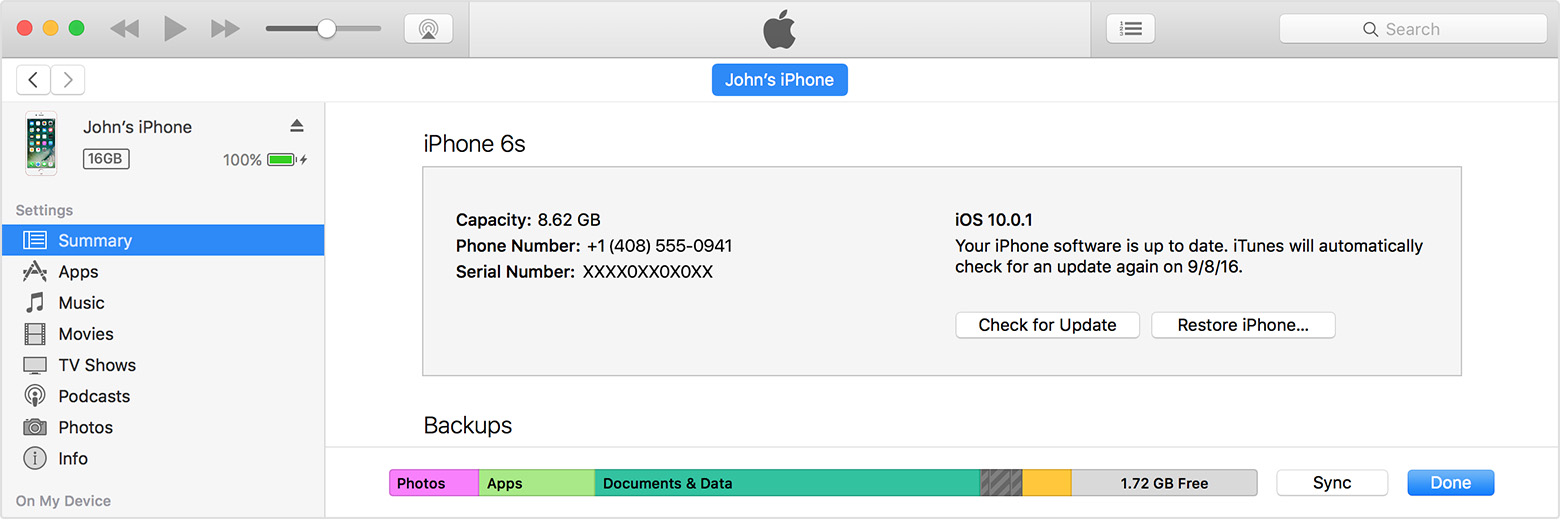
  2. Connect your device to your computer using the included USB cable. Your connected device appears as an icon in the upper-left corner of the iTunes window. Learn what to do if you don't see the icon.
    User uploaded file
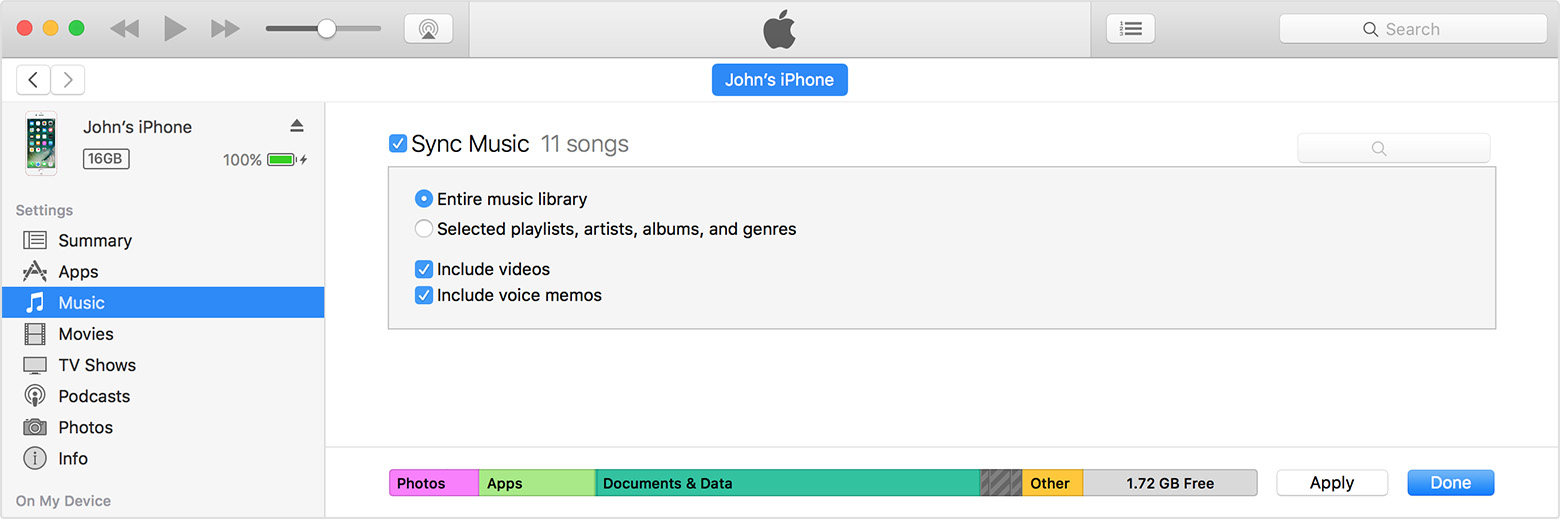
  3. Click on the device icon User uploaded file. Look under Settings on the left side of the iTunes window for a list of the content types that you can sync from your iTunes library to your device.
    User uploaded file
    If you don't have certain content in your iTunes library, you might not see some tabs. For example, if you don't have any podcasts in your library, you won't see a Podcast tab.

    iTunes can't sync certain content, including mail accounts, notes, or bookmarks. Use iCloud to manage your mail, notes, and bookmarks across your devices. Some iOS apps might use iTunes’s File Sharing feature to transfer content instead of syncing.
  4. Click the content type that you want to sync.
  5. In the main iTunes window, click the box next to Sync to turn on syncing for that content type. If there's a check in the box, syncing for that content type is already on.
  6. User uploaded fileIf you see a message that your iOS device is synced with another iTunes library after clicking the box, your iOS device was previously connected to another computer. If you click "Erase and Sync" in that message, all content of the selected type on your iOS device is replaced with content from your computer. Content that you didn't turn on syncing for isn't deleted from your iOS device. You can only sync your iOS device with one iTunes library at a time.

    If you use iCloud or other services to keep your content up to date, syncing through iTunes might be disabled.
  7. After you turn on syncing for a content type, you'll see additional options to customize your sync settings. Use these options to make sure that you’re syncing the content that you want synced.
  8. Repeat steps 4–6 for each content type that you want to sync.

Sync your iPhone, iPad, or iPod touch with iTunes on your computer using USB
Thank you for using Apple Support Communities. Have a nice day.

This thread has been closed by the system or the community team. You may vote for any posts you find helpful, or search the Community for additional answers.

Transfer CD music to I Pod Nano

Welcome to Apple Support Community
A forum where Apple customers help each other with their products. Get started with your Apple Account.