I switched over to all Apple/Mac products when my Windows/PC equipment started dying. I love it, and should've never used anything but Mac. I had quite the opposite experience from you. My Windows/PC equipment and software was nothing but trouble and headaches. I finished completely switching over to Apple when my Android cell phone died and I got an iPhone. Now I have a Mac mini, a 1st generation iPad, an iPad mini, an iPod, iPhone 5S and even my Wi-Fi router is Apple. I have absolutely no trouble whatsoever. I've found with all Apple products, usually when I install anything, it's best to just allow it to do a standard install and let the OS determine how and where best to install it. But that's just me.
Anywhoo.... Regarding Apple/Logic Pro factory plug-ins. I personally have never had any trouble loading or using them, but this is what I would try.
1. With all other applications closed... go into Audio MIDI setup. Fastest way is to open Launchpad, then click on Other. Audio MIDI setup will be in there by default. It'll look something like this depending on what equipment you
have connected. 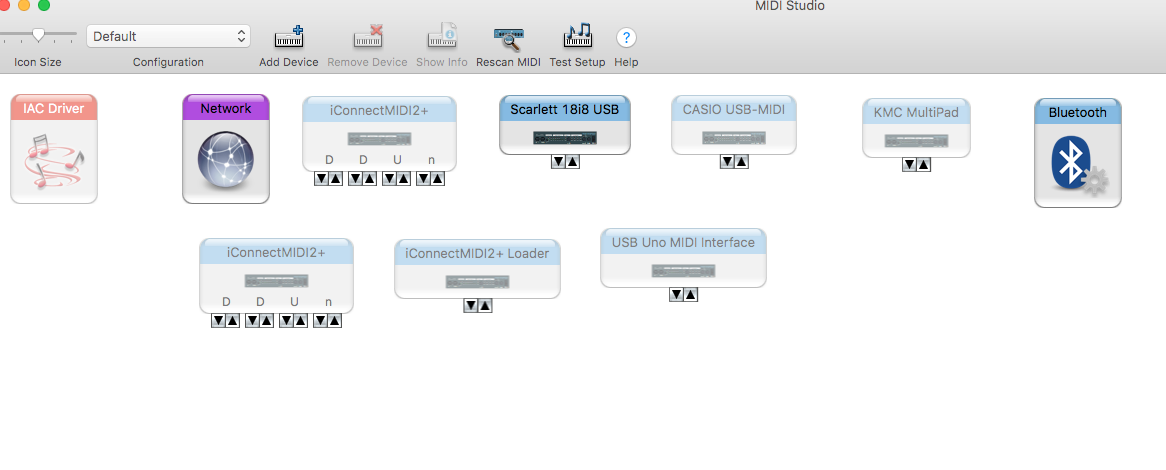
Click on Window - Show Audio Window. It'll look something like this. 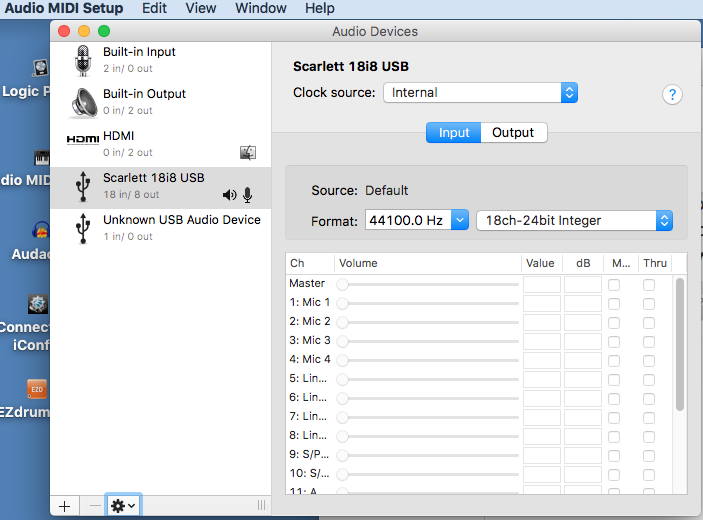
Make sure the "clock source" is set to Internal.
Basically you're just looking to make sure nothing is greyed out, which would indicate it's installed but not working properly.
Assuming everything is in black, it's working and installed correctly. Click on Window - Show MIDI Window.
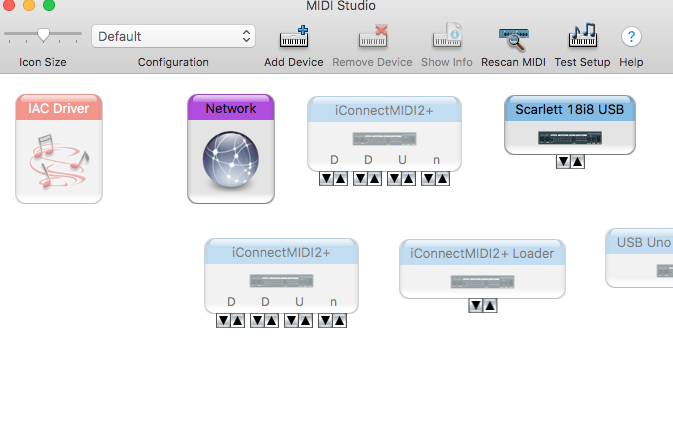
It'll look something like this. Devices that are greyed out are installed but not plugged in, not turned on, or just not working. In my case, the greyed out items are just not plugged in. Click on Rescan MIDI if something is greyed out but you don't think it should be.
All you're doing here is just making sure all your MIDI devices are working properly and recognized by the OS.
Close out of Audio MIDI setup.
2. Open Logic Pro X. I'm using 10.3.0. You might want to click on Logic Pro X - About Logic Pro X and note what version you are using. Not that it makes too much difference here, but I'm always pretty anal about noting what version I have of anything.
3. Click on Logic Pro X - Preferences - Plug in Manager. I have tons of plug ins, so I split up my screenshots into two.
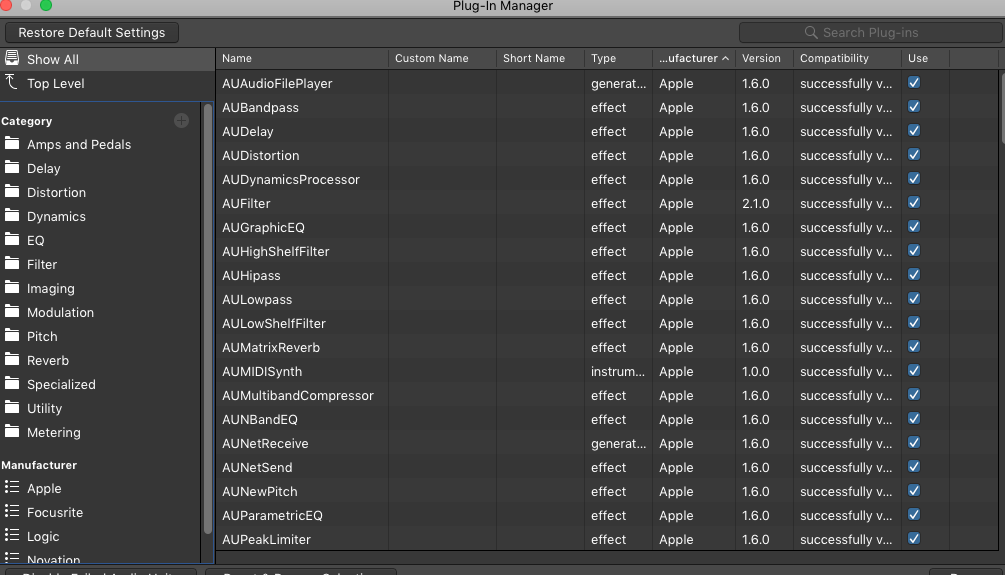
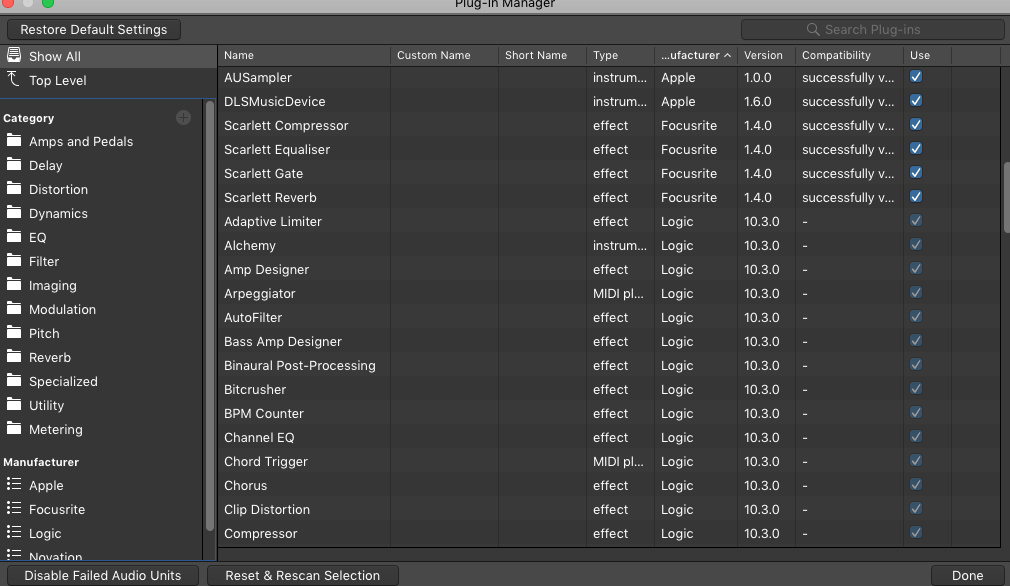
In the second screenshot you'll see some of the default plug ins (the factory plug ins) that come with Logic. They are greyed out because they're factory default. They install automatically with Logic. They're greyed out but they still work just fine. The ones that are not greyed out are plug ins that came as options with other audio gear like my Focusrite interface. If they're optional plug ins, you'll see a note in the Compatibility column indicating they were successfully installed or if they were not, it'll say there was a problem. In my case everything I installed optionally works fine 🙂
You want to make sure that all your plug-ins are correctly installed and all are checked off in the USE column. If things don't look right you have options right there on the screen to reset, rescan. Or you can click on Restore Default Settings which will leave you with just the default plug ins that come with Logic, and none of the optional ones. My guess would be that everything is installed correctly, so on to the next step.
4. Create a new Audio track. You'll get this window, or something like it. 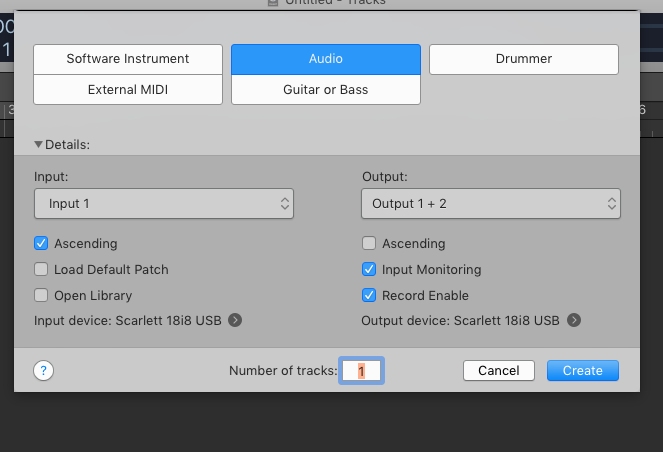
Make sure your Input Device says whatever your audio interface is. Mine is a Scarlett 18i8. If it says Internal input it's not using your audio interface, and any plug ins that were installed with your audio interface probably won't work. If it says anything other than whatever your audio interface is, click on the right arrow key at Input Device and change it to your audio interface. In my case, I sometimes use Internal Input as an audio source instead of my audio interface, if I'm playing with something from YouTube or whatever. Then I switch it back to my Scarlett before closing out of Logic.
So now you know everything is set up to work properly in Logic. Next step is...
5. Look on the left. There are a ton of ways to personalize your Logic workspace; this is just one of my templates. But basically once you have an audio track set up, you will see at least one channel strip on the left. 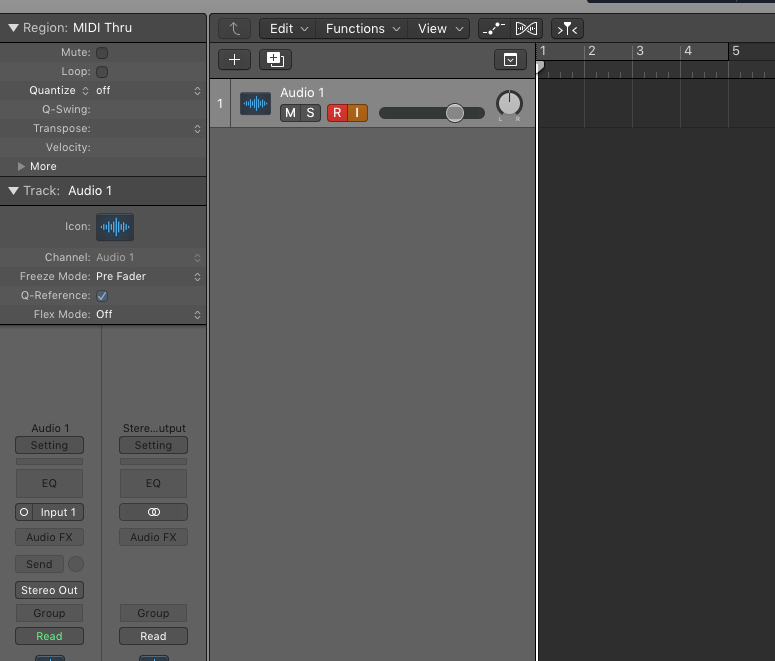
On the left, under Audio 1, you'll see "Setting" is greyed out. That doesn't mean anything other than I haven't selected any plug ins to use there. Even though it's greyed out, click on Setting.
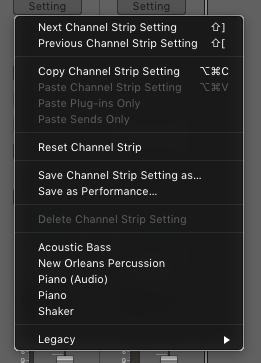
The plug ins I use all the time are listed Acoustic Bass, New Orleans Percussion, etc... In your case, click on Legacy - Logic. You'll see all the factory installed Logic plug ins. 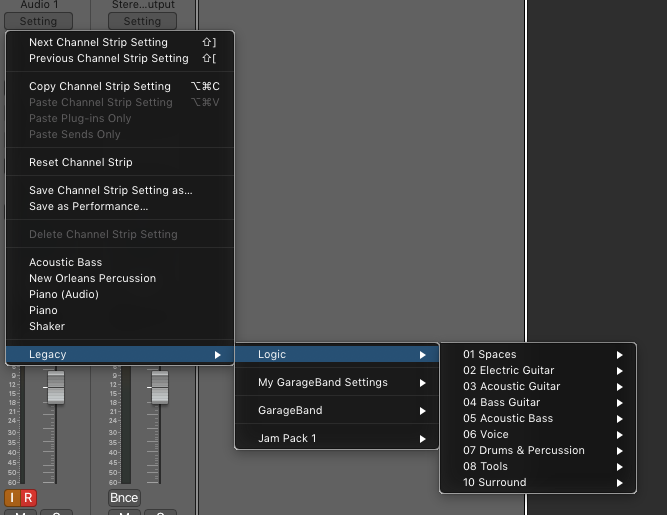
And you can use any of them you want. These are the ones that if you go into Plug In Manager in Logic, they're all greyed out, but like I said before they're just greyed out because they're part of the standard Logic install. They'll still work just fine.
As a logic newbie, I would HIGHLY recommend taking the classes on www.macprovideo.com. They're amazing and they're updated all the time. The instructors are great and the resources are great too.
Hope this helps!
Andrea