Good afternoon KathyD777,
Welcome to the Apple Support Communities!
I understand you are mirroring your MacBook Pro to your Apple TV using AirPlay, but the image is not filling your TV's screen. The resources below may help you adjust the resolution settings for your TV. I've highlighted some key information here for you. Click on the link for complete details.
Use AirPlay to display video from your Mac on an HDTV
If you have an Apple TV, you can use AirPlay to wirelessly stream video to your HDTV from Safari or QuickTime Player, or use your HDTV as a Mac display.
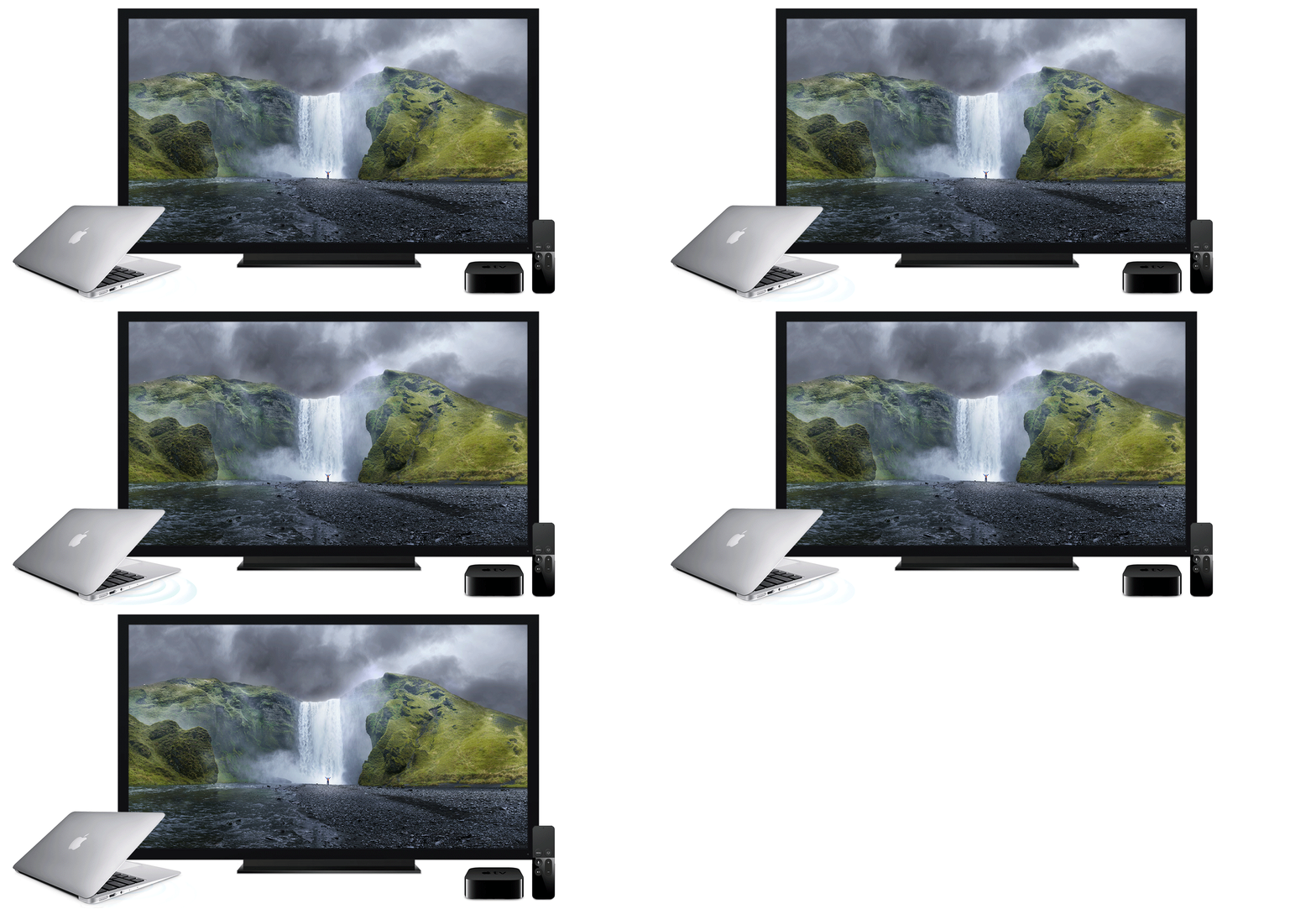
If your desktop doesn't look good on your HDTV, your HDTV might be using picture-quality enhancements that aren't best for computer images. Check your HDTV manual for information about how to adjust your HDTV settings for use with a computer. Your HDTV might offer a more suitable viewing mode, such as computer mode or game mode. Also try adjusting HDTV settings such as sharpness, detail enhancement, and noise reduction.
About overscan and underscan on your Mac, Apple TV, or other display
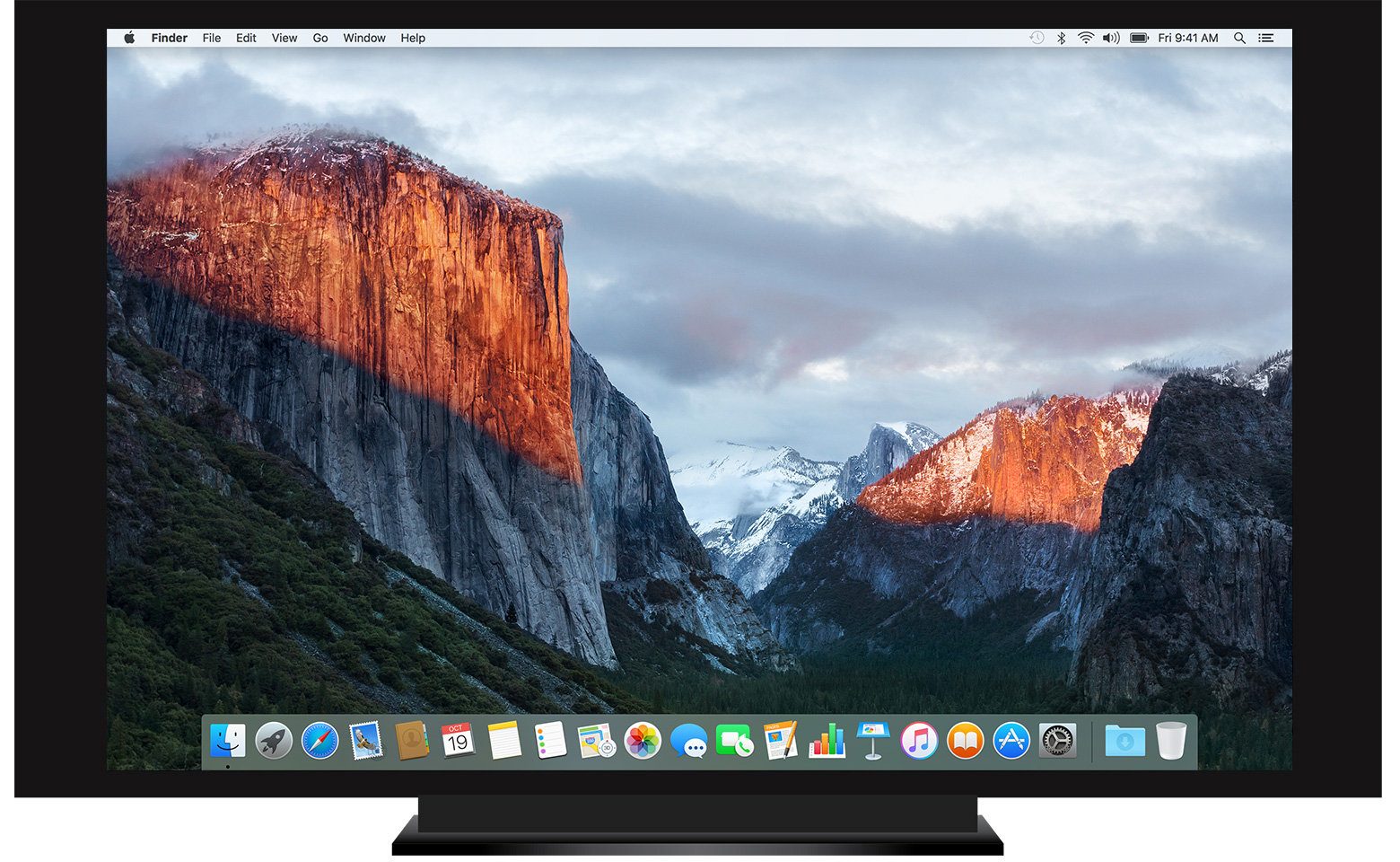
Underscan is usually intended, and refers to black bars that appear around a movie or show. The bars appear because the content was filmed in a different proportion than your TV screen. Here are some examples:
- Black bars appear above and below a movie because it has a wider aspect ratio than your TV screen.
- Black bars appear left and right of a TV show, because it has a smaller aspect ratio than your TV screen.
When viewing content from your Mac or iOS device on your TV or projector, you can adjust the screen size to fit your TV or projector. You can look for these settings on your Mac, your Apple TV, or in the menu of your TV or projector.
While mirroring your Mac to a TV or projector, go to System Preferences > Displays. From here, you can use the slider to adjust the overscan or underscan setting.

If you see an option to change the screen resolution, you can choose the one that matches the dimensions of your TV or projector. If necessary, check your TV or projector's manual to find the display resolution.
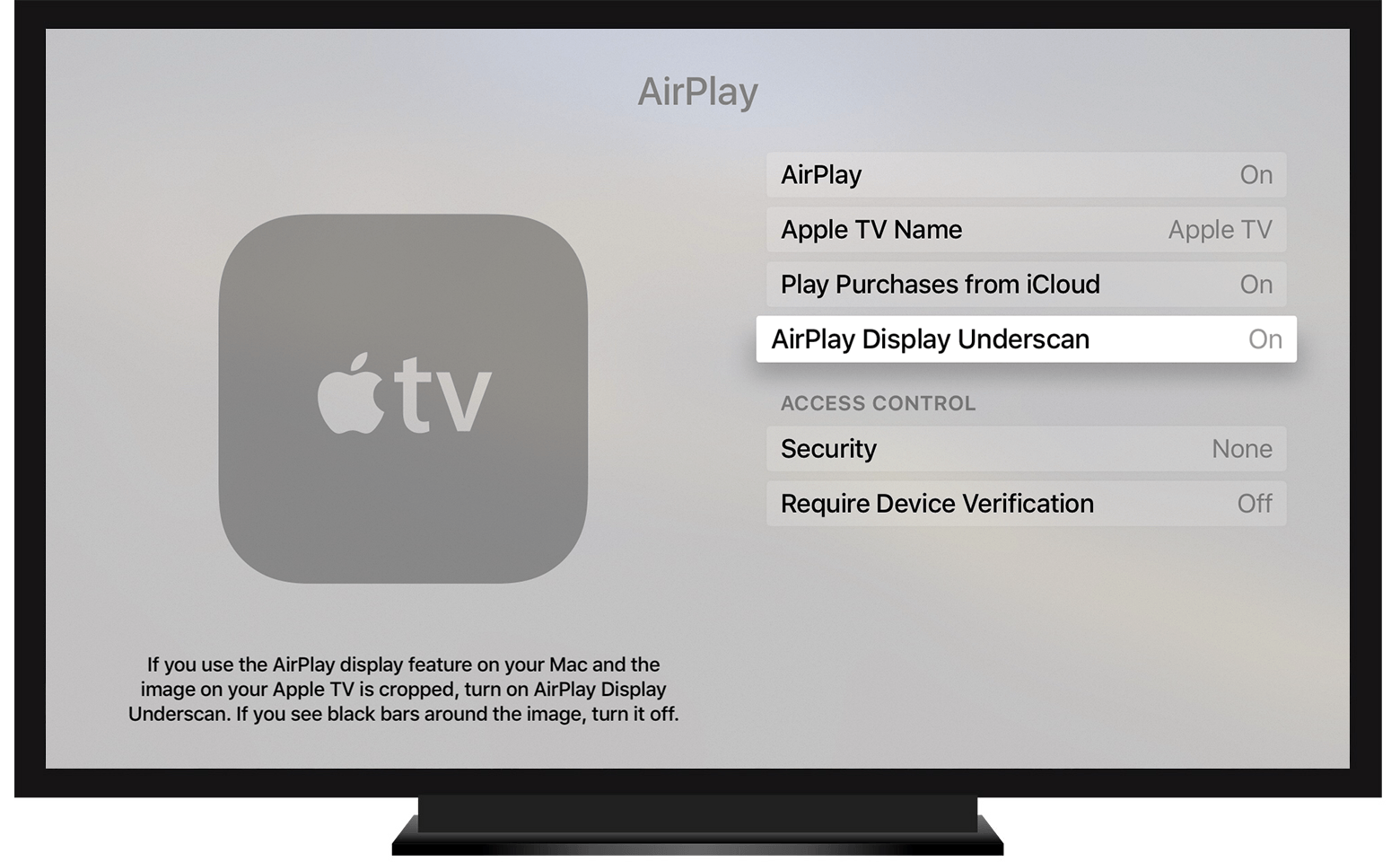
While using AirPlay to watch content from your Mac or iOS device on your TV or projector, you can adjust the size of the picture in the Settings menu of your Apple TV.
- For Apple TV (4th generation), go to Settings > AirPlay > AirPlay Display Underscan.
- For Apple TV (2nd or 3rd Generation), go to Settings > Audio & Video > Adjust for AirPlay Overscan.
Some TVs and projectors let you adjust overscan or underscan from a settings menu or button on your remote. Look for a Zoom button or check your TV or projector for a menu called Aspect Ratio, presentation mode, computer mode, or a similar setting.
For more help, check the manual that came with your TV or projector or contact the manufacturer.
Enjoy your day!


