How to turn Time capsule into an extender and keep backup function...

I've a Time Capsule(tall version). I replaced it as a router, and would like to use it as an extender and keep it for backups as well. How do I configure it?

Airport Time Capsule 802.11ac, OS X El Capitan (10.11.5), Version 7.7.7

Posted on Jul 31, 2017 7:30 PM

Reply
17 replies

Jul 31, 2017 8:07 PM in response to Bob Timmons

I guess I could just plug it into the router by hardwire to keep the backup option? Do you have a guide for that? Also, why would it slow the wireless network? Why can't it just connect like any other wireless device, and manually backup when you use Time Machine. On a side note, it seems my iCloud backs up everything my TC does anyway. If it's redundant, I guess I could just sell it.

Jul 31, 2017 9:13 PM in response to semi-new

OK, then we'll have to start all over again.


Connect an Ethernet cable from one of the LAN <--> ports on the new router (there are probably four of them....choose any one that you want) and connect the other end to the WAN "O" port on the Time Capsule.


Power up the Time Capsule if it is not already on and let it run a minute or two


Open AirPort Utility on your Mac (Finder > Applications > Utilities > AirPort Utility)

Click on the Other WiFi Devices button

Click on Time Capsule


That will start up the setup 'wizard". You have to use this template for now, then make changes later.


The screen will look like the example below except that you will see a Time Capsule pictured
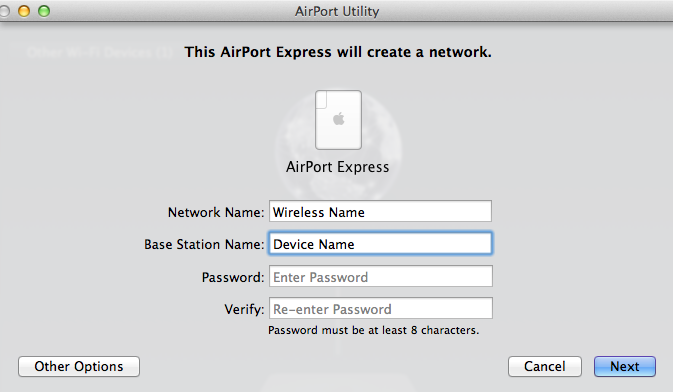

User uploaded file


Network Name......Enter any name that you want. The wireless will be turned off later.

Base Station Name.....Enter a device name for the Time Capsule

Password......Enter a password to be used for the network and the base station

Verify....Enter the same password again to confirm

Click Next


The "wizard" will set thing up for you automatically. When you see the message of Setup Complete, click Done.


Now click on the picture of the Time Capsule in the AirPort Utility window

Click Edit in the smaller window

Enter the password if asked

Click on the Wireless tab at the top of the window

Change the Network Mode from Create a network to Off

Click Update at the lower right of the window and wait a minute for the Time Capsule to restart


Make sure that you are logged onto the wireless from the new router

Try to run a backup

What happens?

Jul 31, 2017 7:39 PM in response to semi-new

We need more details.


What make and model number of router replaced the Time Capsule?


Are you planning to use the Time Capsule to extend the network by connecting it back to the new router using a permanent, wired Ethernet cable connection? (Strongly recommended for best performance).


Are you planning to have the Time Capsule connect to the network using only a wireless connection? (Not recommended).

Jul 31, 2017 7:56 PM in response to semi-new

Thanks for the information. Not good news, I am afraid.


Apple designed their "extend" feature to only work with other Apple routers, so it is extremely unlikely that the Time Capsule would be able to connect to a third party router using a wireless connection.


But, even if the Time Capsule is able to connect to another Apple router using a wireless connection, the result is a loss of at least half of the potential speed on the entire network. So, while the network might be "extended", it is also much slower.


If you have the time, you can try to set up the Time Capsule to "extend" your new router.....but I would be extremely surprised if it worked.


Plan to connect the Time Capsule back to your new router using a permanent, wired Ethernet cable connection. If you can't run the Ethernet cable, a pair of Ethernet over Powerline adapters might be able to send the signal over the existing powerlines in your home.


The theory with powerline is that you already have the wiring in place, you just need the adapters. In practice, things often don't work anywhere near as well as the theory might suggest. It isn't easy to send a very low voltage signal over very high voltage powerlines. Sometimes the adapters will work OK....but there will always be a significant speed loss....and other times they won't work at all.

Jul 31, 2017 8:33 PM in response to semi-new

I guess I could just plug it into the router by hardwire to keep the backup option?

Yes, as long as the Ethernet cable will remain permanently connected to your new router.


Do you have a guide for that?

Yes, but there is more to discuss.


Also, why would it slow the wireless network?

Now we are back to talking about a wireless connection....not a wired connection. When the Time Capsule connects using only a wireless connection to another Apple wireless router, the result will be a loss of at least half of the potential speed on the network. Nature of the beast when you try to extend using a wireless connection. That is why we don't recommend this to users....even if all of their routers are Apple.


Why can't it just connect like any other wireless device, and manually backup when you use Time Machine

We tried to explain that above, but must have failed. Apple designed their wireless "extend" feature to only work with other Apple routers. The Time Capsule cannot connect to a third party router using only a wireless connection.


On a side note, it seems my iCloud backs up everything my TC does anyway. If it's redundant, I guess I could just sell it.

That is an option. But, I doubt that iCloud is really backing up everything on your Mac, the way that Time Machine does.


If you want to connect the Time Capsule to your router using a permanent wired Ethernet cable connection.....and....you want the Time Capsule to also provide a wireless network signal to extend the network, then the Time Capsule will need to be located at least a few rooms away from your new router. This might mean a 40-50 foot Ethernet cable run.


Is this what you want to do?

Jul 31, 2017 8:54 PM in response to semi-new

For backups, the signal will travel from your Mac over the wireless to your new router. Then, the signal will be fed to the Time Capsule using an Ethernet cable connection. The wireless function of the Time Capsule will be turned off.


Unfortunately, Apple will not officially support Time Machine backups unless they occur over the Time Capsule wireless network. If things work, that will be great and it might not matter that Apple will not provide help since you won't need it if things are working.


There are no guarantees. It might work, it might not. You will not know until you try.


If you want to try, we need to know how the Time Capsule is configured at the present time. Please follow these steps:


Connect your Mac to the Time Capsule using the wireless signal that the Time Capsule provides

Open AirPort Utility on your Mac (Finder > Applications > Utilities > AirPort Utility)

Click on the picture of the Time Capsule

Click Edit in the smaller window that appears

Click the Network tab at the top of the next window

Report on the current setting that you see for Router Mode. It will either be DHCP and NAT.....or.....Off (Bridge Mode).

Aug 1, 2017 4:03 PM in response to semi-new

Click on the Time Machine "clock" icon at the top of the Mac's screen

Click Open Time Machine Preferences

Click on Add or Remove Backup Disk.....


The next window will display list of Backup Disks.

"Data" should appear in this list

If it does not, then select "Data" as a backup disk from the list of Available Disks then click Use This Disk


If the Mac has already backed up to the Time Capsule using Time Machine in the past.....(you indicate that it has)..... then incremental backups will continue.


If the Mac has not ever backed up to the Time Capsule, then Time Machine will make a complete backup of the Mac and then continue with incremental backups once the master backup has completed.


It sounds like you may be one of the lucky users who may be able to make this "work', even though Apple does not want you to do what you are doing


To see your "backups" click on the Time Machine "clock" icon at the top of the Mac's screen, then click Enter Time Machine. Select a date from the timeline on the right side of the window to see how your Mac looked on that date.

Aug 1, 2017 5:31 PM in response to Bob Timmons

After "preparing disk" for a really long time, it's backing up...only 100mb, and it's taking like one minute to do it??? Since I've used like 30GB of this Mac's memory, something is wrong. It used to take awhile to bak up the whole Mac. Something is wrong. I need to find a way to back up the HDD or something. There was one data disc, and one available data disc(both same title, my name). Confused...

Aug 1, 2017 6:25 PM in response to semi-new

You must have backed up the Mac previously. "Preparing" took a long time because Time Machine had to take a long slow look at the existing backups and the Time Capsule and then decide how to add the new backup......which simply added any changes that you have made to the Mac since the previous back up was made.


In other words, there was no need to make a new complete backup of your Mac, because that had already occurred.


Click the Time Machine clock icon at the top of the screen

Click Open Time Machine Preferences


Report on all of the exact information that you see next to "Data".

Aug 1, 2017 6:44 PM in response to semi-new

This tells you that your Mac has been backing up since October 19, 2013. That was when Time Machine made a complete copy of your Mac.


1.9 TB of 2 TB is still unused on the Time Capsule. Or stated another way, .1 TB (or about 100 GB) has been used. The first backup would have taken up about 30 GB and all the other subsequent backups for the last 4 years have used up an additional 70 GB of space.


After the initial back up on October 19, 2013, Time Machine has only been backing up any changes that have occurred to the Mac since the previous backup.


This all looks very normal. You are all set.


Since you have turned off Automatic Backups though, you will have to manually back up the Mac. I would do this at least once a week. Once a day would be much better.


IF......you don't need all the old backups going back almost 4 years......you can Erase the Time Capsule disk and then start all over again with a new complete backup. That will probably take 3-4 hours or so.


I see no reason to do this, but some users prefer to start all over with backups every year or two.

Aug 1, 2017 6:52 PM in response to Bob Timmons

Thanks so much for all the help, I really appreciate it. You've saved me a lot of time searching. I have a 300down/35 up connection, and my Xbox was hard wired to the TC, w/ the default host option enabled. No real problems, but occasionally I'd get "B" report for buffer bloat on DSL reports. Since replacing my TC w/ the IQrouter, my pings(ms) have been cut in half to the Microsoft's(and certain games that show it) servers. Of course I'm getting an "A+" every time for buffer bloat now. The worse your connection, the more improvement you get. Hopefully I'm returning the favor by posting this, and that it helps someone here at the forums w/ router connectivity problems in the future!

This thread has been closed by the system or the community team. You may vote for any posts you find helpful, or search the Community for additional answers.

How to turn Time capsule into an extender and keep backup function...

Welcome to Apple Support Community
A forum where Apple customers help each other with their products. Get started with your Apple Account.
