please refer below steps:
If you forgot your passcode, or if a message says that your device is disabled, follow these steps to remove your passcode.
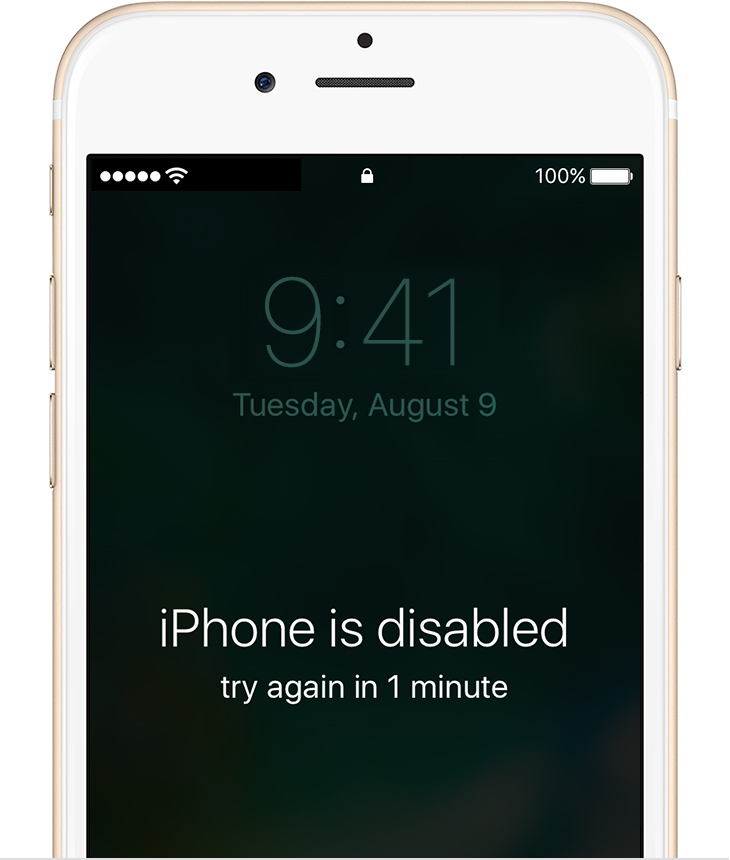
If you enter the wrong passcode on an iOS device six times in a row, you'll be locked out and a message will say that your device is disabled. Learn what to do.
Unless you made a backup before you forgot your passcode, there isn't a way to save your device's data. You'll need to erase your device, which deletes all of your data and settings. Choose a way to erase your device so you can remove your passcode:
- If you've synced with iTunes, use iTunes.
- If you're signed in to iCloud and Find My iPhone is enabled, use iCloud.
- If you don't use iCloud and you can't sync or connect with iTunes, use recovery mode.
If you've synced your device with iTunes, you can restore your device. This will erase the device and its passcode.
- Connect your device to the computer you synced with.
- Open iTunes. If asked for a passcode, try another computer you've synced with, or use recovery mode.
- Wait for iTunes to sync your device and make a backup. If it doesn't, learn what to do.
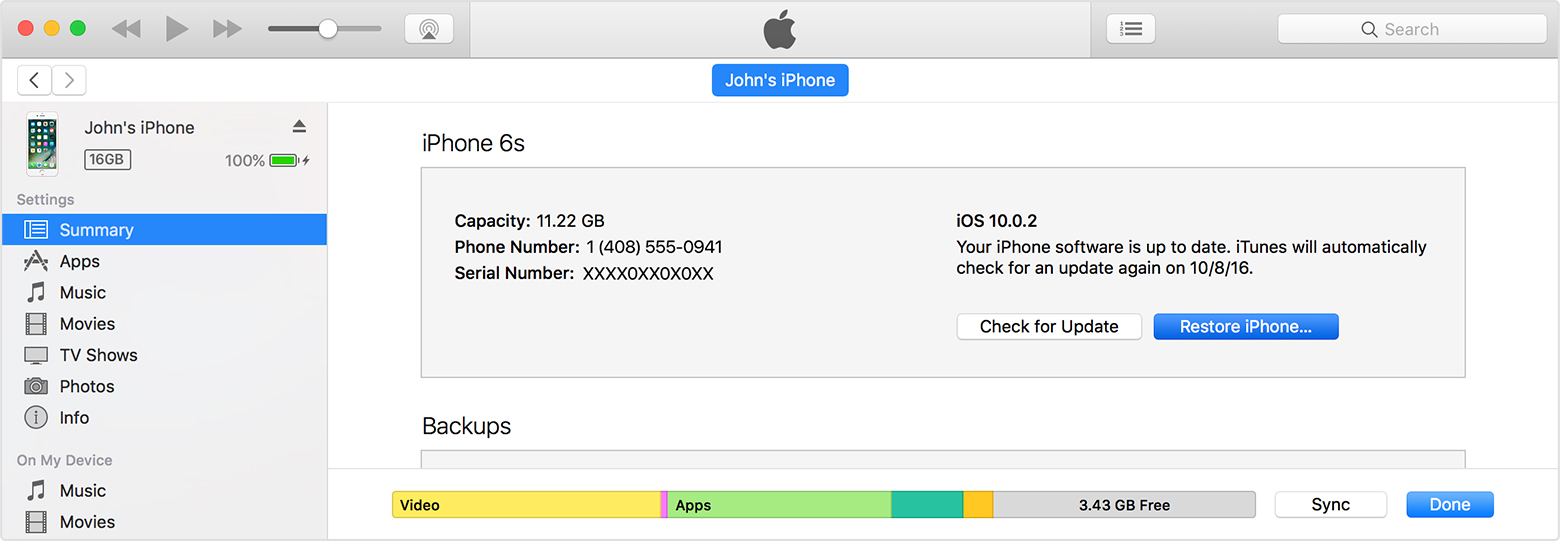
- Once the sync and backup have finished, click Restore [your device].
- When you reach the Set Up screen while restoring your iOS device, tap Restore from iTunes backup.
- Select your device in iTunes. Look at the date and size of each backup and pick the most relevant one.
 If you set up Find My iPhone on your iOS device or Mac, you can use iCloud to erase and restore it. This will erase the device and its passcode.
- From another device, go to icloud.com/find.
- If prompted, sign in with your Apple ID.
- Click All Devices at the top of your browser window.
- Select the device that you want to erase.
- Click Erase [device] to erase your device and its passcode.
- Now you can either restore from a backup or set up as new.
If your device isn't connected to a Wi-Fi or cellular network, you can't erase it with Find My iPhone.
If you've never synced with iTunes or set up Find My iPhone in iCloud, you'll need to use recovery mode to restore your device. This will erase the device and its passcode.
- Connect your iOS device to your computer and open iTunes. If you don't have a computer, borrow one from a friend, or go to an Apple Retail Store or Apple Authorized Service Provider.
- While your device is connected, force restart it:
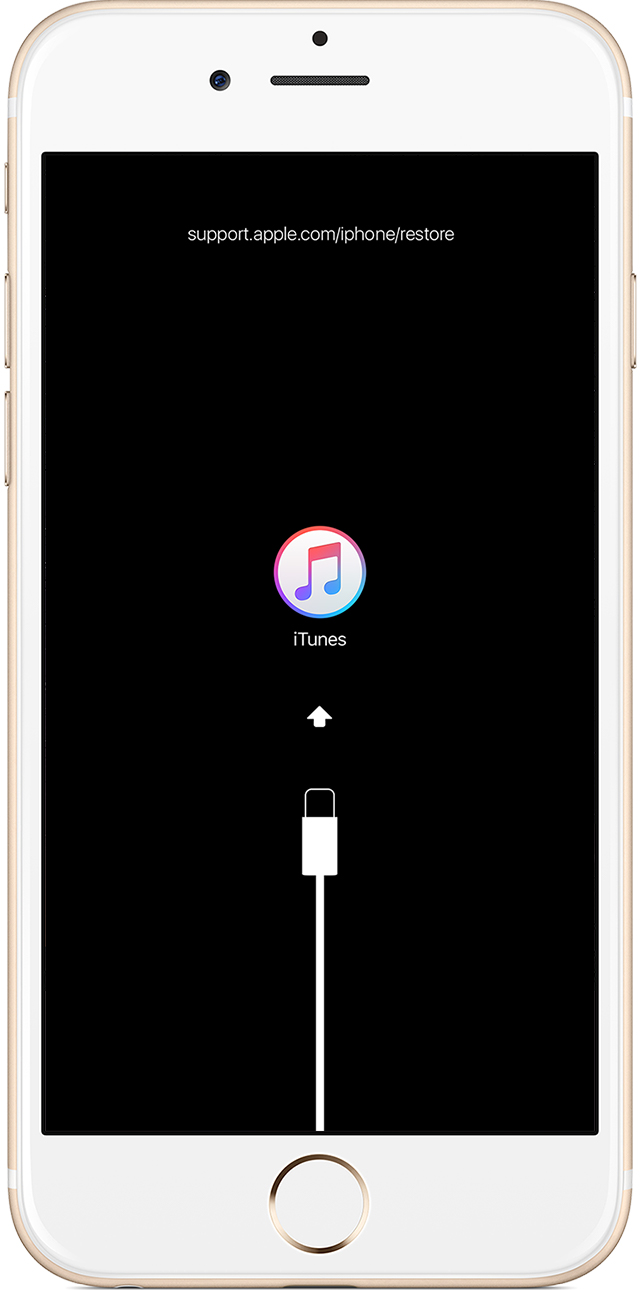
- On an iPhone 6s and earlier, iPad, or iPod touch: Press and hold the Sleep/Wake and Home buttons at the same time. Don't release when you see the Apple logo. Keep holding both buttons until you see the recovery mode screen.
- On an iPhone 7 or iPhone 7 Plus: Press and hold the Sleep/Wake and Volume Down buttons at the same time. Don't release when you see the Apple logo. Keep holding both buttons until you see the recovery mode screen.
- When you see the option to Restore or Update, choose Restore.
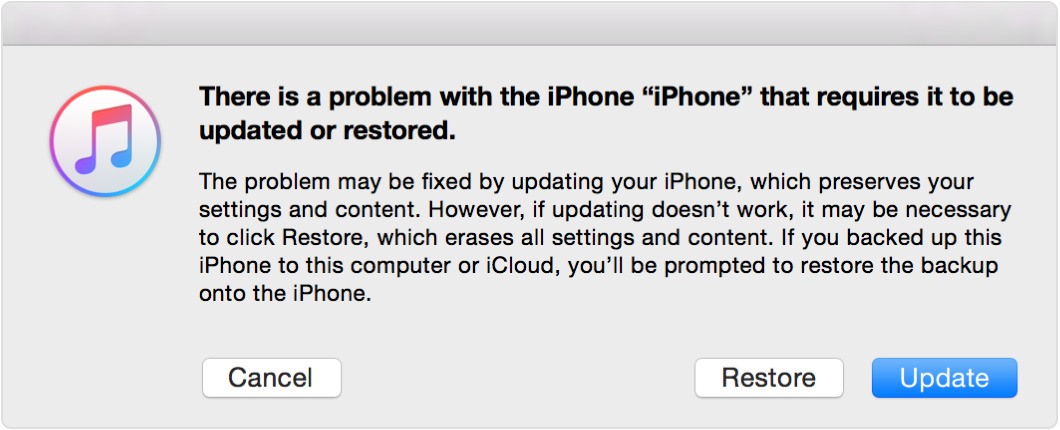
iTunes will download software for your device. If it takes more than 15 minutes, your device will exit recovery mode and you'll need to repeat steps 2 and 3.
- Wait for the process to finish. Then you can set up and use your device.

