Find if a cell is referenced in a formula

Hi, I'm trying to find if a certain cell is reference in any formula within a spreadsheet (other than looking at every formula one by one!)


I thought that search would have done this, but searches cannot be done on the content of formulae it seems. Anyone know of an elegant way to do this please?

MacBook Pro (15-inch Mid 2012), macOS Sierra (10.12.4), SSD, Optical Drive swapped for HD

Posted on Aug 4, 2017 10:00 PM

Reply
6 replies

Aug 5, 2017 10:12 PM in response to JDfunky

Hi JD,


Numbers 3 (and probably 4) does not provide an easy way of searching for cells dependent on any specific cell.


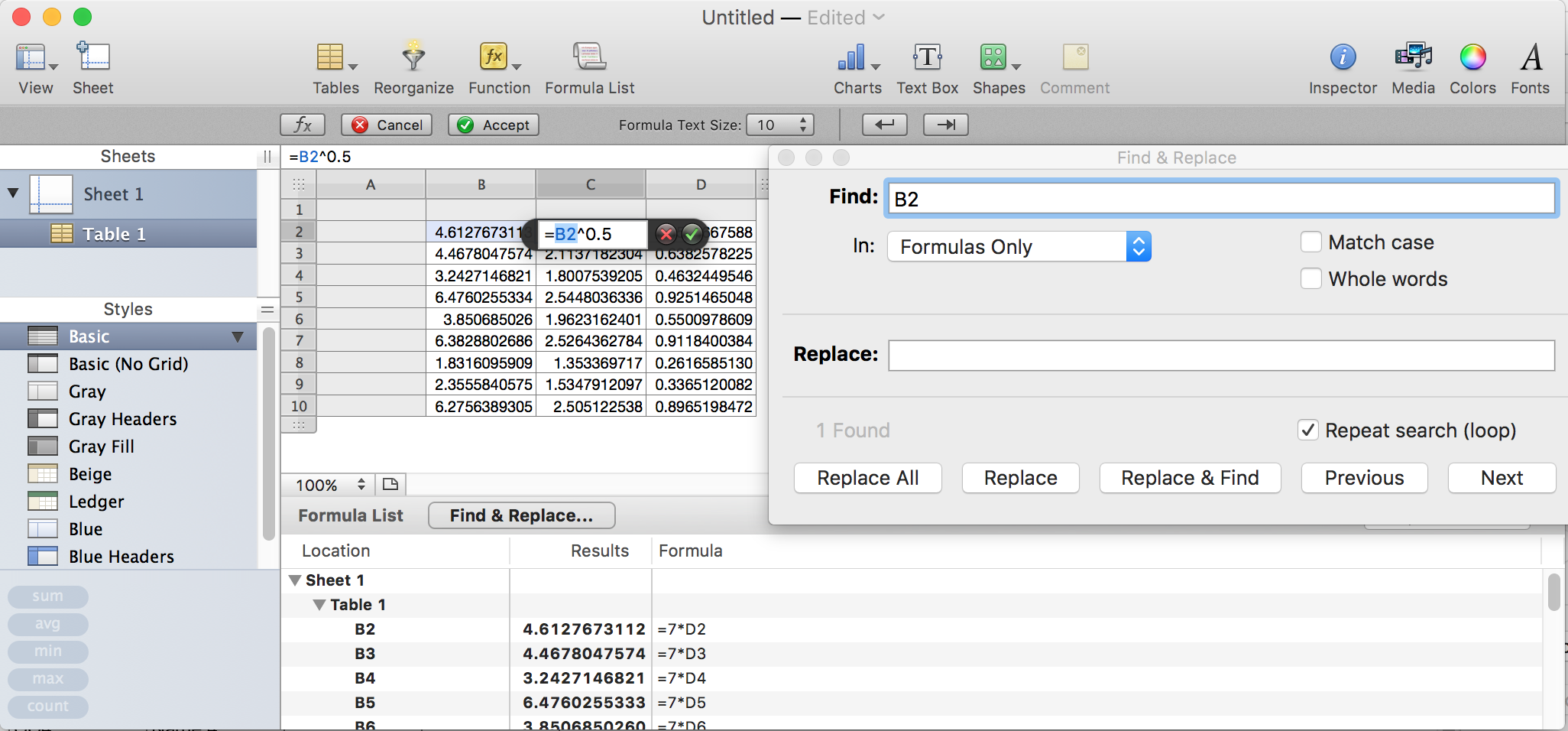
If you have a copy of Numbers 2.3 (Numbers '09) on your machine, you may be able to Export your Numbers 3 or Numbers 4 document to a Numbers 09 format file, open that file in Numbers '09, then choose Show Formula List from the View menu.
User uploaded file

As can be seen in the image, the Formula List shows a list of all formulas in the document, and the current result for each of them. But it also shows a Find and Replace button, which when clicked opens the Find dialogue with the search limited (as shown in the pop-up menu) to look in Formulas Only.


Entering a cell address (eg. "B2", or in multi table documents, "Tablename::B2") returns a count of the number of times that cell is used in formulas and opens the Formula Editor at the first occurrence (cell C2 in the example). Clicking Next will move the search to the next occurrence.


Te export to Numbers 09 isn't a perfect solution. More current versions of Numbers support several functions not supported in the '09 version, and these will not survive the export. Unsupported functions and formulas using these functions will be replaced in the exported file by the most recent results of those formulas. With the formula gone, of course, searching for cells referenced by those formulas is not possible.


If you do not have access to Numbers '09, here are some tests you can do within Numbers 3 or 4. Not elegant, and do follow the caution.


CAUTION:

Start by making a COPY of the document. Use this COPY for the tests below. These tests involve changing values in the spreadsheet and observing changes—particularly error messages.


Select the cell you want to test. Press Command-X to cut the contents out of the cell. Note any error triangles that appear—those cells contain either formulas that reference the target cell or formulas that reference one or more cells whose value depends on the target cell.


Some formulas are written to handle an empty cell without throwing an error. To test these, try entering a value of a different type than what was initially displayed in the target cell. Again, cells containing formulas dependent on the target cell either directly or through another cell may show error triangles.


These are not definitive tests, as some formulas expecting a number in the target cell may contain function that simply interprets a text value as numerically zero. Some changes may be easily handled by formulas dependent on the target cell, which will successfully calculate and display a new result. Spotting the changes will show you what cells depend on the target cell.


A non-destructive search:

Selecting a cell containing a formula will highlight all cells referenced by that formula. You may be able to select a cell at the top of a column, then press and hold the down arrow to quickly scan all cells in that column. As your selection passes each cell containing a formula, all referenced cells will flash a highlight colour. (Not practical with large tables, as scanning down the column will also scroll the view.)


Regards,

Barry


PS: You might also use the Provide Numbers Feedback item in the Numbers menu in Numbers to make a request that Apple re-introduce this useful search feature.

B

Aug 5, 2017 10:12 PM in response to JDfunky

It's not perfect, but unless and until Apple reintroduces this feature a script like the one below can help flag some of the most common 'dependents':


  1. Copy-paste into Script Editor (in Applications > Utilities)
  2. Select the cell you want to check for dependendents.
  3. Click the 'run' button.


(If this is the first time you have used Script Editor make sure Script Editor.app is checked at System Preferences > Security & Privacy > Privacy > Accessibility).


The script will turn the background color of any cells in the same table that reference the selected cell to red.


This could be used in combination with the approaches Barry describes.


SG


tell application "Numbers"

tell front document to tell active sheet

set t to (first table whose selection range's class is range)

tell t

set tCell to (get selection range)'s cell 1's name

set colLtr to tCell's text item 1

repeat with c in cells

tell c

set f to formula

if f is not missing value then -- common cases

set dRef to tCell is in f ¬

or "(" & colLtr is in f ¬

or colLtr & ")" is in f

if dRef is false then -- dependents via range refs

set rRef to false

repeat with i in my splitFormula(f)

if i contains ":" then -- we have a range

tell t to set theRange to range i

repeat with d in theRange's cells

if d's name is tCell then

set rRef to true

exit repeat

end if

if rRef then exit repeat

end repeat

if rRef then exit repeat

end if

if rRef then exit repeat

end repeat

end if

if dRef or rRef then set background color to "red"

end if

end tell

end repeat

end tell

end tell

end tell


to splitFormula(f) -- lists components of a formula

set text item delimiters to {",", "(", ")", ";"}

set theItems to f'stext items

set text item delimiters to ""

return theItems

end splitFormula

Aug 6, 2017 6:43 AM in response to JDfunky

JDfunky wrote:


PS the cells that turn red stay that way, so I do undo command to clear them, or is there another way?


Yes, you can make a duplicate of the script and change this line:


if dRef or rRef then set background color to "red"


to:


if dRef or rRef then deletebackground color


I have another script that simply lists all formulas. Post back if you think that might help.


In general, you should be thinking about only a small number of different formulas in your documents. Often one or two formulas per table (filled to other cells) are all that is needed. If you haven't already have a look at the templates at File > New in your menu.


SG

This thread has been closed by the system or the community team. You may vote for any posts you find helpful, or search the Community for additional answers.

Find if a cell is referenced in a formula

Welcome to Apple Support Community
A forum where Apple customers help each other with their products. Get started with your Apple Account.