Hi
Alonxo
,
I understand that you'd like to be able to navigate the options for formulas in Numbers for iPad. I'm happy to provide some help for this.
While you cannot use
arrow keys
to choose options for formulas, there is a formula keyboard to make this easier to use on the iPad. Check out the steps below:
Formula keyboard - Numbers Help for iPad
You can use the formula keyboard to add mathematical calculations to your spreadsheet, and to choose functions from the Functions Browser.
To open the formula keyboard, tap a cell, tap  at the bottom of the screen, then tap
  above the keyboard on the right.
Note: The layout of the formula keyboard varies on different iPad models.
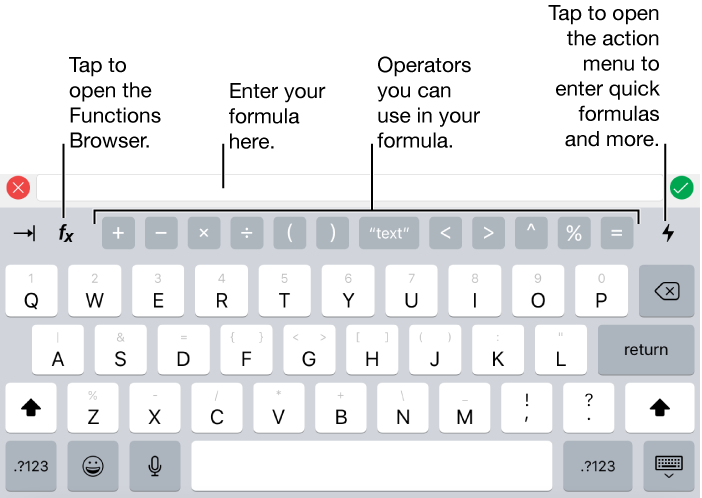
To enter data with the formula keyboard, do any of the following:
-
Add a letter: Tap a letter key.
-
Add a function: If you know which function you want to enter, start typing it, then tap one of the suggestions that appears.
If you’re not sure which function you need, tap  to open the Functions Browser, tap Categories at the top of the Functions Browser, then tap a
function
category. Tap a function to insert it in the formula editor (swipe up and down to see the available functions). To learn more about any function, tap
to open the Functions Browser, tap Categories at the top of the Functions Browser, then tap a
function
category. Tap a function to insert it in the formula editor (swipe up and down to see the available functions). To learn more about any function, tap  next to it. (The first time you tap , it might take a few seconds to display the information.)
-
Add a number or symbol: Tap symbols in the top row of the keyboard, or to enter numbers, tap  (you may need to tap
  , depending on your iPad model). On some models, you can drag down on a letter key until it changes to the number above the letter, then lift your finger. (For example, to enter the number 5, drag down on the T key so it changes to a 5.)
For instructions on entering formulas and functions into cells, see Calculate values using data in
table cells
.
Thanks for using the Apple Support Communities. Cheers!


