iPhone 7 Plus home screen not flipping horizontal

With the recent release of iOS 11 I have noticed one of the most convenient features I use is not working properly: the home screen flipping horizontally when the phone is turned on it’s side horizontally. This issue is especially annoying since I use it in my car to swap between navigation apps. I have doubled checked that orientation lock is off (it is), and that the screen is set to standard size not zoomed size so the apps can rotate like in iOS 10. Any solutions or is this a bug?

Posted on Sep 22, 2017 1:13 AM

Reply
Question marked as Top-ranking reply

Posted on Sep 22, 2017 11:54 PM

Hi Geekagent,

Thanks for reaching out in Apple Support Communities. I understand that since updating to iOS 11, your Home Screen will no longer rotate to landscape. I know it's important to be able to utilize this feature and I'm happy to help. I appreciate you letting me know the steps you've tried so far, that information is very helpful. You didn't mention if you had also restarted the iPhone. If you haven't, I'd suggest following the steps for a restart here: Restart your iPhone, iPad, or iPod touch You may also want to check to see if you're able to rotate the screen in another app such as Safari.

If you're still having trouble with the Home Screen, you'll want to create a recent backup: How to back up your iPhone, iPad, and iPod touch

Next, follow the steps below to reinstall the iOS 11 software to your iPhone. This process will erase the software currently installed and replace it with a fresh copy. Be sure to follow step four and choose to "Update" when prompted, this will help to prevent data loss.
  1. Make sure that you're using the latest version of iTunes.
  2. If iTunes is already open, close it. Connect your device to your computer and open iTunes. If you don't have a computer, borrow one from a friend or go to an Apple Retail Store or Apple Authorized Service Provider for help.
  3. While your device is connected, force restart it with these steps:
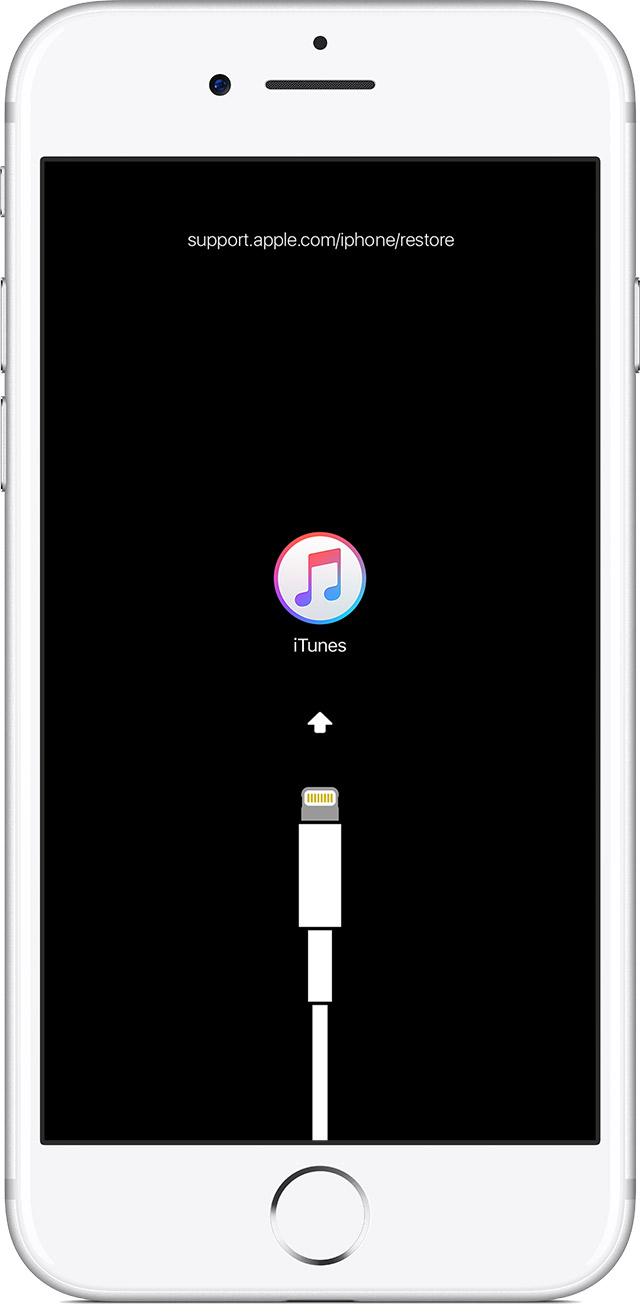
    • On an iPhone 8 or iPhone 8 Plus: Press and quickly release the Volume Up button. Then press and quickly release the Volume Down button. Finally, press and hold the Side button until you see the recovery-mode screen.
    • On an iPhone 7 or iPhone 7 Plus: Press and hold the Side and Volume Down buttons at the same time. Keep holding them until you see the recovery-mode screen.
    • On an iPhone 6s and earlier, iPad, or iPod touch: Press and hold both the Home and the Top (or Side) buttons at the same time. Keep holding them until you see the recovery-mode screen.
      User uploaded file
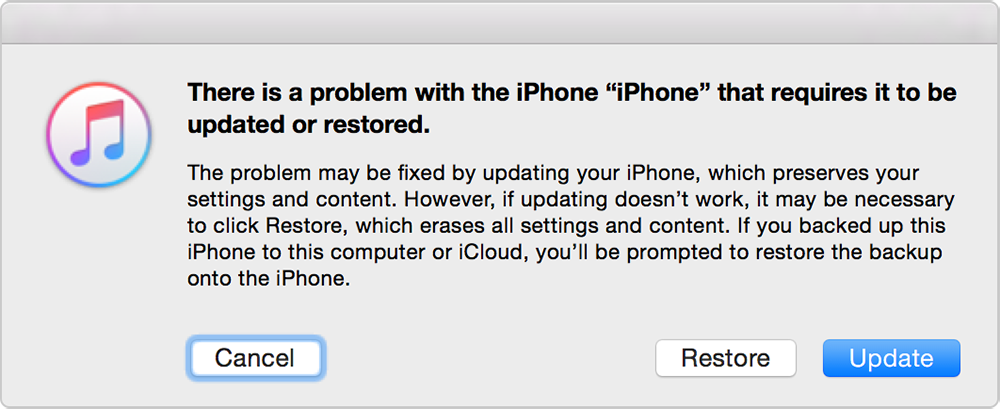
  4. When you see the option to Restore or Update, choose Update. iTunes will try to reinstall iOS without erasing your data. Wait while iTunes downloads the software for your device. If the download takes more than 15 minutes and your device exits recovery mode, let the download finish, then repeat these steps.
    User uploaded file
  5. After the Update or Restore completes, set up your device.
If you can‘t update or restore your iPhone, iPad, or iPod touch

Let me know if you're still unable to rotate the Home Screen after you've followed these steps.


Warmest Regards.
2 replies
Question marked as Top-ranking reply

Sep 22, 2017 11:54 PM in response to Geekagent

Hi Geekagent,

Thanks for reaching out in Apple Support Communities. I understand that since updating to iOS 11, your Home Screen will no longer rotate to landscape. I know it's important to be able to utilize this feature and I'm happy to help. I appreciate you letting me know the steps you've tried so far, that information is very helpful. You didn't mention if you had also restarted the iPhone. If you haven't, I'd suggest following the steps for a restart here: Restart your iPhone, iPad, or iPod touch You may also want to check to see if you're able to rotate the screen in another app such as Safari.

If you're still having trouble with the Home Screen, you'll want to create a recent backup: How to back up your iPhone, iPad, and iPod touch

Next, follow the steps below to reinstall the iOS 11 software to your iPhone. This process will erase the software currently installed and replace it with a fresh copy. Be sure to follow step four and choose to "Update" when prompted, this will help to prevent data loss.
  1. Make sure that you're using the latest version of iTunes.
  2. If iTunes is already open, close it. Connect your device to your computer and open iTunes. If you don't have a computer, borrow one from a friend or go to an Apple Retail Store or Apple Authorized Service Provider for help.
  3. While your device is connected, force restart it with these steps:
    • On an iPhone 8 or iPhone 8 Plus: Press and quickly release the Volume Up button. Then press and quickly release the Volume Down button. Finally, press and hold the Side button until you see the recovery-mode screen.
    • On an iPhone 7 or iPhone 7 Plus: Press and hold the Side and Volume Down buttons at the same time. Keep holding them until you see the recovery-mode screen.
    • On an iPhone 6s and earlier, iPad, or iPod touch: Press and hold both the Home and the Top (or Side) buttons at the same time. Keep holding them until you see the recovery-mode screen.
      User uploaded file
  4. When you see the option to Restore or Update, choose Update. iTunes will try to reinstall iOS without erasing your data. Wait while iTunes downloads the software for your device. If the download takes more than 15 minutes and your device exits recovery mode, let the download finish, then repeat these steps.
    User uploaded file
  5. After the Update or Restore completes, set up your device.
If you can‘t update or restore your iPhone, iPad, or iPod touch

Let me know if you're still unable to rotate the Home Screen after you've followed these steps.


Warmest Regards.

This thread has been closed by the system or the community team. You may vote for any posts you find helpful, or search the Community for additional answers.

iPhone 7 Plus home screen not flipping horizontal

Welcome to Apple Support Community
A forum where Apple customers help each other with their products. Get started with your Apple Account.