
No remote access in Home app in IOS11
Since upgrading my iPhone 6 to iOS 11.01 and upgrading my Apple TV to tvOS 11, I do not have remote control my HomeKit devices. When I am on my home network everything works perfectly.
Let me know if this helps.
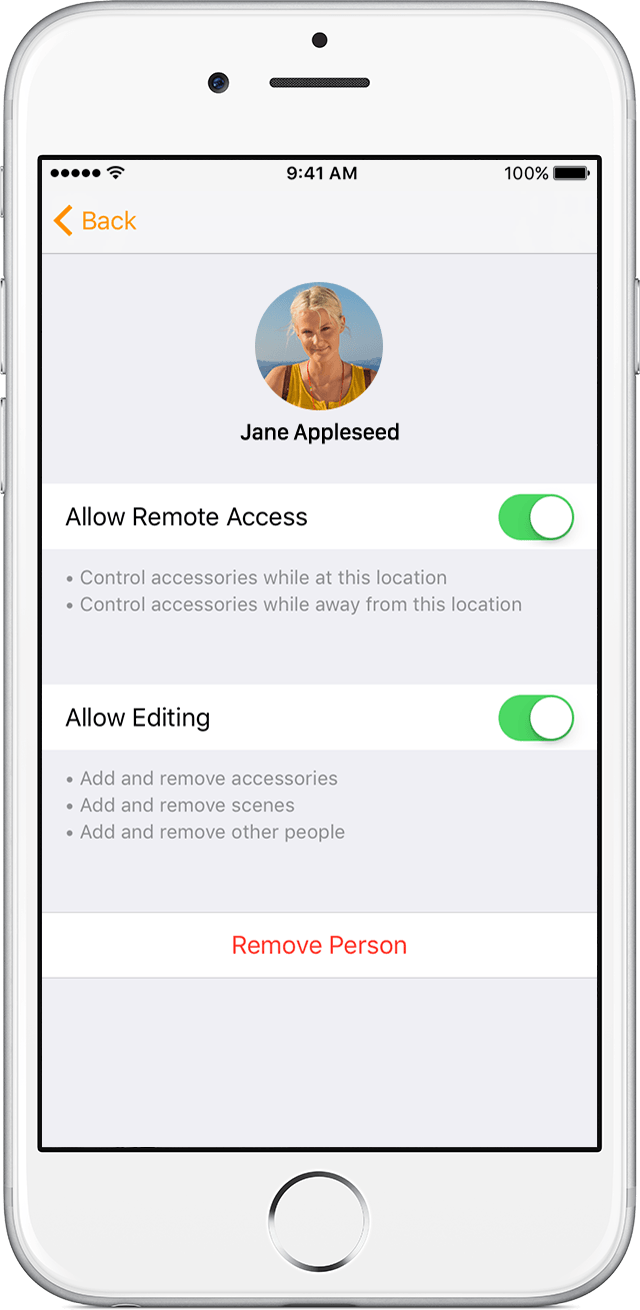
Allow remote access and edit permissions for users
If you set up a home hub, you can manage remote access and edit permissions for people that you invite to control your home. If you don't have a home hub set up, they can only control your accessories while they're at your home, connected to your home Wi-Fi network, and within range of your HomeKit accessories.
To manage remote access and change permissions for a person, invite the person to control your home. Then follow these steps:
- Open Home and tap
.
- Tap the person that you want to edit permissions for.
- Set the following access for your user:
- Allow Remote Access: Turn on to allow users to control your accessories from any location. Turn off to allow users to only control your accessories while they're at your house.
- Allow Editing: Turn on to allow them to add and remove accessories, scenes, and other users.
If you want to remove a person, tap
Get help with your home hub
If you have issues creating automations or controlling your HomeKit accessories when you're not home, follow these steps:
- Make sure that your Apple TV or iPad is:
- Connected to the Internet and on the same Wi-Fi network as your other iOS devices during set up
- Updated with the latest version of tvOS or iOS
- Signed in to iCloud with the same Apple ID with two-factor authentication enabled
- Make sure that you can control your accessories in the Home app on your iOS device. Open the Home app and turn on a light or change the temperature.
- Make sure that your device is set up as a home hub:
- On your Apple TV, go to Settings > Accounts > iCloud and make sure that your Apple TV shows HomeKit as Connected. If you don’t see HomeKit, then your Apple TV isn't connected as a home hub.
- On your iPad, go to Settings > Home and make sure that Use this iPad as a Home Hub is turned on.
- Restart your Apple TV, iPad, and iPhone.
- Wait a few minutes. If you still need help, sign out of iCloud on your Apple TV, then sign back in. Go to Settings > Accounts > iCloud.
If you have an Apple TV (3rd generation)*, you can control your HomeKit accessories in the Home app while you’re away from your home. To change user permissions, create automations, or stream HomeKit-enabled cameras remotely, you need an Apple TV (4th generation). If you add an Apple TV (4th generation) to a home that has an Apple TV (3rd generation) set up, the Apple TV (3rd generation) will stop being used for HomeKit remote access.
*Apple TV (3rd generation) doesn't support remote access to HomeKit-enabled cameras.
Get help with location-based automations
If you can't create location-based automations, follow these steps:
On your iPhone, iPad, or iPod touch:
- Go to Settings > Privacy and make sure that you turn on Location Services.
- Scroll down, then tap Home.
- Under Allow Location Access, make sure While Using the App is selected.
On your Apple TV:
- Go to Settings > General > Privacy and make sure that Location Services is turned on.
- Select Location Services.
- Make sure that HomeKit is set to Always.
Let me know if this helps.
Allow remote access and edit permissions for users
If you set up a home hub, you can manage remote access and edit permissions for people that you invite to control your home. If you don't have a home hub set up, they can only control your accessories while they're at your home, connected to your home Wi-Fi network, and within range of your HomeKit accessories.
To manage remote access and change permissions for a person, invite the person to control your home. Then follow these steps:
- Open Home and tap
- Tap the person that you want to edit permissions for.
- Set the following access for your user:
- Allow Remote Access: Turn on to allow users to control your accessories from any location. Turn off to allow users to only control your accessories while they're at your house.
- Allow Editing: Turn on to allow them to add and remove accessories, scenes, and other users.
If you want to remove a person, tap
Get help with your home hub
If you have issues creating automations or controlling your HomeKit accessories when you're not home, follow these steps:
- Make sure that your Apple TV or iPad is:
- Connected to the Internet and on the same Wi-Fi network as your other iOS devices during set up
- Updated with the latest version of tvOS or iOS
- Signed in to iCloud with the same Apple ID with two-factor authentication enabled
- Make sure that you can control your accessories in the Home app on your iOS device. Open the Home app and turn on a light or change the temperature.
- Make sure that your device is set up as a home hub:
- On your Apple TV, go to Settings > Accounts > iCloud and make sure that your Apple TV shows HomeKit as Connected. If you don’t see HomeKit, then your Apple TV isn't connected as a home hub.
- On your iPad, go to Settings > Home and make sure that Use this iPad as a Home Hub is turned on.
- Restart your Apple TV, iPad, and iPhone.
- Wait a few minutes. If you still need help, sign out of iCloud on your Apple TV, then sign back in. Go to Settings > Accounts > iCloud.
If you have an Apple TV (3rd generation)*, you can control your HomeKit accessories in the Home app while you’re away from your home. To change user permissions, create automations, or stream HomeKit-enabled cameras remotely, you need an Apple TV (4th generation). If you add an Apple TV (4th generation) to a home that has an Apple TV (3rd generation) set up, the Apple TV (3rd generation) will stop being used for HomeKit remote access.
*Apple TV (3rd generation) doesn't support remote access to HomeKit-enabled cameras.
Get help with location-based automations
If you can't create location-based automations, follow these steps:
On your iPhone, iPad, or iPod touch:
- Go to Settings > Privacy and make sure that you turn on Location Services.
- Scroll down, then tap Home.
- Under Allow Location Access, make sure While Using the App is selected.
On your Apple TV:
- Go to Settings > General > Privacy and make sure that Location Services is turned on.
- Select Location Services.
- Make sure that HomeKit is set to Always.
I have checked all these settings, but my Leviton smart switches still cannot be controlled outside home. I have a Apple TV connected for home kit
No remote access in Home app in IOS11

