iphone maps doesn’t work while i’m in a car
I can’t use maps while moving because of the delay of my location. It either stays on a previous location for a while and then loads another previous spot. It never moves continuously while I’m moving.
Turn Location Services on or off
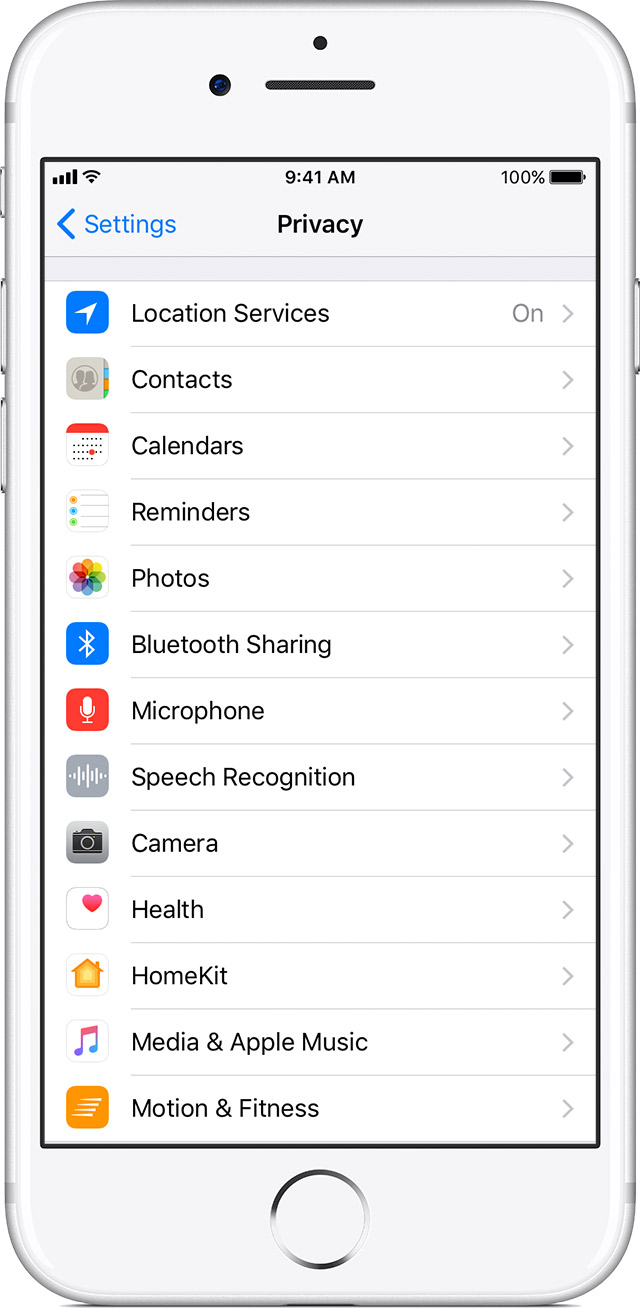
You can turn Location Services on or off at Settings > Privacy > Location Services. You can turn Location Services on either during the Setup Assistant process or later through the Location Services setting. You can individually control which apps and system services have access to Location Services data. When Location Services are off, apps can't use your location in the foreground or background. This will limit the performance of various Apple and third-party apps.
Settings > Privacy > Location Services.
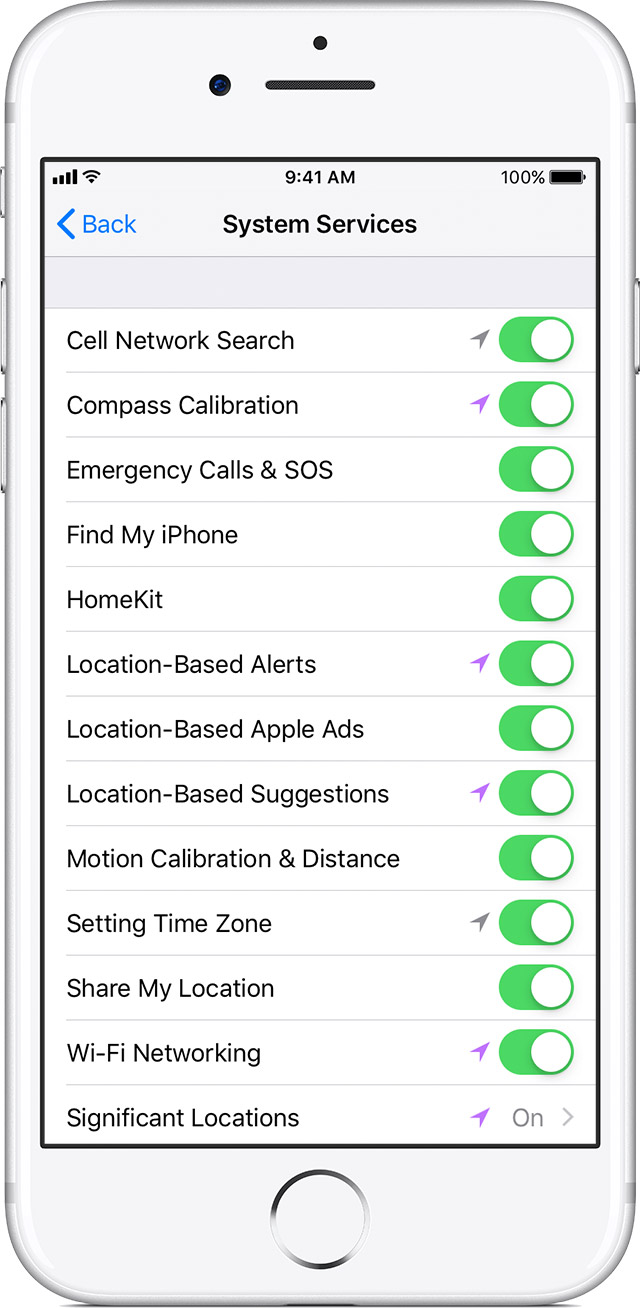
Settings > Privacy > Location Services > System Services.
Learn more about Location Services and Privacy.
Reset or disable Location Services
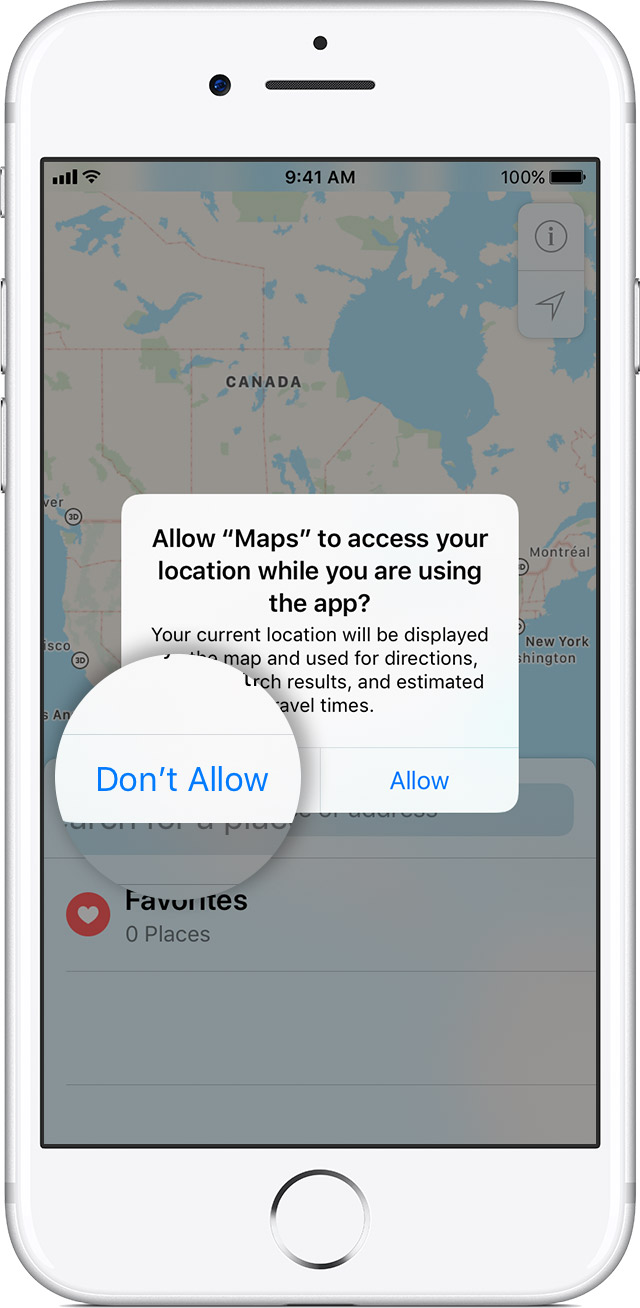
Location warnings are the requests that apps (such as Camera, Compass, and Maps as well as location-based third-party apps) make
to use Location Services with those apps. An app will ask for permission the first time it needs to access Location Services data. Tapping Allow will give that app permission to use Location Services as needed. Tapping Don't Allow will prevent an app from accessing Location Services data. Apps won't use your location until they have asked for your permission and you grant permission.If you would like to reset all of your location settings to the factory default, go to
Settings > General > Reset and tap Reset Location & Privacy. When your location and privacy settings are reset, apps will stop using your location until you grant them permission.
Improve GPS accuracy
GPS accuracy depends on the number of visible GPS satellites. Locating all visible satellites can take several minutes, with accuracy gradually increasing over time. To improve GPS accuracy:
- Make sure that you've set the date, time, and time zone correctly on the device in Settings > General > Date & Time. If possible, use Set Automatically.
- Keep a clear view in several directions. Walls, vehicle roofs, tall buildings, mountains, and other obstructions can block line of sight to GPS satellites. When this happens, your device uses Wi-Fi or cellular networks to determine your position until the GPS satellites are visible again.
Turn Location Services on or off
You can turn Location Services on or off at Settings > Privacy > Location Services. You can turn Location Services on either during the Setup Assistant process or later through the Location Services setting. You can individually control which apps and system services have access to Location Services data. When Location Services are off, apps can't use your location in the foreground or background. This will limit the performance of various Apple and third-party apps.
Settings > Privacy > Location Services.
Settings > Privacy > Location Services > System Services.
Learn more about Location Services and Privacy.
Reset or disable Location Services
Location warnings are the requests that apps (such as Camera, Compass, and Maps as well as location-based third-party apps) make
to use Location Services with those apps. An app will ask for permission the first time it needs to access Location Services data. Tapping Allow will give that app permission to use Location Services as needed. Tapping Don't Allow will prevent an app from accessing Location Services data. Apps won't use your location until they have asked for your permission and you grant permission.If you would like to reset all of your location settings to the factory default, go to
Settings > General > Reset and tap Reset Location & Privacy. When your location and privacy settings are reset, apps will stop using your location until you grant them permission.
Improve GPS accuracy
GPS accuracy depends on the number of visible GPS satellites. Locating all visible satellites can take several minutes, with accuracy gradually increasing over time. To improve GPS accuracy:
- Make sure that you've set the date, time, and time zone correctly on the device in Settings > General > Date & Time. If possible, use Set Automatically.
- Keep a clear view in several directions. Walls, vehicle roofs, tall buildings, mountains, and other obstructions can block line of sight to GPS satellites. When this happens, your device uses Wi-Fi or cellular networks to determine your position until the GPS satellites are visible again.
iphone maps doesn’t work while i’m in a car