iphone 4s microphone working only in speaker phoe
iphone 4S microphone working only when speaker on.did all checking on the device
location matters
iphone 4S microphone working only when speaker on.did all checking on the device
location matters
Let me know if this helps.Test the microphones on your device
To find out if there’s an issue with the microphone on your device—and not your cellular connection or the app that you're using—test each microphone. Microphone location can vary by device. You can use your product's technical specifications to find the microphones.
iPhone
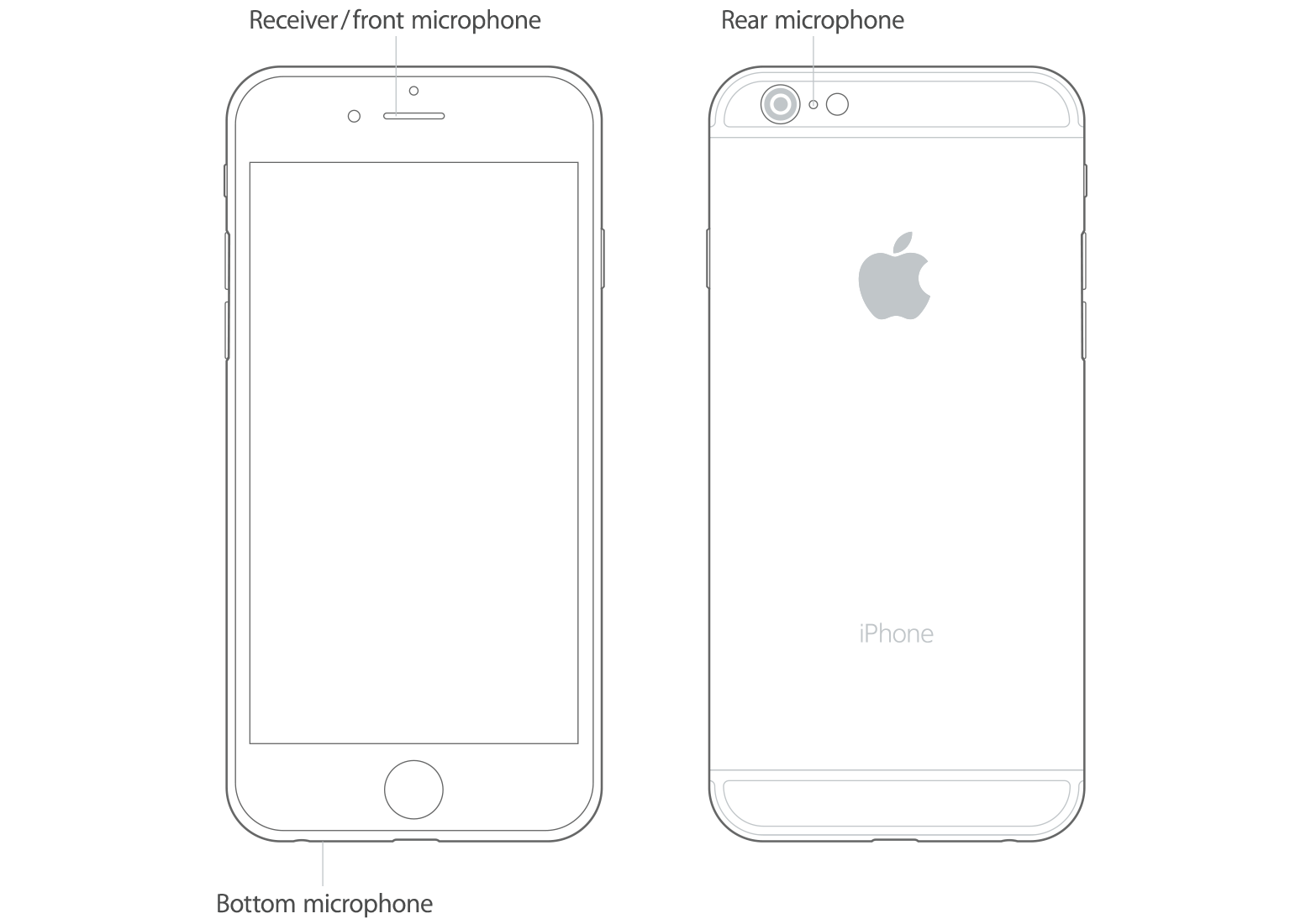
There is more than one microphone on your iPhone.
To test the primary microphone on the bottom of your iPhone, open Voice Memos and tap the record icon. Then speak into the microphone and tap the play icon to play back the recording. You should be able to hear your voice clearly.
If your voice sounds faint when you’re using the speakerphone on a phone call, make sure that your iPhone receiver isn’t blocked or covered.
If audio from video recordings sounds faint, or Siri can’t hear you, make sure that the microphone near the iSight camera—on the top, back corner of your iPhone—and the receiver isn’t blocked or covered.
Get help
If you still have issues after testing the microphone on your device, try these steps:
- Unplug any accessory plugged into the headset jack.
- Avoid blocking the microphone and iSight mic with your fingers while holding the device or recording video.
- Remove screen protectors, films, or cases that cover the microphone, iSight mic, or iPhone receiver.
- Clear any debris from the microphones or iPhone receiver. Refer to the user guide for your device on microphone locations.
- Restart your device.
- Make sure you have the latest version of iOS.
If you've tried these steps and people still can't hear you on phone or FaceTime calls or Siri doesn’t hear your requests, contact Apple Support.
FaceTime is not available in all countries or regions.
Let me know if this helps.Test the microphones on your device
To find out if there’s an issue with the microphone on your device—and not your cellular connection or the app that you're using—test each microphone. Microphone location can vary by device. You can use your product's technical specifications to find the microphones.
iPhone
There is more than one microphone on your iPhone.
To test the primary microphone on the bottom of your iPhone, open Voice Memos and tap the record icon. Then speak into the microphone and tap the play icon to play back the recording. You should be able to hear your voice clearly.
If your voice sounds faint when you’re using the speakerphone on a phone call, make sure that your iPhone receiver isn’t blocked or covered.
If audio from video recordings sounds faint, or Siri can’t hear you, make sure that the microphone near the iSight camera—on the top, back corner of your iPhone—and the receiver isn’t blocked or covered.
Get help
If you still have issues after testing the microphone on your device, try these steps:
- Unplug any accessory plugged into the headset jack.
- Avoid blocking the microphone and iSight mic with your fingers while holding the device or recording video.
- Remove screen protectors, films, or cases that cover the microphone, iSight mic, or iPhone receiver.
- Clear any debris from the microphones or iPhone receiver. Refer to the user guide for your device on microphone locations.
- Restart your device.
- Make sure you have the latest version of iOS.
If you've tried these steps and people still can't hear you on phone or FaceTime calls or Siri doesn’t hear your requests, contact Apple Support.
FaceTime is not available in all countries or regions.
iphone 4s microphone working only in speaker phoe