bogmarcin wrote:
Should I have done some bootable USB or sth before I've erased the disks on my Mac?
You should always keep your OS installers. People who upgraded to High Sierra found that their Sierra downloads had been removed from their list of Purchases in the Mac App Store. There is still a secret link I can give you if you don't have your Sierra installer. If you have some older OS version, then go to the Mac App Store and download the installer for it. Now.
You don't necessarily need a bootable USB or anything. As long as you have that installer, you should be able to reinstall that OS version. That being said, you should have some kind of bootable install medium. If you have a Raid, I assume that you should have hard disks laying around from which you can boot if you had to. If you don't, then you should probably seriously re-evaluate your machine's configuration.
btw, looks like you don't see much problems with the mess, so could you pls provide your step-by-step instruction with the view to restore as much as possible? It's important because the one thing all the related threads are typically lacking is simple step-by-step instructions.
As I mentioned in my first reply. I don't have a Raid and have never used one other than playing around with a JBOD quasi-raid. Just to say you have "a Raid" is meaningless. There are lots of possible configuration options and platforms. Which one you have makes all the difference in the world.
All I can give you are step-by-step instructions that you could use when your boot disk isn't going to be immediately bootable. For example, this might be because you've bought a new hard disk and installed it. In your case, you just have one extra setup to setup your Raid.
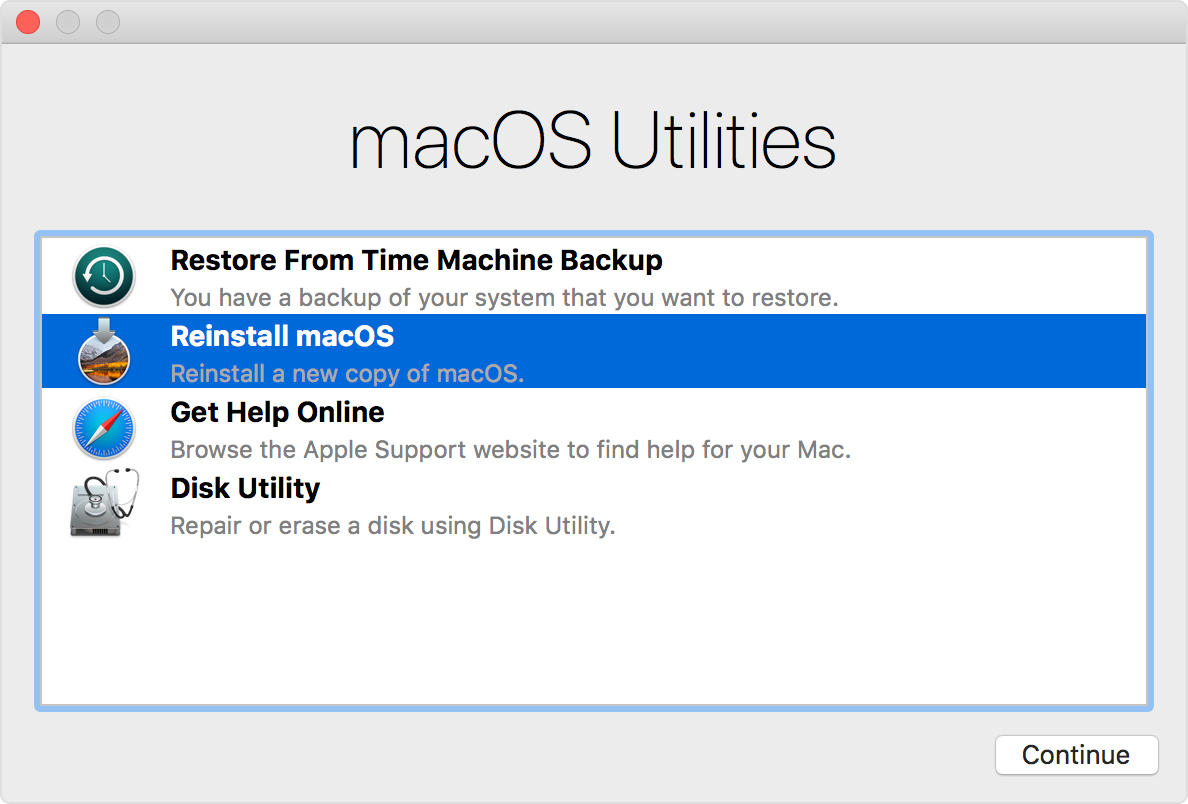
0) Boot your machine. If your Raid is not yet bootable, you will need to boot it somehow. You can use a bootable USB, a bootable external drive, or the recovery partition on your Time Machine backup. Since your startup disk has no configuration at all, you cannot use its built-in recovery partition, because it doesn't have one yet. Those are the preferred methods because you will be able to control what OS you want to install. You can also choose Internet Recovery and boot from your firmware. But with that option, you have less control over what OS version gets installed. It may install an old version that you need to upgrade. Or it may install the latest OS version, whether you want that or not.
1) Once the machine is running via some boot disk, you can rebuild your Raid. However your Raid is supposed to be configured, do that. If you were booting from the Raid before, you should be able to continue to do that after restoring from backup.
2) Once your Raid is configured and exports itself as a single disk, then you can reinstall the operating system onto that disk. This is where that OS install app is used.
3) Once the machine can boot itself, you can run Migration Assistant to restore all of your data.
As for the "full-blown", I don't see how there is no difference between MA and full-blown TM restoration, after all after the latter you should get absolutely everything as before a crash, including every last setting of your system and apps, so what do you mean "they are the same"?
OK. Now you are talking about something else entirely. If you are concerned about crash recovery, you need to take a step back and decide exactly what kind of Raid configuration you want to use, for what purpose, and what hardware to use. But that is a side topic and I'll ignore that for now.
There is no difference between Migration Assistant and "full blown" Time Machine restore. They are both, equally "full blown". Migration Assistant just gives you some additional options. The "full blown" Time Machine restore is just Migration Assistant with all boxes checked. When you do a new setup with Time Machine restoration, it essentially follows the same steps I've outlined before, and then runs Migration Assistant. It just doesn't handle Raids, at least as far as I know. You just have to do the steps manually so that you can configure your Raid. But the last step is always the same. It is always Migration Assistant.