Drag large groups of photos to a folder on your Desktop and then import them from there to Photos.
It may be a problem with the file system on your external drive and with the permissions and file ownership.
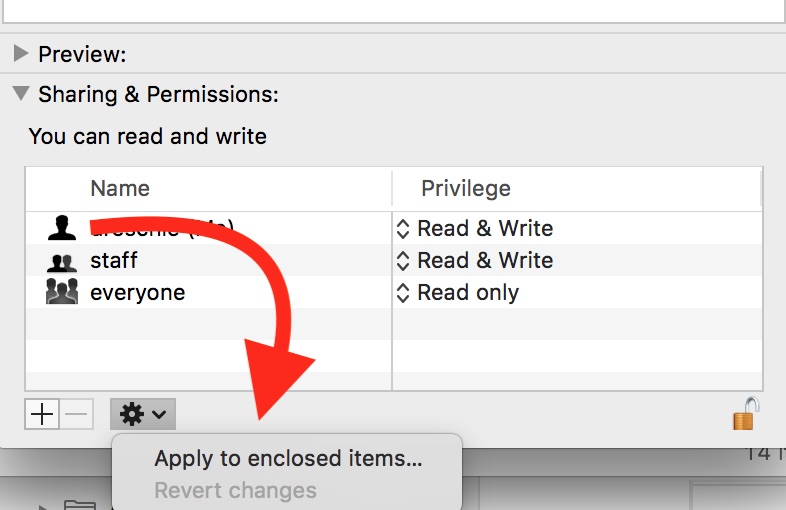
After you drag the files to a folder on your internal drive, select the folder, ensure that the permissions are set for you to read and write, then use the option to apply to the enclosed items. This option is hidden behind the gears icon in the Permissions section of the "File > Get Info" panel for the folder.
Alternately you could try to enable the "Ignore Ownership on this volume" flag for the drive, where you are keeping the photos. You will find it in the Info panel for the drive, at the bottom of the panel.
If the drive does not allow to set the ignore ownership flag, the file system may be incompatible, and that would explain why certain files cannot be read while on that drive.


