Welcome to the Apple Support Communities. I hear you're having some trouble with the internet on your iPhone, and I'd be happy to help you get to the bottom of it. One thing I wanted to clarify before we proceed is the difference between troubleshooting Wi-Fi or cellular service issues. Just so you're aware, since it doesn't seem like there's any distinction which is the core problem, I'm going to offer troubleshooting for both.
If the problem you're having is with cellular service, follow these steps:
If you see No Service or Searching on your iPhone or iPad - Apple SupportCheck your coverage area
Make sure that you're in an area with cellular network coverage. Then follow these steps:
- If you can't connect to a cellular network on your iPhone, make sure that cellular data is on in Settings > Cellular*. On your iPad, go to Settings > Cellular Data.
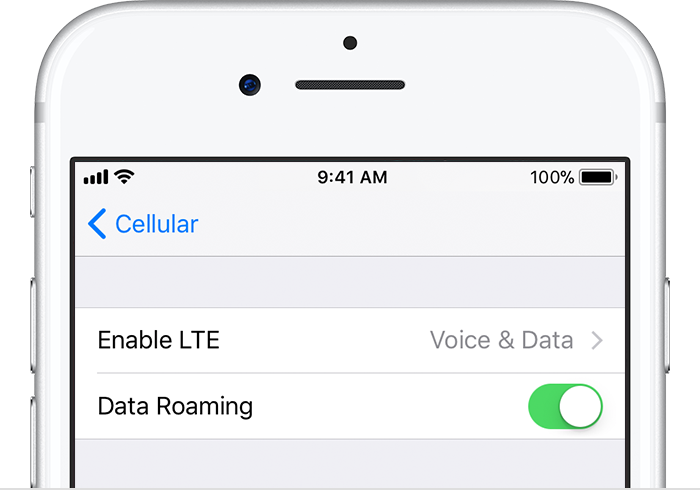
- If you're traveling internationally, make sure that your device is set up for data roaming. Go to Settings > Cellular > Cellular Data Options > Data Roaming.
Restart your iPhone or iPad
Restart your device. If you're not sure how to do this, follow these steps.
Check for a Carrier Settings update
To manually check for and install a carrier settings update:
- Make sure that your device is connected to a Wi-Fi or cellular network.
- Tap Settings > General > About. If an update is available, you'll see an option to update your carrier settings.
- To see the version of carrier settings on your device, tap Settings > General > About and look next to Carrier.
If you insert a new SIM card into your iPhone or iPad, you need to download the carrier settings for your new carrier.
Take out the SIM card and put it back in
If the SIM card is damaged, or doesn't fit in the SIM tray, contact your carrier. Learn more about removing your SIM card.
Reset your Network Settings.
Go to Settings > General > Reset > Reset Network Settings. This also resets Wi-Fi networks and passwords, cellular settings, and VPN and APN settings that you've used before.
Update your iPhone or iPad
Update your iPhone or iPad to the latest version of iOS.
Contact your carrier
Issues with your carrier or account might affect your service. Contact your carrier to:
- Verify that your account is active and in good standing.
- Make sure there are no outages in your area.
- Check that your device isn't blocked from receiving cellular services and is set up with the right data plan.
If you still can't connect to a cellular network, and have confirmed with your carrier that there isn't an issue with your account or network, try restoring your device.
Only your wireless carrier can access and manage details about your account. If you need help finding your wireless carrier's service page, use the Apple carrier-support article or an online search engine.
I know the article refers specifically to "No Service or Searching" issues, but the troubleshooting steps are effective for any cellular service issues. Now, if the connectivity issue you're referring to is with your Wi-Fi, try the steps here: If your iPhone, iPad, or iPod touch won’t connect to a Wi-Fi network - Apple Support
If you're having a problem with both and you notice some of the steps in each article are the same, don't feel like you have to repeat them just because the second article advises you do it again. Be sure to make note of any changes and post them here so we can keep working together if need be.