Good afternoon Beautybabe30,
Welcome to the Apple Support Communities!
I understand you are expecting music to automatically download from the Apple catalog as part of your Apple Music Membership, and you aren't seeing lyrics.
The resources below will explain how to add music from the Apple catalog to your iCloud Music library, how to change the setting to "automatic download" and how view lyrics.
Add and download music, shows, and movies from the Apple Music catalog
Before you add or download content, make sure to turn on iCloud Music Library on all of your devices.
When you add content to your Library, you can access it across all of your other devices, as long as you're signed in to all of your devices with the same Apple ID.
You can also download content to your iOS device or computer so that you can listen to or watch it when you're not connected to the Internet. You must download the content to each device that you want to use for offline listening.
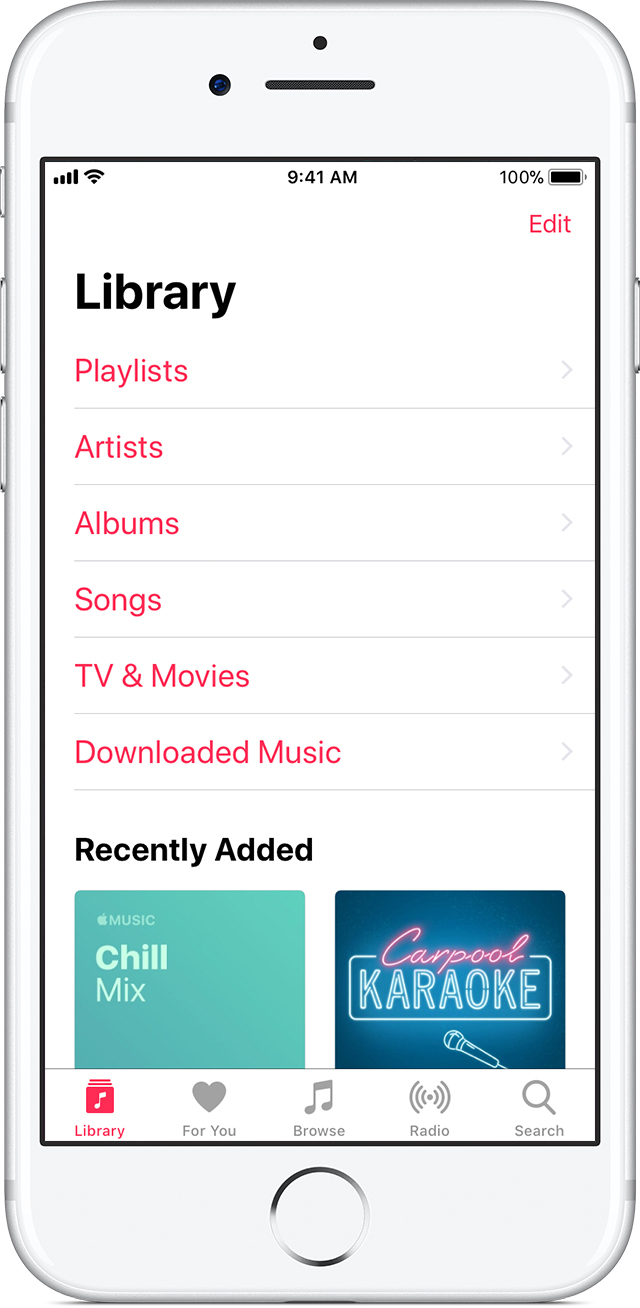
The first time that you download content to your device, you might see a message that asks if you want to download it automatically.
- Tap Download Automatically to download all content automatically to your device. The next time you add an item to your Library, it also automatically downloads to your device.
- Tap Not Now to download the item later.
If you want to turn on Automatic Downloads for all content that you add to your Library in the future, go to Settings > Music, then scroll to the Downloads section and tap Automatic Downloads.
View lyrics in Apple Music
On your iPhone, iPad, iPod touch, or Android phone
While listening to a song, tap or swipe up on the player at the bottom of the screen to open Now Playing. To the right of Lyrics, tap Show.
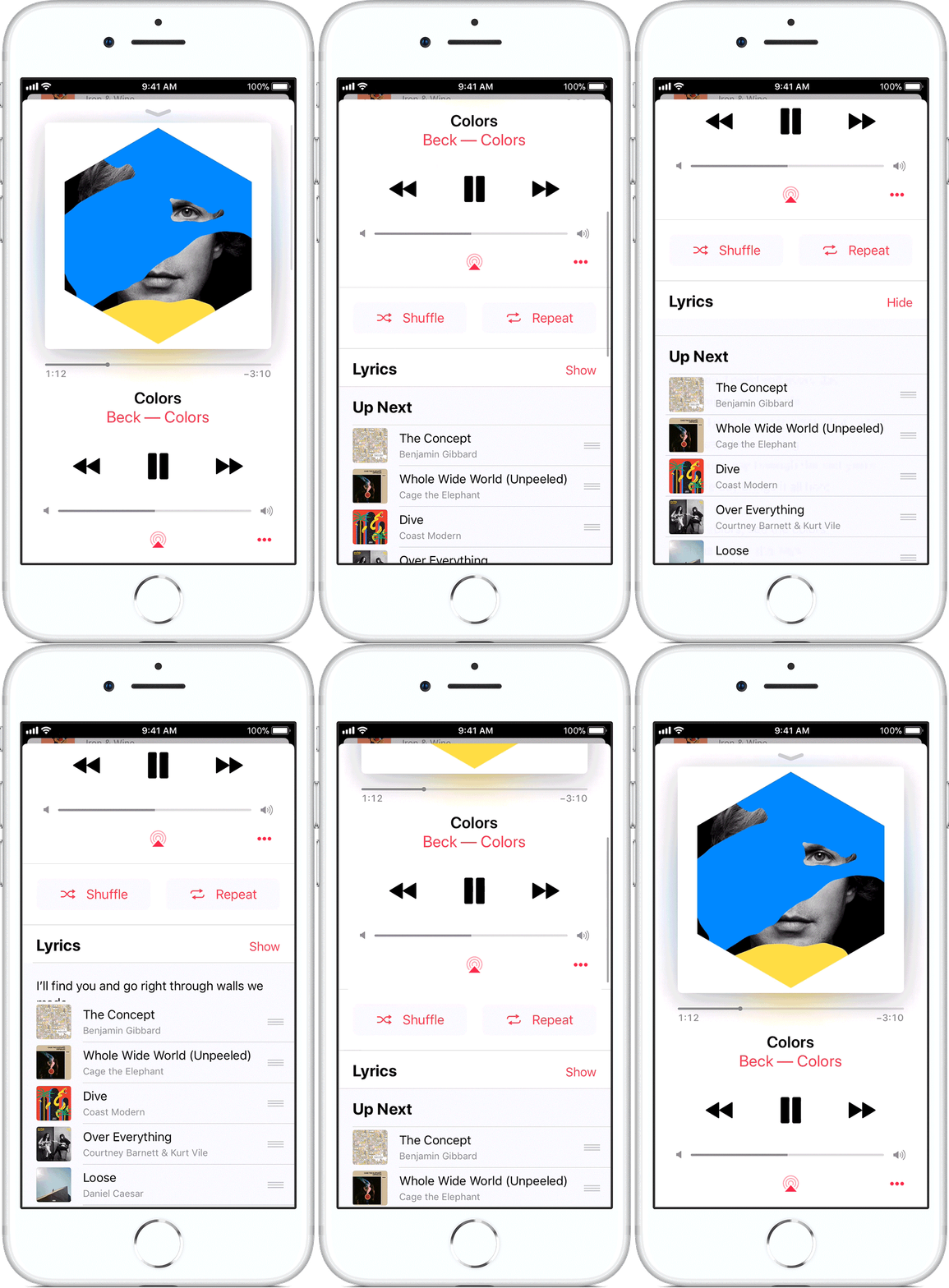
When lyrics are available*, you can read them in the Music app on your iPhone, iPad, iPod touch; in iTunes on your Mac or PC; or in the Music app on your Apple TV.
Add custom lyrics
If lyrics aren't available for a specific song or you want to add your own, you can add lyrics to songs in iTunes on a Mac or PC:
- Open iTunes.
- Find the song that you want to add lyrics for and click to highlight it.
- From the menu bar at the top of your computer screen or at the top of the iTunes window, choose Edit > Get Info.
- Click the Lyrics tab, then select Custom Lyrics at the bottom of the screen.
- Enter your lyrics, then click OK to save them.
Custom lyrics that you save in iTunes on a Mac or PC are visible across all of your other devices as long as you're signed in with the same Apple ID on each device.
*Lyrics are not available for all songs or on Android devices.
Take care.


