lyrics do not show on ipod touch

I am sure this question has already been asked a hundred times but I cannot find an answer that works. Here is my dilemma I have an iPod touch 6th Gen Model A1574 (with the latest software update iOS 11.2.2) and I have iTunes (before you ask yes it's the latest version) and almost all of my songs in my library have the lyrics embedded on them as I had to check the "custom lyrics" box. When syncing the lyrics are not showing up on the ipod. They used to be there simply by just scrolling upwards from the song playing screen now they are not there. None of the songs are showing lyrics. Please Help. I have already tried doing the Restore iPod and deleting the music from the ipod and re-syncing. I am thinking of renaming my iPod the Titanic because I sync it so much. LOL. Sorry couldn't resist. I would appreciate any feedback. RS from Brandon, MB Canada

iPod touch (6th generation), iOS 11.2.2

Posted on Jan 14, 2018 10:11 AM

Reply
Question marked as Top-ranking reply

Posted on Feb 9, 2018 3:34 PM

I clicked “Me too”, and I wanted to post a reply that I would also like a solution, but I had difficulties logging in. I then tried to find the lyrics and I succeeded. My iPod recently updated as well, and previously I also had to tap the icon with the three dots in order to view lyrics. That’s no longer the case. I found out that you have to tap the song title itself to get a menu where you can choose lyrics. You might have to scroll a bit. It took a bit of playing around and random tapping before I found the lyrics. I hope my post can help you. I am just glad that the lyrics feature has NOT been removed after all. :)

37 replies
Question marked as Top-ranking reply

Feb 9, 2018 3:34 PM in response to Budman66

I clicked “Me too”, and I wanted to post a reply that I would also like a solution, but I had difficulties logging in. I then tried to find the lyrics and I succeeded. My iPod recently updated as well, and previously I also had to tap the icon with the three dots in order to view lyrics. That’s no longer the case. I found out that you have to tap the song title itself to get a menu where you can choose lyrics. You might have to scroll a bit. It took a bit of playing around and random tapping before I found the lyrics. I hope my post can help you. I am just glad that the lyrics feature has NOT been removed after all. :)

Feb 16, 2018 3:58 AM in response to arbaldwin26

Today, the up-to-date versions are:

  • iTunes 12.7.3 (or possibly 12.6.3, but only possibly)
  • iPod iOS 11.2.5


arbaldwin26 wrote:


I'm just really tired of not being able to see my Lyrics.

  • Follow the steps below precisely
  • Check a song in your iTunes Library and confirm that it has lyrics in the Lyrics frame
  • check the same song on your iPod, using the steps I've outlined
  • if the song does not have its lyrics, untick the song in your Library
  • connect the iPod to iTunes and let the two Sync. (This will remove the song from the iPod)
    • if you use Sync only ticked songs and videos (as shown in screenshot from previous post), simply untick the song in your Library and then Sync
    • Disconnect the iPod from the computer (this helps ensure complete removal)
    • check the iPod and make sure that the song has been removed from the iPod
    • turn the tick back on for that song
    • re-connect the iPod and let it do another Sync
    • disconnect the iPod and re-check that song - and again, make sure you follow the instructions for seeing the lyrics:
    • The method to display the lyrics on your iPod is as follows:

      to see the lyrics of the current song (the song that's playing):

    • tap on the Now Playing banner to bring up the full Now Playing screen
    • tap on the artist name - album title (shown in the Now Playing screen), making sure not to tap the "next track" button (as I did at least twice). The display will return to the menu the song came from
    • tap-and-hold the song to bring up the pop-up menu
    • scroll down and select lyrics from the list


  • Note that in step 3 (above), if the song does not have lyrics contained in the file itself, the Lyrics option will not appear on the pop-up menu.


If this does not work, please state exactly which step failed and how it failed.

Feb 16, 2018 11:19 AM in response to Budman66

Budman66 wrote:


All this unit king and reticking is crap.

No, it is not.


The reason for unticking and ticking (as well as the rest of my procedure), is perfectly simple. Since arbalwin26 was apparently continuing to have problems getting lyrics onto his (or her) device, I wanted to make sure that when he or she followed my steps, as written, nothing would go wrong.


As far as you are concerned, if the lyrics were embedded into the file before the song was first added to the iPod (as opposed to adding song, then adding lyrics) then follow the steps I outlined in a previous post, which I prepared as a result of my discussion with idafromhammel and caused my to realise why none of us could see them anymore. The answer, in case you haven't noticed, is that Apple have moved the location of the display lyrics feature and hid it from us. Now that we have discovered where the feature is hidden, it is possible to see them again.


The procedure for you Budmann66 is as follows:

  • to see the lyrics of the current song (the song that's playing):
  1. tap on the Now Playing banner to bring up the full Now Playing screen
  2. tap on the artist name - album title (shown in the Now Playing screen), making sure not to tap the "next track" button (as I did at least twice). The display will return to the menu the song came from
  3. tap-and-hold the song to bring up the pop-up menu
  4. scroll down and select lyrics from the list


  • Note that in step 3 (above), if the song does not have lyrics contained in the file itself, the Lyrics option will not appear on the pop-up menu.

  • --------------------------------


    Now, let me just mention something here. I'm a fellow user, just like you - I do not work for, or represent Apple. Take a look at the number of points I've earned here, they are not for my benefit - they're there to indicate to people such as you that others have found my posts helpful. Frankly, I regard your comment as offensive.


    Back to your dislike of my procedure. Bear in mind that I wrote those instructions for arbaldwin26. At the time you had not responded to more than one response to your initial post, but arbaldwin26 had and was apparently continuing to have trouble, despite my instructions.


    I have tested and re-tested this method and it does work.

    Budmann66 wrote:

    My wife's older iPod running iOS 6.1 has the lyrics there and all you have to do is tap the song and it flips over and displays lyrics no problem.

    Totally irrelevant, your iPod is not running iOS 6 - you told us so in your first post. That's precisely why I have written specific instruction for users of iOS 11 - because it's very different to prior versions of the iOS, even iOS 10. It's not my fault that Apple moved the feature.


    Let me explain what happens when you do not untick and re-tick, or do something else that undermines the procedure:

    • this procedure is based upon the iPod being Synced with iTunes (not Manually Managed), so that changes such as modifying a song by adding lyrics are easily added to the iPod
    • Using sync only ticked songs and videos has two benefits in my suggested procedure:
      1. un-ticking is an easy way to remove a song from an iPod when required and ticking it is an easy way to put it back onto the same iPod
      2. removing the song (by un-ticking) means that the copy without lyrics is no longer on the iPod (hence the reason why I suggested checking that it's not on there - to make sure). Re-ticking the song means that iTunes has to find the current version (now with lyrics) and put that copy onto the iPod
    • if you simply un-tick and re-tick without disconnecting, the old version may not be removed from the iPod, so when you look for the lyrics, they won't be there because you still have the old version on your device
    • since arbaldwin26 had been having difficulty with getting lyrics onto his or her iPod, I suggested removing the relevant songs so that when they are put back on, iTunes will put on the revised version that now has the lyrics in it

    Let me point out another potential issue...

    • if an iPod is connected to iTunes, a Sync will start as soon as possible
    • if - after connecting the iPod to iTunes - the user starts making changes to songs in iTunes, such as adding lyrics to a file, the Sync will almost certainly have finished before the user finishes their changes
    • as a consequence, the user will see that a Sync has taken place, but that their changes have not be synced to the iPod. This is because the sync had either finished, or gone past the point of syncing that particular song before the user had finished their changes
    • un-ticking and re-ticking ensures that the revised version of the song is put onto the iPod


    But you didn't need to do that since your post indicated that your issue was that the lyrics feature was missing, not that the songs did not have lyrics. Do you see the difference?

    Feb 18, 2018 2:07 PM in response to Budman66

    Okay... My bad. I thought that "thanks" meant "thanks + and smiley" and not "thanks + a smiley holding a white flag" or something.


    I apologize for the late reply, but I wanted to do a video, and do it right. But I ended up spending most afternoon with filming quite a long guide that became long because my iPod acted out, lagged and just didn't do like I expected. I show the (almost 30 minutes) video to my boyfriend, who was puzzled how it could take that long to show something so simple, and he agreed with me, that the new way of viewing lyrics is not user-friendly. He is even more tech savvy than I am, so of course he figured out a faster way of viewing lyrics. My initial way of viewing lyrics for a song in a long playlist where shuffle is turned on was not that easy, but my way of viewing lyrics for a song in album view is as easy as his way. But this evening I ended up remaking my video, that shows this faster way. My previous, and longer, video wasn't for nothing, though, 'cause I found out that lyrics for any song can indeed disappear from your iPod. I haven't figured out why it happened, but the fiend's way of removing the song from the iPod and then adding it again fixed the problem.


    I've always thought that when it comes to tech stuff it's easier to show how to do something than tell it, so I hope you'll all benefit from my video. Here's the link for my YouTube video: How to view lyrics on iPod touch (6th generation) after new iOS - YouTube


    The "old" way of viewing lyrics was easier and faster than before the iOS update, but this "new" way has the advantage, that you can view lyrics for ANY song on your iPod (if you've added lyrics for it in iTunes) and not just for the one playing, like the fiend stated earlier. However, I only had my iPod (and used it only a little) for a few days before the new iOS update, but it was long enough for me to panic when the lyrics were no longer where they were before. I can't recall 100% how I actually found the lyrics BEFORE the update, but I just know it was very easy, intuitive and I didn't have to do "random tapping" to find lyrics.


    Important points to remember:

    • Tap (and hold) on the song itself to view lyrics (you cannot tap the song in the queue to view lyrics, 'cause it'll just start playing instead)
      • Note if you just tap (and release quickly), then it'll also just start playing the song
      • Note that there are different menus on your iPod depending on where you tap if you tap to get a menu any other place than on the song itself, you won't get the Lyrics option (at least as far as I know)
    • If your lyrics should disappear, try the fiend's way of removing and then adding the song back to the iPod (it happened to me, and this fix solved the problem. I get it - it's still very irritating)


    My specs:

    ITunes version 12.7.3.46

    iPod touch iOS version 11.2.5 (6th generation)

    (BTW: I run Windows 7, but that shouldn't influence your iTunes and iPod.

    Feb 10, 2018 3:35 AM in response to the fiend

    I am even more puzzled now. I just checked, and my iPod Touch does in fact run 11.2.5 like yours. Having two different iPods running the same software version with two different outcomes seems to be the case.

    "Random tapping" might not have been the right expression, but the point is, that finding the lyrics now, after the software update, is different than before.

    When I tap (hold it for a few seconds) on the song title, I get a pop up window with the album/song picture on the upper left, with the song title, artist name and album name to the right of the picture. Then the list below gives me 7 choices (my list is in Danish, but I've translated it, and I've added the Danish text in parenthesis, so you can see which menu option is what in the pictures below):

    (Fjern) "Remove..." with a trash can icon on the right

    (Føj til en spilleliste...) "Add to playlist"... with a symbol with a plus and four lines

    (Aspil som næste) "Play as next" with a symbyl showing four lines and an arrow pointing to the line on top

    (Aspil senere) "Play later" with a symbol with four lines and an arrow pointing to the line at the bottom

    (Del sang...) "Share song..." with a symbol with a box and an arrow pointing skywards

    (Tekster) "Lyrics" with a quote symbol and four lines

    (Vurder sang) "Rate song..." with a star symbol

    Below these choices there are two hearts: One full heart and a full heart with a line across it

    At the bottom of this pop up window there's an option to "Cancel".

    Showing it instead of telling it is a lot easier, I figure, so I just took a picture of my iPod Touch with my smartphone, then emailed the pictures to myself so I could share the pictures with you here. 🙂
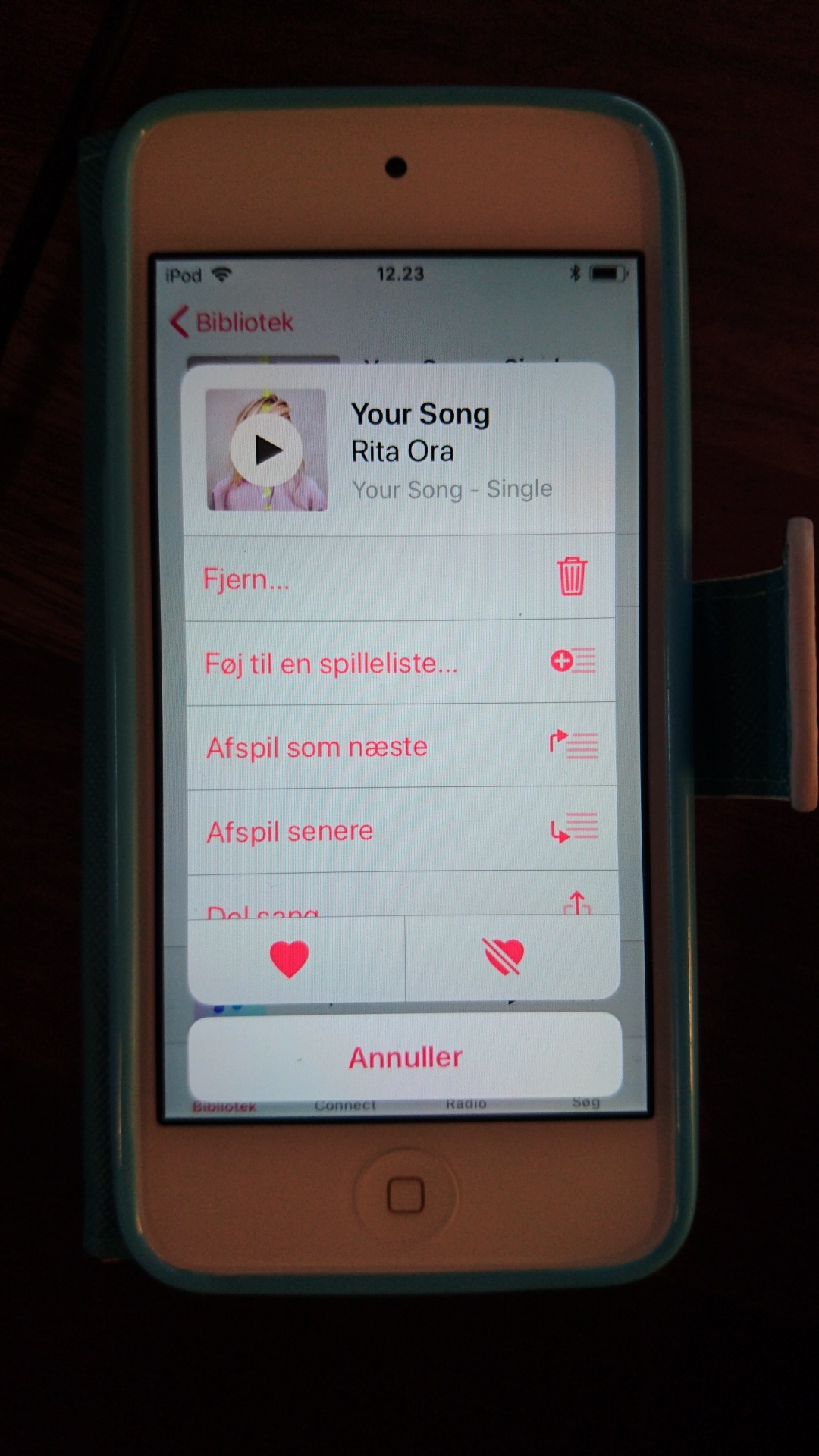
    User uploaded file

    User uploaded file

    As you can see from the pictures, you have to scroll a bit (like I mentioned previously) in order to see the Lyrics (Tekster) option. The "Lyrics"/"Tekster" option is number 6 in the menu, and when you tap to open this menu, you only see the 4½ first options.

    I have no idea why our iPods do not behave the same, when everything tells us that they should. FYI: My iTunes is also updated with the newest software (at least as far as I know). It runs version 12.7.3 in case that makes a difference. The strangest thing is that my iPod Touch shows lyrics and yours does not even though they run the same, updated version of iOS.


    Feb 10, 2018 9:55 AM in response to idafromhammel

    Jeg er forbavset. 😮

    (I am astonished - according to Google translate.)


    It does work. How?

    1. Tap-and-hold any song title on any menu
    2. A pop-up menu will appear
    3. If the song has lyrics embedded in the file, one of the options on that menu* will be Lyrics
    4. Tap on Lyrics to display the lyrics in a self-contained panel


    That all sounds so simple.

    However -

    Why would anyone think that changing from the previous method - and not telling anyone, or explaining the new (hidden) method, is acceptable?


    I may be wrong, but I think that the most likely time that anyone would want to see the lyrics is while the song is playing. Let's just suppose that I'm browsing my library, considering what I might wish to hear later on. A song begins playing and I want to see its lyrics.


    With the previous method, once the Lyrics option was turned on, all one had to do

    1. tap on the Now Playing banner to bring up the full Now Playing screen (and then)
    2. scroll down to the lyrics.

    Just two steps from anywhere in the Music app.


    Now, to see the lyrics of the current song one has to know the new, hidden and undocumented method, which is:

    1. tap on the Now Playing banner to bring up the full Now Playing screen
    2. tap on the artist name - album title (shown in the Now Playing screen), making sure not to tap the "next track" button (as I did at least twice). The display will return to the menu the song came from
    3. tap-and-hold the song to bring up the pop-up menu
    4. scroll down and select lyrics from the list

    Two extra steps each and every time.


    * Two items on the pop-up menu may not appear:

    • the Play Later option will only appears when there is already something in the Up Next list
    • the Share option may not be present, depending on your choices elsewhere

    Feb 14, 2018 12:45 AM in response to arbaldwin26

    I'm not aware of lyrics disappearing from a song itself. The issue here has been how to make the lyrics display - it's that feature that moved and became hidden.


    I also can't speak about Apple Music because I don't know enough about it. But for music that you have in your iTunes Library, the lyrics themselves are in the music file.


    You can check the song in your iTunes Library on your computer. If the lyrics are there, then they should also appear on the iPod. Note that if you add lyrics to a song in your Library, you then need to Sync the iPod with iTunes in order for the revised file (with the lyrics) to be added to the iPod.

    The method to display the lyrics on your iPod is as follows:

    to see the lyrics of the current song (the song that's playing):

    1. tap on the Now Playing banner to bring up the full Now Playing screen
    2. tap on the artist name - album title (shown in the Now Playing screen), making sure not to tap the "next track" button (as I did at least twice). The display will return to the menu the song came from
    3. tap-and-hold the song to bring up the pop-up menu
    4. scroll down and select lyrics from the list


    Note that in step 3 (above), if the song does not have lyrics contained in the file itself, the Lyrics option will not appear on the pop-up menu.


    To see lyrics in a song (on your iPod) that is not currently playing, tap-and-hold the song title and when the pop-up menu appears, follow the Lyrics option. If it isn't there, there are no lyrics embedded in the file.

    Feb 15, 2018 2:13 AM in response to arbaldwin26

    1. Okay, which version of iOS do you have on your iPod?
    2. Make sure that you are not using Manually Manage. If you add the song to the iPod and then add the lyrics (in iTunes) after this, then using Manually Manage his will prevent any newly added lyrics being added to the iPod


    Look at the screenshot below. If the Manually Manage option is selected, that might be the issue.

    User uploaded file

    Jan 14, 2018 12:29 PM in response to Budman66

    I'm not sure that it has been asked "a hundred times", or even once. You may be the first...


    That said, I've been meaning to check my Songs with Lyrics playlist (I kid you not) as I had noticed this myself and wondered if I had simply picked the ones I have yet to complete.


    Nope.


    It looks as though the feature has been removed, presumably in iOS 11.2.2 because it was there until very recently. If I recall correctly, there was an option to turn the lyrics on and off, in the three-dot menu below the song title and Play controls. Well, it's not there now - and I can't find it in the Settings menu either.


    Hopefully, Apple has made a mistake. "Surely not", I hear you cry (and I wasn't calling you Shirley) - I couldn't resist either, do you know the line?


    Anyway, hopefully, Apple will put the feature back, but they'll only consider it once they realise that we know and that we're not happy. So it's Feedback time, you can add yours here: Feedback - iPod touch - Apple


    I've put my feedback in already.

    Feb 16, 2018 1:38 PM in response to the fiend

    Here's a copy of part of a discussion I've been having in another Apple community.


    Photographic evidence:

    • To see lyrics for the song that is playing, go to the full-size Now Playing screen
    • Tap on the band name - album title (indicated below)

    User uploaded file

    • The Now Playing screen drops away to be replaced by the playlist you're playing. (In other words, if you playing from an album menu, it will return to the Albums list. If you were playing from a Playlist, it will return to that Playlist)
    • In each case, the song is highlighted in red (see below)
    • Tap-and-hold the song. (Be careful, if you tap and release too quickly, the song will start again from the beginning)

    User uploaded file

    • You may (or may not) need to drag the menu (shown below) upwards. If the song has lyrics in the file, Lyrics is listed on the menu (as you can see)
    • Tap and release Lyrics

    User uploaded file

    And here are the lyrics for this song

    User uploaded file

    But you can also see lyrics for a song even when it's not playing and without interrupting the current song. Note the difference though if you release your tap-and-hold too quickly

    • The song Billie Jean is playing (see the Now Playing banner at the bottom of the panel)
    • Tap-and-hold the song you wish to see (in this case, Voodoo Chile)

    User uploaded file

    • The song you are holding on (Voodoo Chile) will turn grey (keep holding until the new menu appears). If you release the tap too quickly, the song Voodoo Chile will begin to play in place of Billie Jean, which is very irritating
    • The menu will pop up from the bottom, now the tap can be released)

    User uploaded file

    Tap Lyrics


    User uploaded file

    Feb 10, 2018 2:39 AM in response to idafromhammel

    Idafromhammel: I'm curious.


    Idafromhammel said:

    I found out that you have to tap the song title itself to get a menu where you can choose lyrics.

    Your solution does not work on my iPod Touch running iOS 11.2.5, so the first question is which version of iOS is your iPod running and it is an iPod Touch, not an iPhone, correct?


    It would be bizarre if there are two iPods running the same software, one of which can display lyrics while the other one cannot. So it's important that we get to the bottom of this.

    You might have to scroll a bit. It took a bit of playing around and random tapping before I found the lyrics.

    That would also be somewhat bizarre. It either works or it doesn't. An intuitive, easy to use interface should not involve "random tapping".

    Feb 16, 2018 5:09 AM in response to the fiend

    I am pretty computer savvy and none of these are working. All this unit king and reticking is crap. If lyrics are in the song they should just sync automatically. My wife's older iPod running iOS 6.1 has the lyrics there and all you have to do is tap the song and it flips over and displays lyrics no problem. Apple has just taken it off I am assuming for legal reasons I suspect. There used to be programs that would embed lyrics at the touch of a button. But this seem to have disappeared. In the previous version you could just scroll down and see th lyrics if they were already embedded. Not now it's like apple doesn't want you to be able to read lyrics. Just my opinion.

    Jan 14, 2018 1:29 PM in response to the fiend

    Thanks for the reply....yes I get the reference to the movie line.


    Anyway you used to not have to hit the 3 dots to view the lyrics. I never have seen an option to turn on or off. You could just expand the song screen and scroll up and the lyrics were already displaying then the list of songs that were going to be played next would show up as I click on shuffle and just listen from there I do not have playlists. I have an extensive library of songs. At least it's extensive to me around 3000+ songs. About 90% have the lyrics in them from either manually putting them in myself or back a few years ago there was a program that used a script and did it for you automatically. I like the feedback option I will do that right after I finish this post. Thanks again

    This thread has been closed by the system or the community team. You may vote for any posts you find helpful, or search the Community for additional answers.

    lyrics do not show on ipod touch

    Welcome to Apple Support Community
    A forum where Apple customers help each other with their products. Get started with your Apple Account.