
Workout Apps Not syncing
Can not sync underarmour or other workout apps for activity/calories/ exercise for iPhone 8. I allowed everything to sync but not counting on my watch. ****** me off.
First, you can calibrate your Apple Watch to improve the accuracy of your distance, pace, and calorie measurements. Calibrating your watch can also help it learn your fitness level and stride, which improves accuracy when GPS is limited or unavailable:
Calibrating your Apple Watch for improved Workout and Activity accuracy - Apple Support
For best results, the back of your Apple Watch needs skin contact for features like Wrist Detect, the Taptic Engine, and the heart rate sensor. Learn more here:
Manage Health data from multiple sources on your iPhone, iPod touch, or Apple Watch - Apple Support
View your data sources
You can see all of the sources that share data to the Health app.
- Open Health and tap Health Data.
- Tap a category, like Activity. You can also swipe down to reveal the search bar, then enter what you're looking for.
- Tap a data type, like Steps.
- Tap Data Sources & Access.
Depending on the type of data you select, you might see your iPhone, iPod touch, or Apple Watch, and you might also see other third-party sources.
To see all of the data contributed by a source, tap the Sources tab at the bottom, then tap the app or device. From here, you can choose categories that you want the source to access in the Health app.
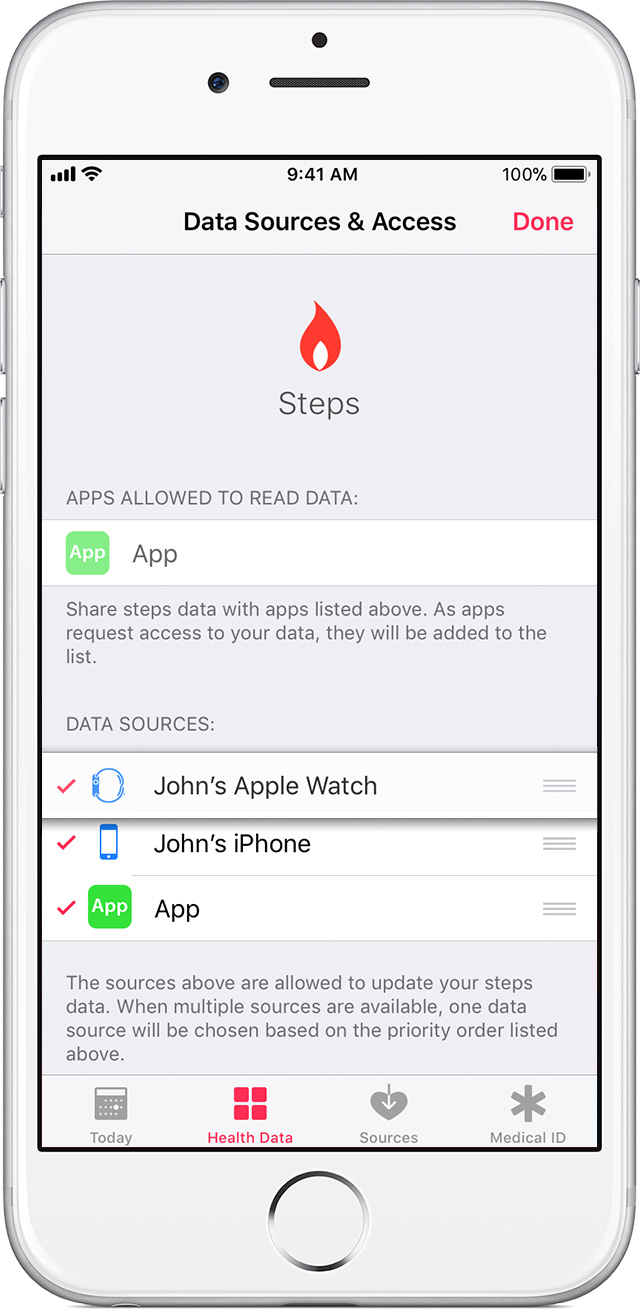
Prioritize your data sources
You can edit and rearrange your data sources to change the way that Health prioritizes data.
- Open the Health app and tap Health Data.
- Tap a category, like Activity.
- Tap a data type, like Steps.
- Tap Data Sources & Access and tap Edit.
- Touch and hold
next to a data source and move it up or down in the list.
The data source that you place at the top will take priority over other sources that contribute that type of data. Any new apps or devices that you add will appear at the top of the list, above your iPhone or iPod touch by default. You can change the order of your data sources anytime.
To turn off a data source so that it doesn't contribute any more data for that category, tap the checkmark next to the data source.
Learn how to manually add data to the Health app.
So basically I’m still having trouble syncing my 3rd party app activity to my daily calories.
On top picture is my activity. Bottom picture is underarmour app. I burned 1272 calories but none of the data went to my daily total. It use to back in the day but for some reason it stopped. This is inconvenient for me to track.
My health resources won’t pull in any other app. :(
I already had the settings like that in my health app and underarmour app. I don’t know. I prioritize Under Armour to be high priority but seems like Nike app holds top position. There needs to be an update to fix this because I have goals set on watch that I track constantly and for that watch to lie, I feel cheated.
Apple Health – Under Armour Record
Take Care!
Workout Apps Not syncing


