Hello again tgiann3,
Since you're seeing your old Apple ID in iCloud for Windows, you would have needed to sign in with that old Apple ID at some point. Did you recently change your Apple ID email address, or make any other changes? If so, sign out of the iCloud for Windows program, completely restart your PC, and then see if you're able to sign in with the correct Apple ID after your computer has been restarted. If the issue still exists, turn off iCloud Bookmarks for Google Chrome by following the steps in
About iCloud add-ons, extensions, and plug-ins for Windows browsers
, specifically this section:
Before you start, make copies of your bookmarks so you don't lose important information.
- Close Chrome.
- Open iCloud for Windows.
- Deselect the Bookmarks checkbox, then click OK. If you use multiple browsers with iCloud Bookmarks, click Options next to Bookmarks, deselect the Chrome checkbox, then click OK.
- Click Apply > Remove. The Extensions tab will open in Chrome.
- Deselect the Enable checkbox next to the iCloud Bookmarks to temporarily stop updates to your iCloud Bookmarks with Chrome.
- Click the trash icon to delete the extension and stop updates to your iCloud Bookmarks with Chrome. If you later decide to turn automatic updates back on, you will need to reinstall the extension.
Next, uninstall iCloud for Windows from your PC using the following steps from
Set up and use iCloud for Windows
:
If you turn off a service in iCloud for Windows, your information won't automatically stay up to date in iCloud, and you won't see updates made on your other devices. Follow these steps to turn off a service or iCloud:
- To turn off a service on your PC, Open iCloud for Windows, then select or deselect that service. To save your changes, click Apply.
- To turn off iCloud for Windows, open iCloud for Windows, then sign out.
If you want to uninstall iCloud for Windows, remember to make a copy of your iCloud data and save it on your PC. Then sign out of iCloud for Windows on your PC, and follow these steps:
Windows 8 or later:
- Go to the Start screen, right-click in the bottom-left corner or click, then select Control Panel.
- Click Uninstall a Program.
- Click iCloud > Uninstall.
- When asked to confirm, select Yes.
Windows 7:
- Choose Start menu > Control Panel.
- Click Programs > Program and Features.
- Select iCloud > Uninstall.
- Click OK to continue.
Redownload iCloud for Windows and sign in with the correct Apple ID:
- Download iCloud for Windows. If it doesn't install automatically, go to File Explorer and open iCloud Setup.
- Restart your computer.
- Make sure iCloud for Windows is open. If it doesn't open automatically, go to Start, open Apps or Programs, and open iCloud for Windows.
- Enter your Apple ID to sign in to iCloud.
- Choose the features and content that you want to keep up to date across your devices.
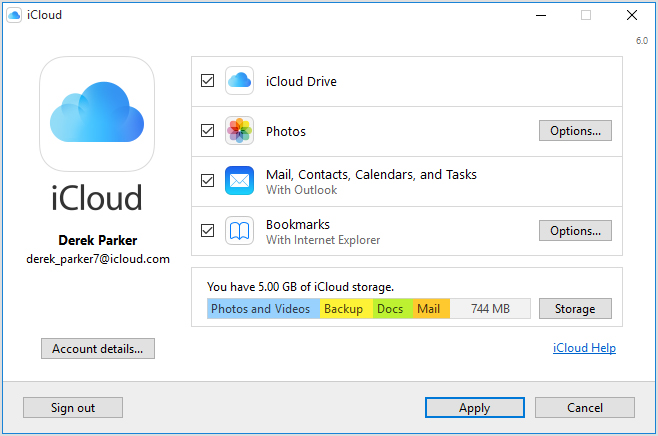
- Click Apply.
Finally, enable Chrome from the iCloud Bookmarks section of iCloud for Windows. You may be required to download the Chrome extension again. Here are the steps:
- Make sure that your PC and browser meet the iCloud system requirements.
- Close Chrome, then download and install iCloud for Windows.
- Open iCloud for Windows.
- Select Bookmarks > Options.
- Choose Chrome > OK > Apply.
- Click Merge to share your current PC bookmarks data with iCloud.
- Click Download. The Chrome Web Store page for the iCloud Bookmarks extension will open.
- Select Add to Chrome > Add. The Chrome Web Store will show that iCloud Bookmarks is added to Chrome.
If you install Chrome after iCloud for Windows, you won't see it in the Options list until you close and reopen iCloud for Windows.
Cheers!



