Black screen with cursor when logging out of Guest account

I'm using 10.13.4 on 2014 MacBook Pro


Logging out of the Guest account takes me to a black screen with the cursor. The cursor responds, but there's nothing else on screen. The computer still sleeps if I leave it alone. It's been like that for over an hour before I just push the power button.


I've already tried safe mode, verbose mode and normal boot, it crashes in all three modes

I've also tried reinstalling High Sierra, still crashes. I think I've also attempted resetting the SMC and NVRAM (that was for something else though). This worked on every other version of Mac OS that's been on this machine and I think broke with 10.13.4 (or maybe it was some earlier version of High Sierra)

MacBook Pro (Retina, 15-inch, Mid 2014), macOS High Sierra (10.13.4)

Posted on May 10, 2018 8:16 AM

Reply
Question marked as Top-ranking reply

Posted on May 11, 2018 10:10 AM

Hey CursedDice,

I know if my MacBook Pro wasn't responding I'd want to get that resolved. I'm happy to help.

You've done great steps so far, and I'd like to continue with erasing and reinstalling macOS on your MacBook Pro to isolate the issue further. Before you begin, use an external hard drive and Time Machine to create a backup of your data:

How to use Time Machine to back up or restore your Mac - Apple Support

First, use these steps to start up from macOS Recovery:

Start up from macOS Recovery

  1. macOS Recovery installs different versions of macOS depending on the key combination you use while starting up. Turn on or restart your Mac, then immediately hold down one of these combinations:
    Command (⌘)-R Install the latest macOS that was installed on your Mac, without upgrading to a later version.*
    Option-Command-R Upgrade to the latest macOS that is compatible with your Mac.**
    Shift-Option-Command-R
    Requires macOS Sierra 10.12.4 or later
    Install the macOS that came with your Mac, or the version closest to it that is still available.
    * If you're selling or giving away a Mac that is using OS X El Capitan or earlier, use Command-R to make sure that the installation isn't associated with your Apple ID.
    ** If you haven't already updated to macOS Sierra 10.12.4 or later, Option-Command-R installs the macOS that came with your Mac, or the version closest to it that is still available.
  2. Release the keys when you see the Apple logo or a spinning globe.
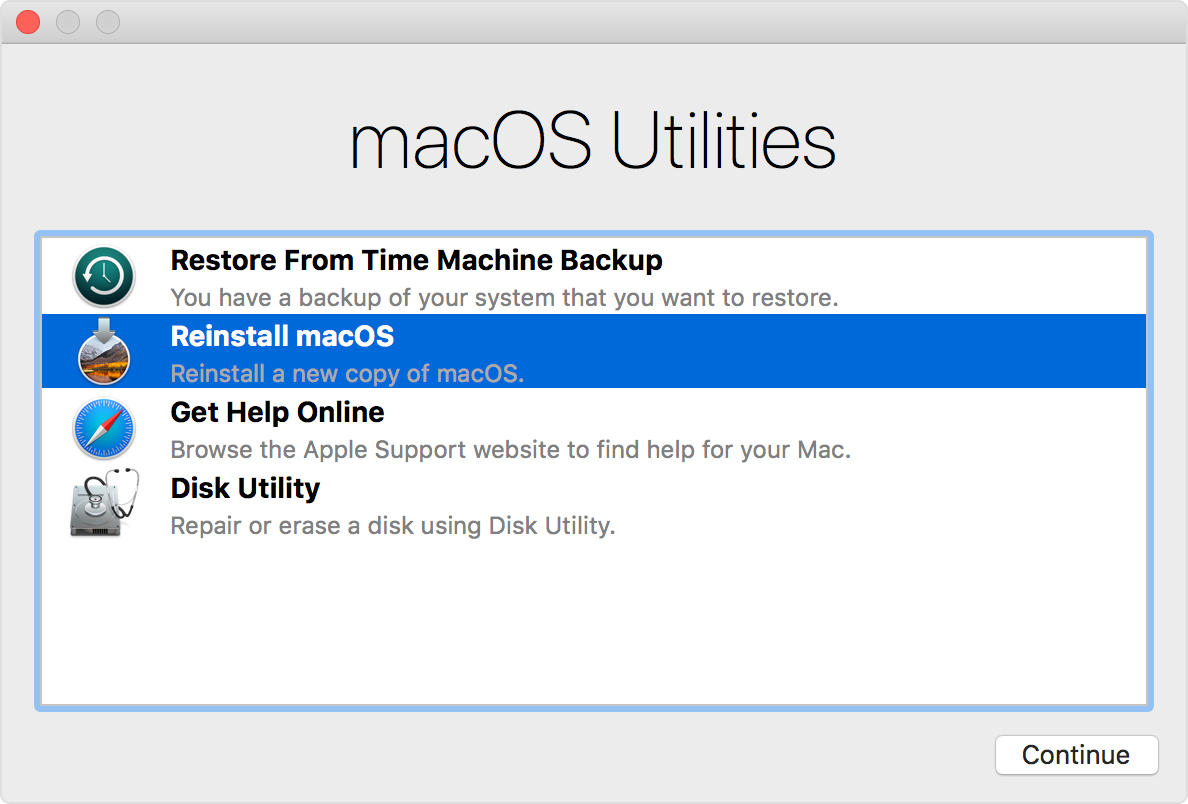
  3. When you see the macOS Utilities window, continue to the next section to determine whether to erase your startup disk or begin installing macOS.

User uploaded file


Next, follow these steps to erase your startup disk and install macOS:

If you need to erase your startup disk, follow these steps:

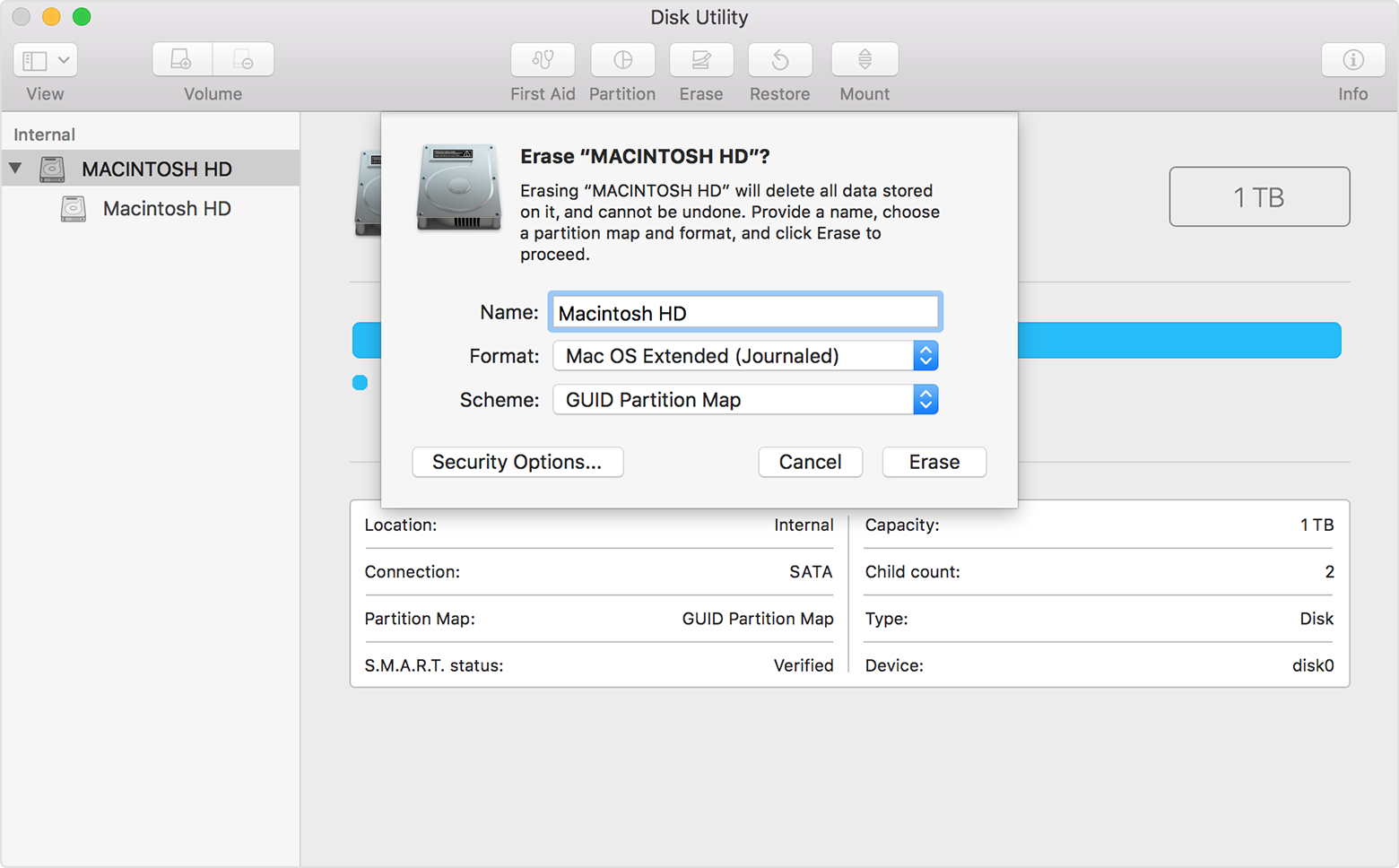
  1. Select Disk Utility from the utilities window of macOS Recovery, then click Continue.
  2. Select your device or volume in the sidebar of Disk Utility.
  3. Click the Erase button or tab.
  4. Complete these fields:
  5. Click Erase to begin erasing your disk.
  6. When done, quit Disk Utility to return to the utilities window. You're now ready to install macOS.

User uploaded file

Install macOS

Follow these steps after starting up from macOS Recovery:

  1. Choose Reinstall macOS (or Reinstall OS X) from the utilities window.
  2. Click Continue, then follow the onscreen instructions. You'll be asked to select your disk. If you don't see it, click Show All Disks.
    To verify eligibility to install macOS, your Mac serial number is sent to Apple, and you might be asked for your Apple ID.
  3. Click Install. Your Mac restarts after installation is complete.

If you erased your disk before installing, or you installed on an external drive or other new disk, your Mac restarts to a setup assistant.

  • If you're keeping your Mac, complete the setup assistant with your own information.
  • If you're selling or giving away your Mac, press Command-Q to quit the setup assistant without completing the setup steps. Then click Shut Down. When the new owner starts up the Mac, they can use their own information to complete setup.

Choose your new startup disk

If you have more than one disk that contains a compatible macOS installation, you can use Startup Disk preferences or Startup Manager to choose which disk to start up from.

How to reinstall macOS - Apple Support


Once the process is complete, test to see if the issue continues. Once you're done testing, you can use the steps below to restore your backup data using Time Machine or Migration Assistant:

Restore everything from a Time Machine backup

To completely restore your Mac, use the “Restore from Time Machine Backup” utility in macOS Recovery. The disk you're restoring is erased before receiving the macOS and other contents of your Time Machine backup.

To copy just your files, settings, or user accounts, use Migration Assistant.

How to use Time Machine to back up or restore your Mac - Apple Support


Cheers!

Similar questions

1 reply
Question marked as Top-ranking reply

May 11, 2018 10:10 AM in response to CursedDice

Hey CursedDice,

I know if my MacBook Pro wasn't responding I'd want to get that resolved. I'm happy to help.

You've done great steps so far, and I'd like to continue with erasing and reinstalling macOS on your MacBook Pro to isolate the issue further. Before you begin, use an external hard drive and Time Machine to create a backup of your data:

How to use Time Machine to back up or restore your Mac - Apple Support

First, use these steps to start up from macOS Recovery:

Start up from macOS Recovery

  1. macOS Recovery installs different versions of macOS depending on the key combination you use while starting up. Turn on or restart your Mac, then immediately hold down one of these combinations:
    Command (⌘)-R Install the latest macOS that was installed on your Mac, without upgrading to a later version.*
    Option-Command-R Upgrade to the latest macOS that is compatible with your Mac.**
    Shift-Option-Command-R
    Requires macOS Sierra 10.12.4 or later
    Install the macOS that came with your Mac, or the version closest to it that is still available.
    * If you're selling or giving away a Mac that is using OS X El Capitan or earlier, use Command-R to make sure that the installation isn't associated with your Apple ID.
    ** If you haven't already updated to macOS Sierra 10.12.4 or later, Option-Command-R installs the macOS that came with your Mac, or the version closest to it that is still available.
  2. Release the keys when you see the Apple logo or a spinning globe.
  3. When you see the macOS Utilities window, continue to the next section to determine whether to erase your startup disk or begin installing macOS.

User uploaded file


Next, follow these steps to erase your startup disk and install macOS:

If you need to erase your startup disk, follow these steps:

  1. Select Disk Utility from the utilities window of macOS Recovery, then click Continue.
  2. Select your device or volume in the sidebar of Disk Utility.
  3. Click the Erase button or tab.
  4. Complete these fields:
  5. Click Erase to begin erasing your disk.
  6. When done, quit Disk Utility to return to the utilities window. You're now ready to install macOS.

User uploaded file

Install macOS

Follow these steps after starting up from macOS Recovery:

  1. Choose Reinstall macOS (or Reinstall OS X) from the utilities window.
  2. Click Continue, then follow the onscreen instructions. You'll be asked to select your disk. If you don't see it, click Show All Disks.
    To verify eligibility to install macOS, your Mac serial number is sent to Apple, and you might be asked for your Apple ID.
  3. Click Install. Your Mac restarts after installation is complete.

If you erased your disk before installing, or you installed on an external drive or other new disk, your Mac restarts to a setup assistant.

  • If you're keeping your Mac, complete the setup assistant with your own information.
  • If you're selling or giving away your Mac, press Command-Q to quit the setup assistant without completing the setup steps. Then click Shut Down. When the new owner starts up the Mac, they can use their own information to complete setup.

Choose your new startup disk

If you have more than one disk that contains a compatible macOS installation, you can use Startup Disk preferences or Startup Manager to choose which disk to start up from.

How to reinstall macOS - Apple Support


Once the process is complete, test to see if the issue continues. Once you're done testing, you can use the steps below to restore your backup data using Time Machine or Migration Assistant:

Restore everything from a Time Machine backup

To completely restore your Mac, use the “Restore from Time Machine Backup” utility in macOS Recovery. The disk you're restoring is erased before receiving the macOS and other contents of your Time Machine backup.

To copy just your files, settings, or user accounts, use Migration Assistant.

How to use Time Machine to back up or restore your Mac - Apple Support


Cheers!

This thread has been closed by the system or the community team. You may vote for any posts you find helpful, or search the Community for additional answers.

Black screen with cursor when logging out of Guest account

Welcome to Apple Support Community
A forum where Apple customers help each other with their products. Get started with your Apple Account.