Font for Apple "command" symbol?
MacBook Pro (Retina, 15-inch, Mid 2015), OS X El Capitan (10.11.6)
Select the Edit menu : Emoji & Symbols (^⌘Space). From the Characters panel, click the gear icon in the upper-left corner, and choose Customize List… . Select Technical Symbols. Now, all of the Apple keyboard shortcut symbols will appear on one panel when you select this category.
Hello DLW9,
That is the "place of interest sign".
I think the easiest way to find it would be to open up Font Book. Go to View and choose "Custom". This will allow you to type a custom string into the font's sample display. Then you can search for "interest" in the Emoji & Symbols Character Viewer. When you find it, drag the symbol into Font Book's sample field.
Now, you can arrow through your fonts until this symbol shows up. On my machine, there are very few fonts that have this symbol. The most likely candidate for use is probably going to be Lucida Grande.
Ultra Character Map is ultra cool! I had no idea there are so many thousands of symbols and glyphs in font collections.
FWIW, I made a collection of a dozen or so (from Lucida Grande) in a Word doc so I can easily retrieve/use them.
Thanks for the suggestion!
They are in various fonts supplied with the OS. Here's where they're located in Lucida Grande. There are no easy keyboard shortcuts for these:
Shift: u2137
Option: u2325
Command: u2318
It would likely be easiest to call up the Emoji and Symbols viewer palette. The shift glyph is under the Arrows heading:
Type Option at the top right to get that to appear:
I personally hate this palette. It can be very difficult to find things since you can't choose to look at all of the glyphs in one font. I couldn't see how to get the Command symbol to appear.
I had no idea there are so many thousands of symbols and glyphs in font collections.
Yes, I think it's an invaluable tool. Especially for anyone in the printing industry (such as myself), designers and graphic artist.
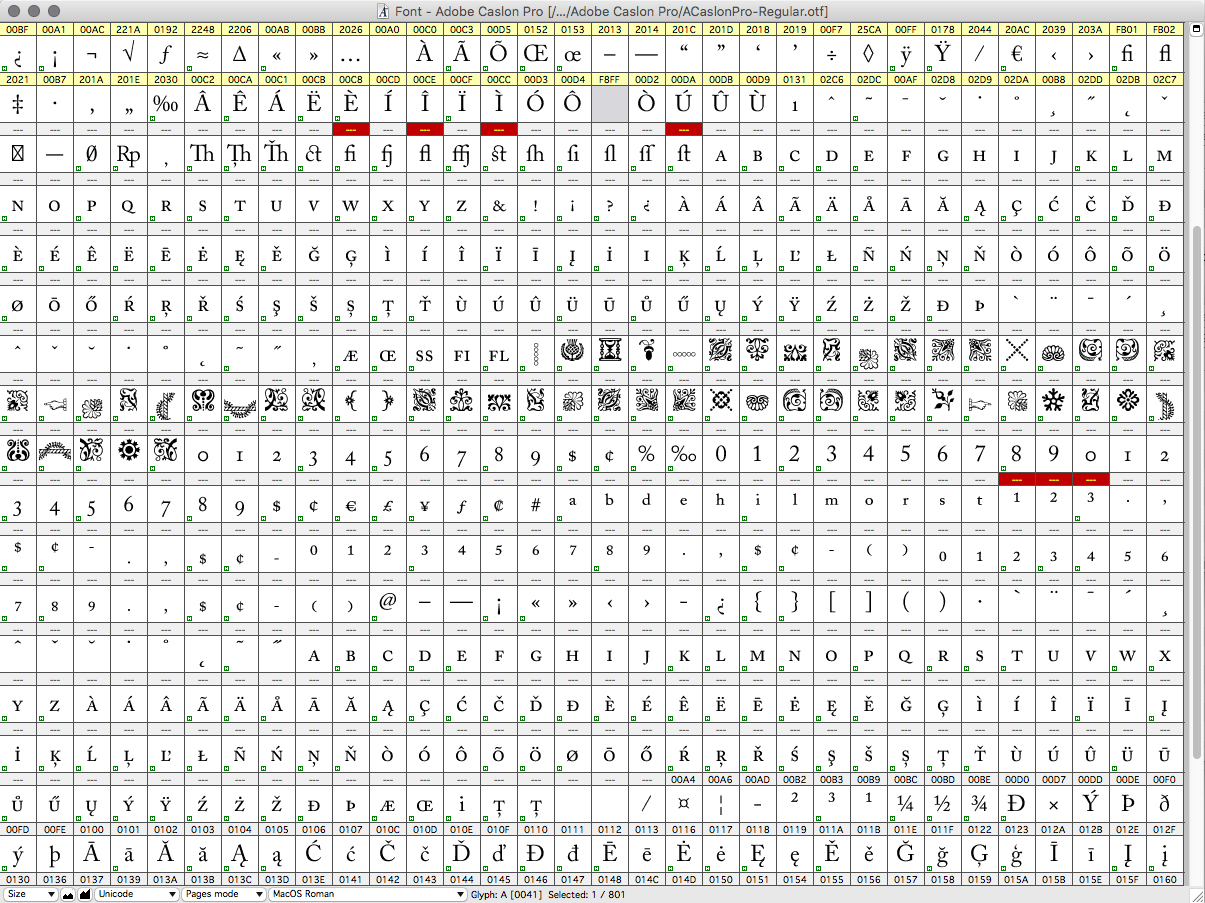
The main problem with the built-in character map and PopChar (and likely others), is that they only show you glyphs that have a Unicode value assigned to them in the font. Problem is, with many expert fonts from Adobe, Linotype, Bitstream and others, many of the extended glyphs are not give a Unicode value, so you never see them in many character map utilities. And that doesn't just apply to old pre-Unicode fonts. Even newer OpenType versions have many unassigned glyphs.
Here's a good example in Adobe Caslon Pro Regular. Not a single glyph between 02C7 and 004A will shown in the OS character map. You would never know these accented characters, ornaments, small caps and other glyphs were in the font. But Ultra Character Map will show them since it doesn't confine you to only the glyphs that have a Unicode value.
Thanks, VikingOSX! I avoid this palette like the plague. It's WAY easier to find things in Ultra Character Map.
😎
Umm... what/where is the Ultra Character Map?
TIA.
It's an App Store item. $10, I think.
Font for Apple "command" symbol?


