Screen Time and Safari

I'm looking at the list of "always allowed" apps to include for the Downtime feature but Safari is not listed there and when downtime is enabled Safari is still able to be used (my allowed apps are phone, messages, FaceTime, maps - the default). Anyone else seeing this issue?

iMac, macOS High Sierra (10.13.1)

Posted on Sep 20, 2018 5:33 PM

Reply
Question marked as Top-ranking reply

Posted on Sep 20, 2018 5:40 PM

Think of Safari as a gateway to many things on the web rather than an app itself.


See "Prevent web content" here.


Use parental controls on your child's iPhone, iPad, and iPod touch - Apple Support

59 replies

Mar 1, 2019 11:09 PM in response to Community User

Jimjimms64, Just because it's working that way for you doesn't mean everyone else is having the same experience. I was able to get Screen Time for Safari working, but only after I deleted all my settings a couple times. I easily spent a couple hours troubleshooting the problem. Not everyone has that much spare time and a simple workaround may be the best solution for them.


Having said that, people should read thru the previous posts to see what worked for other people.


Mar 1, 2019 10:09 AM in response to Community User

My problem was that how it was supposed to work wasn't working. I get that Safari itself isn't managed by Screen Time, but videos opened into full-screen mode in Safari, if left open, continued indefinitely during downtime and after the allotted time for the day. Maybe it has been fixed since I first voiced this complaint, but it was so frustrating that I turned off Safari on my boys' devices and I haven't looked back. Not an ideal solution, but it felt so broken at the beginning that I didn't want to spend any more time trying to deal with it.

Mar 1, 2019 9:55 AM in response to tedmanzie

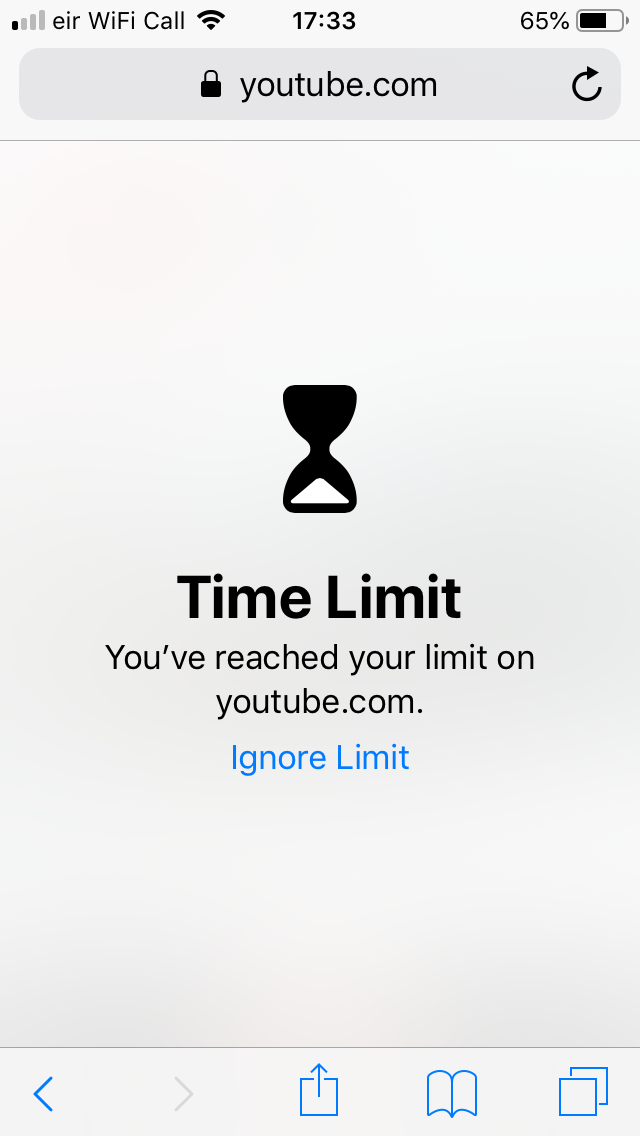
Seriously guys the “solution” or reason safari stays active during downtime has been explained several times on this thread. When Downtime is active safari stays accessible. *However* it is restricted from loading any websites by the user. Please see the attached screenshot.


No need to download chrome, or other workarounds. This is how it’s meant to operate.


I have just turned on downtime, clicked on safari and tried to load several websites. As expected nothing loads. I tried google.com, YouTube.com, and even the apple.com site. None of them loaded. So I don’t understand where the problem is?


By the way if you are setting this up for a child and you want to replace the “ignore limit” option with “ask for permission to extend limit” option you need to set up downtime under family sharing.

Feb 24, 2019 4:29 PM in response to jbhenry

Safari is always allowed even though the time restrictions (shut down phone at 8 pm etc) or the time limit (shut down after 1 hour)

clicking on safari doesn’t trigger the screeen time limits. Not only that, my kid learned that she can use safari to play YouTube videos (rather than the app) and the limit doesn’t kick in until after she finishes the video and tries to watch another. Then she just closes safari, clicks a new video and watches that one. (Lucky i have an honest kid who showed me lol)


Feb 22, 2019 9:59 PM in response to miles241

I was having same issue, but figured it out. Hope this helps...


  1. Open“Settings” on IPhone
  2. Click on “Screen Time”
  3. Scroll to the bottom and Turn off “Screen Time”
  4. Now Turn “Screen Time” back on
  5. Close Settings and open “Safari” for a few seconds(Like 10-15seconds is fine)
  6. Go back to Settings and click on “Screen Time”
  7. At the top click on “IPhone”
  8. Scroll down to where it says Most Used and to the right it will either say “Show Categories” or “Show Apps & Websites” in blue lettering.
  9. Click on either “Show Apps & Websites” or “Show Categories” until you’re reading “Show Categories”
  10. Safari should be under one of your most used so click on “Safari”
  11. Scroll to bottom where it says “Add Limit” and add whatever limit you want to have set while using the Safari App.
  12. Click the “Add” button on the top right

That’s it, hope this was helpful for someone.

Feb 22, 2019 9:52 PM in response to jbhenry

I was having same issue, but figured it out. Hope this helps...


  1. Open“Settings” on IPhone
  2. Click on “Screen Time”
  3. Scroll to the bottom and Turn off “Screen Time”
  4. Now Turn “Screen Time” back on
  5. Close Settings and open “Safari” for a few seconds(Like 10-15seconds is fine)
  6. Go back to Settings and click on “Screen Time”
  7. At the top click on “IPhone”
  8. Scroll down to where it says Most Used and to the right it will either say “Show Categories” or “Show Apps & Websites” in blue lettering.
  9. Click on either “Show Apps & Websites” or “Show Categories” until you’re reading “Show Categories”
  10. Safari should be under one of your most used so click on “Safari”
  11. Scroll to bottom where it says “Add Limit” and add whatever limit you want to have set while using the Safari App.
  12. Click the “Add” button on the top right

That’s it, hope this was helpful for someone.

This thread has been closed by the system or the community team. You may vote for any posts you find helpful, or search the Community for additional answers.

Screen Time and Safari

Welcome to Apple Support Community
A forum where Apple customers help each other with their products. Get started with your Apple Account.