Confirm iPhone Passcode
I'm being asked to Confirm iPhone Passcode on my new iPhone. I don't know what it is. Help!
I'm being asked to Confirm iPhone Passcode on my new iPhone. I don't know what it is. Help!
Hi j-ann,
Thanks for the post in Apple Support Communities. From your message, I see you're being prompted to enter a passcode.
To clarify, what action are you taking when you see the passcode prompt? Are you still setting up the new iPhone, or have you already set it up? If you've just set up the new iPhone from an iTunes or iCloud backup, you may want to try entering the passcode you used on your previous phone.
In general, this is a great resource that will help you to Use a passcode with your iPhone, iPad, or iPod touch. If you have yet to set up a passcode, try:
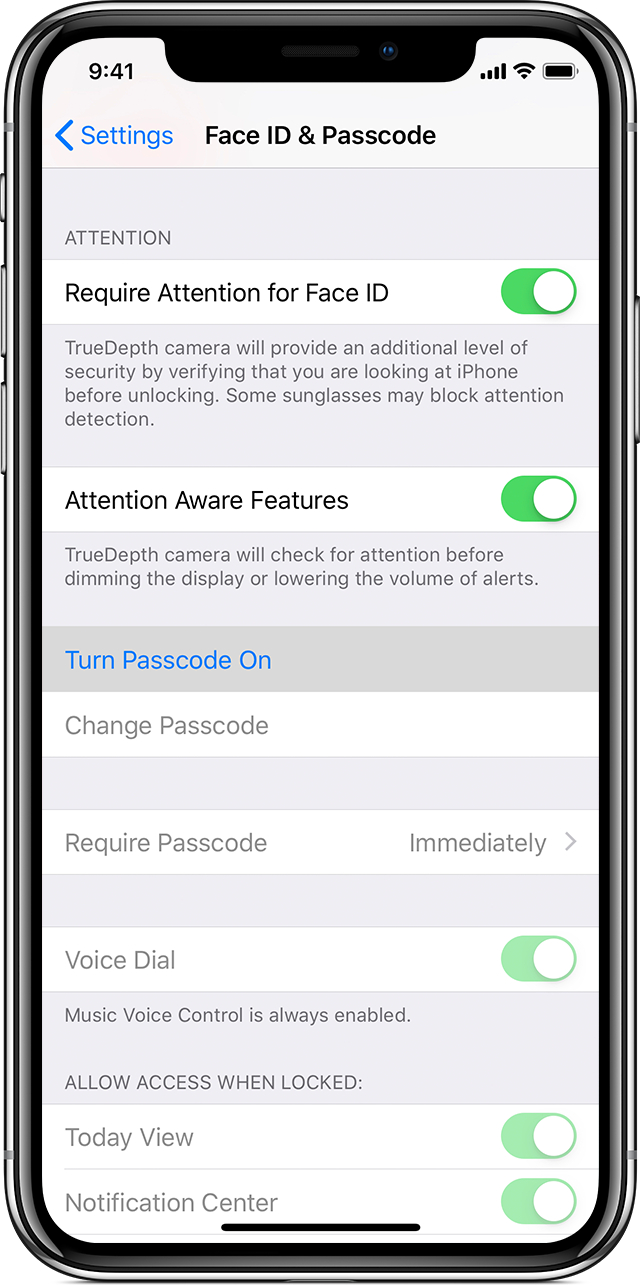
Set up a passcode
- On iPhone X and later, go to Settings > Face ID & Passcode. On earlier iPhone models, go to Touch ID & Passcode. On devices without Touch ID, go to Settings > Passcode.
- Tap Turn Passcode On.
- Enter a six-digit passcode. Or tap Passcode Options to switch to a four-digit numeric code, a custom numeric code, or a custom alphanumeric code.
- Enter your passcode again to confirm it and activate it.
On the other hand, If you forgot the passcode for your iPhone, iPad, or iPod touch, or your device is disabled, these steps will help:
The links above will show you how to continue depending on which method works best for you.If you enter the wrong passcode on an iOS device six times in a row, you'll be locked out and a message will say that your device is disabled. Learn what to do.
First, pick a way to erase your device
Unless you made a backup before you forgot your passcode, there isn't a way to save your device's data. You'll need to erase your device, which deletes all of your data and settings. Choose a way to erase your device so you can remove your passcode:
- If you've synced with iTunes, use iTunes.
- If you can't sync or connect with iTunes, use recovery mode.
Hi j-ann,
Thanks for the post in Apple Support Communities. From your message, I see you're being prompted to enter a passcode.
To clarify, what action are you taking when you see the passcode prompt? Are you still setting up the new iPhone, or have you already set it up? If you've just set up the new iPhone from an iTunes or iCloud backup, you may want to try entering the passcode you used on your previous phone.
In general, this is a great resource that will help you to Use a passcode with your iPhone, iPad, or iPod touch. If you have yet to set up a passcode, try:
Set up a passcode
- On iPhone X and later, go to Settings > Face ID & Passcode. On earlier iPhone models, go to Touch ID & Passcode. On devices without Touch ID, go to Settings > Passcode.
- Tap Turn Passcode On.
- Enter a six-digit passcode. Or tap Passcode Options to switch to a four-digit numeric code, a custom numeric code, or a custom alphanumeric code.
- Enter your passcode again to confirm it and activate it.
On the other hand, If you forgot the passcode for your iPhone, iPad, or iPod touch, or your device is disabled, these steps will help:
The links above will show you how to continue depending on which method works best for you.If you enter the wrong passcode on an iOS device six times in a row, you'll be locked out and a message will say that your device is disabled. Learn what to do.
First, pick a way to erase your device
Unless you made a backup before you forgot your passcode, there isn't a way to save your device's data. You'll need to erase your device, which deletes all of your data and settings. Choose a way to erase your device so you can remove your passcode:
- If you've synced with iTunes, use iTunes.
- If you can't sync or connect with iTunes, use recovery mode.
Confirm iPhone Passcode