How can I download icloud backup info to my new phone
how can I down load icloud info to my new iphone?
iPhone 8, iOS 12.0.1
how can I down load icloud info to my new iphone?
iPhone 8, iOS 12.0.1
Transfer content from your previous iOS device to your new iPhone, iPad, or iPod touchUse Quick Start
You can use an iPhone or iPad that's already running iOS 11 or later to automatically set up a new device. This process occupies both devices, so make sure that you choose a time when you won't need to use your current device for several minutes.
Transfer your SIM card or contact your carrier
If your new device needs a SIM card, here's what you need to do:
- If your carrier gave you a new SIM card, put it in your new device.
- If your new device uses the same kind of SIM card as your previous device, transfer the SIM card to your new device.
- If your new device needs a different kind of SIM card than what you have, or if you aren't sure, contact your carrier.
Bring the two devices close together to begin
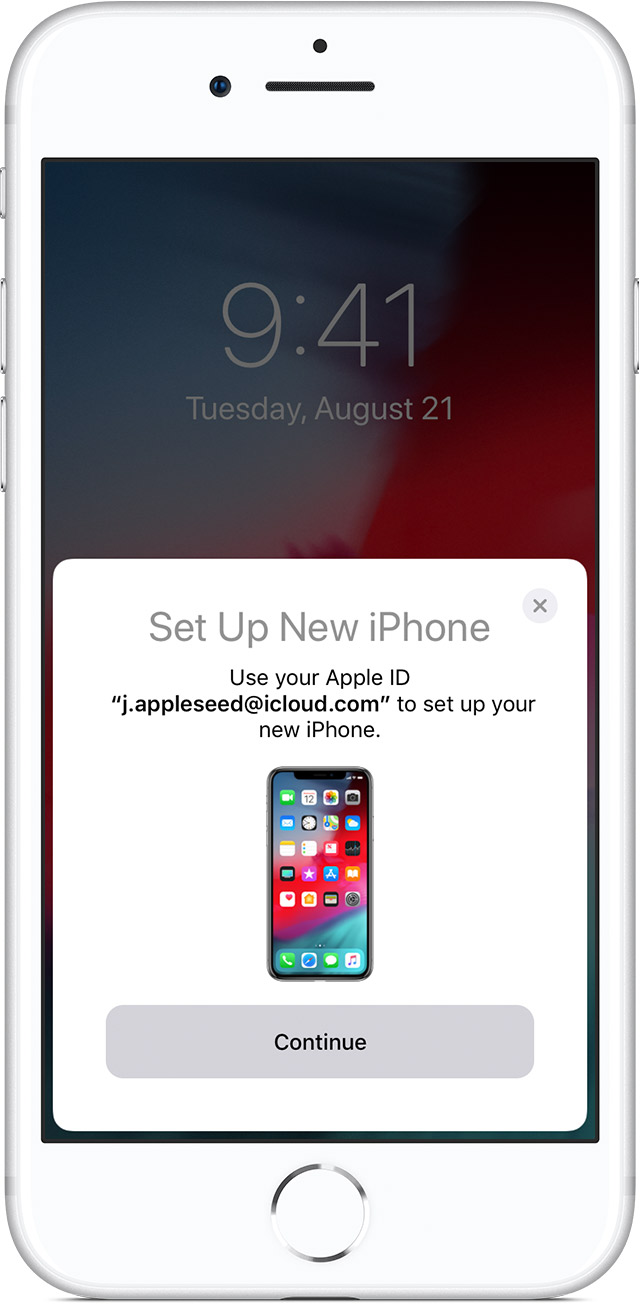
- Turn on your new device and place it near your current device running iOS 11 or later. The Quick Start screen appears on your current device and offers the option of using your Apple ID to set up your new device. Make sure that it's the Apple ID that you want to use, then tap Continue. If you don't see the option to continue on your current device, make sure that Bluetooth is turned on.
- Wait for an animation to appear on your new device. Hold your current device over the new device, then center the animation in the viewfinder. Wait for a message that says Finish on New [Device]. If you can't use your current device's camera, tap Authenticate Manually, then follow the steps that appear.
- When prompted, enter your current device's passcode on the device that you're setting up.
- Follow the instructions to set up Face ID or Touch ID on your new device.
- When prompted, enter your Apple ID password on your new device. If you have multiple devices, you might also need to enter their passcodes.
- Your new device offers the choice of restoring apps, data, and settings from your most recent iCloud backup, or updating your current device's backup and then restoring. After you select a backup, you can choose whether to transfer some settings related to location, privacy, Apple Pay, and Siri. If you want to update the backup on your device, make sure that Wi-Fi is enabled on your device.
- If you have an Apple Watch and you're setting up a new iPhone, you'll also be asked if you'd like to transfer your Apple Watch data and settings.
Finish up
- Keep the two devices close to each other while your information, settings, and passwords are transferred.
- If possible, keep your new device connected to Wi-Fi and plugged into power after setup. This allows content like your photos, music, and apps stored in iCloud to automatically download to your device.
Use iCloud
Use the steps in this section to back up your previous device in iCloud and to transfer the backup to your new device.
Make an iCloud backup
- Connect your previous device to the Internet with Wi-Fi.
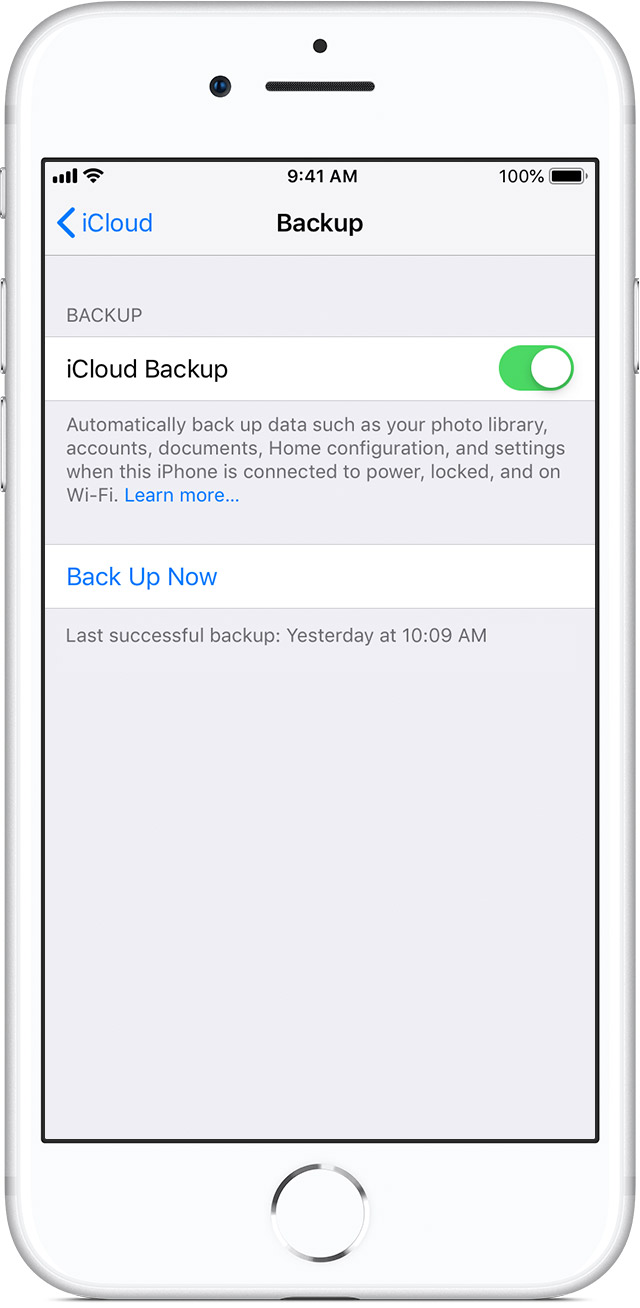
- Go to Settings > [your name] > iCloud > iCloud Backup.
- Make sure that iCloud Backup is turned on.
- Tap Back Up Now.
- Stay connected to Wi-Fi until the process finishes.
Transfer your SIM card or contact your carrier
If your new device needs a SIM card, here's what you need to do:
- If your carrier gave you a new SIM card, put it in your new device.
- If your new device uses the same kind of SIM card as your previous device, transfer the SIM card to your new device.
- If your new device needs a different kind of SIM card than what you have, or if you aren't sure, contact your carrier.
Then use the steps below to transfer your iCloud backup to your new device.
Transfer your iCloud backup to your new device
- Turn on your new device. A "Hello" screen should appear. If you've already set up your new device, you need to erase it before you can use these steps.*
- Follow the steps until you see the Wi-Fi screen.
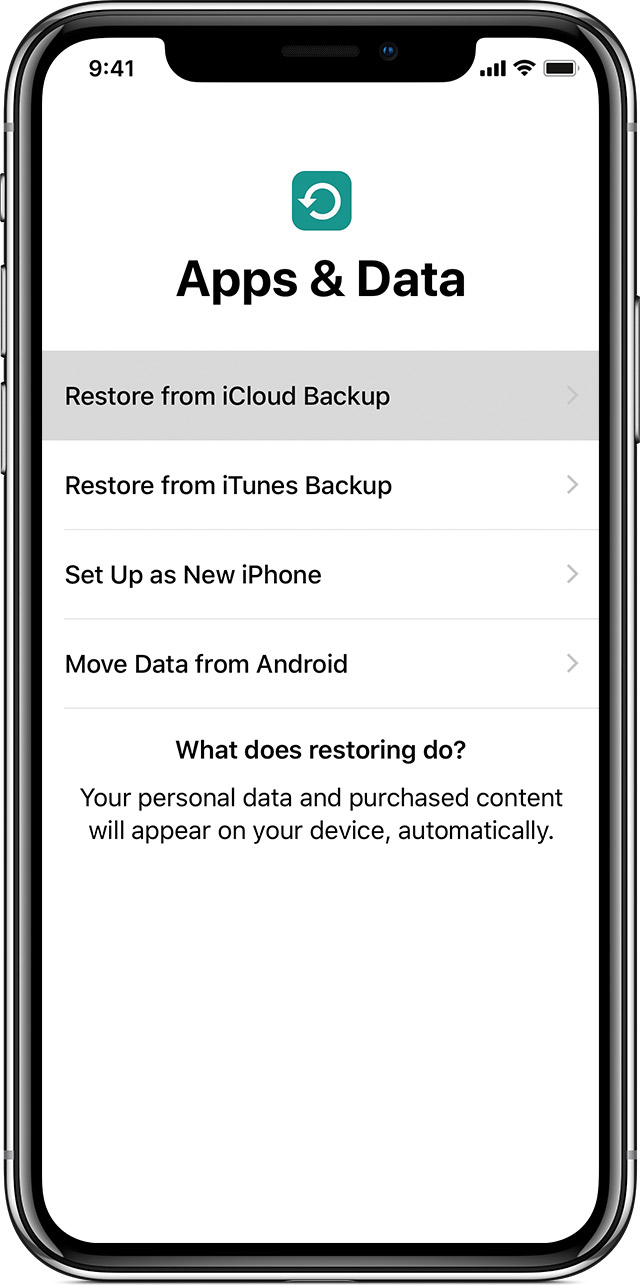
- Tap a Wi-Fi network to join. Follow the steps until you see the Apps & Data screen, then tap Restore from iCloud Backup.
- Sign in to iCloud with your Apple ID and password.
- When asked, choose a backup. Make sure that it's the correct one by checking the date and size of each. If asked to update to a newer version of iOS, learn what to do.
- If you purchased iTunes or App Store content using multiple Apple IDs, you're asked to sign in to each. If you can’t remember the passwords, you can skip this step by tapping "Don't have an Apple ID or forgot it."
- Stay connected and wait for the restore process to finish, then complete the rest of the onscreen setup steps. If possible, keep your device connected to Wi-Fi and plugged into power after setup. This allows content like your photos, music, and apps stored in iCloud to automatically download back to your device.
* To erase your device, tap Settings > General > Reset > Erase All Content and Settings. This erases all data on your device. After you erase it, your device restarts and the "Hello" screen appears.
Finish up
Learn how to restore your Apple Watch from a backup and pair it with your new iPhone. Or if you normally use iTunes to sync content to your iOS device, connect your device to your computer and use iTunes to sync the additional content.
Transfer content from your previous iOS device to your new iPhone, iPad, or iPod touchUse Quick Start
You can use an iPhone or iPad that's already running iOS 11 or later to automatically set up a new device. This process occupies both devices, so make sure that you choose a time when you won't need to use your current device for several minutes.
Transfer your SIM card or contact your carrier
If your new device needs a SIM card, here's what you need to do:
- If your carrier gave you a new SIM card, put it in your new device.
- If your new device uses the same kind of SIM card as your previous device, transfer the SIM card to your new device.
- If your new device needs a different kind of SIM card than what you have, or if you aren't sure, contact your carrier.
Bring the two devices close together to begin
- Turn on your new device and place it near your current device running iOS 11 or later. The Quick Start screen appears on your current device and offers the option of using your Apple ID to set up your new device. Make sure that it's the Apple ID that you want to use, then tap Continue. If you don't see the option to continue on your current device, make sure that Bluetooth is turned on.
- Wait for an animation to appear on your new device. Hold your current device over the new device, then center the animation in the viewfinder. Wait for a message that says Finish on New [Device]. If you can't use your current device's camera, tap Authenticate Manually, then follow the steps that appear.
- When prompted, enter your current device's passcode on the device that you're setting up.
- Follow the instructions to set up Face ID or Touch ID on your new device.
- When prompted, enter your Apple ID password on your new device. If you have multiple devices, you might also need to enter their passcodes.
- Your new device offers the choice of restoring apps, data, and settings from your most recent iCloud backup, or updating your current device's backup and then restoring. After you select a backup, you can choose whether to transfer some settings related to location, privacy, Apple Pay, and Siri. If you want to update the backup on your device, make sure that Wi-Fi is enabled on your device.
- If you have an Apple Watch and you're setting up a new iPhone, you'll also be asked if you'd like to transfer your Apple Watch data and settings.
Finish up
- Keep the two devices close to each other while your information, settings, and passwords are transferred.
- If possible, keep your new device connected to Wi-Fi and plugged into power after setup. This allows content like your photos, music, and apps stored in iCloud to automatically download to your device.
Use iCloud
Use the steps in this section to back up your previous device in iCloud and to transfer the backup to your new device.
Make an iCloud backup
- Connect your previous device to the Internet with Wi-Fi.
- Go to Settings > [your name] > iCloud > iCloud Backup.
- Make sure that iCloud Backup is turned on.
- Tap Back Up Now.
- Stay connected to Wi-Fi until the process finishes.
Transfer your SIM card or contact your carrier
If your new device needs a SIM card, here's what you need to do:
- If your carrier gave you a new SIM card, put it in your new device.
- If your new device uses the same kind of SIM card as your previous device, transfer the SIM card to your new device.
- If your new device needs a different kind of SIM card than what you have, or if you aren't sure, contact your carrier.
Then use the steps below to transfer your iCloud backup to your new device.
Transfer your iCloud backup to your new device
- Turn on your new device. A "Hello" screen should appear. If you've already set up your new device, you need to erase it before you can use these steps.*
- Follow the steps until you see the Wi-Fi screen.
- Tap a Wi-Fi network to join. Follow the steps until you see the Apps & Data screen, then tap Restore from iCloud Backup.
- Sign in to iCloud with your Apple ID and password.
- When asked, choose a backup. Make sure that it's the correct one by checking the date and size of each. If asked to update to a newer version of iOS, learn what to do.
- If you purchased iTunes or App Store content using multiple Apple IDs, you're asked to sign in to each. If you can’t remember the passwords, you can skip this step by tapping "Don't have an Apple ID or forgot it."
- Stay connected and wait for the restore process to finish, then complete the rest of the onscreen setup steps. If possible, keep your device connected to Wi-Fi and plugged into power after setup. This allows content like your photos, music, and apps stored in iCloud to automatically download back to your device.
* To erase your device, tap Settings > General > Reset > Erase All Content and Settings. This erases all data on your device. After you erase it, your device restarts and the "Hello" screen appears.
Finish up
Learn how to restore your Apple Watch from a backup and pair it with your new iPhone. Or if you normally use iTunes to sync content to your iOS device, connect your device to your computer and use iTunes to sync the additional content.
How can I download icloud backup info to my new phone